CHAPTER 17 OF 54 · SHAPE THE SOUND
Wavetables
The Wavetable generator plays a wavetable: a set of single-cycle waves. Position picks the point in the table, so turning or modulating it moves the tone from one wave to the next. INK has 8 factory banks of 8 waves, and your library keeps up to 200 imported tables of 2 to 128 waves.
Like Supersaw and Pulse, the generator runs four oscillators per voice, two per stereo channel. The rest of the voice is in Oscillators.
 123
123- 1Generator box
- 2Bank box
- 3Position
#Generator and Position
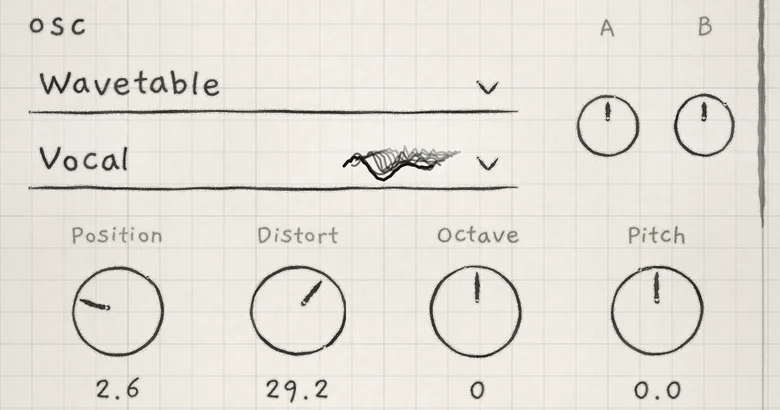
Choose Wavetable in the generator box (1) at the top of OSC on the Sound tab. Under it, the bank box (2) names the table the sound plays and, when the box is wide enough, draws its waves. Tap the bank box to open the Wavetables list.
- Bank boxThe table the sound plays: a factory bank or one of yours. Tap to open the Wavetables list. Init: Basic.
- PositionPoint in the table, first wave to last. 1.0 to 8.0. Init: 5.1. CC 13.
Position (3) crossfades between adjacent waves. On a factory bank each whole number is one wave. On an imported table the display also reads 1.0 to 8.0 and spans all of the table's waves: on a 64-wave table, one unit moves 9 waves.
To move through the table while a note plays, modulate Position in the Matrix; its row there is Position. Modulation adds to the base value and can reach every wave of the table (Modulation matrix).
Position shares its stored value with the other generators' tone control, so the Init sound, a Supersaw sound, reads 5.1 when switched to Wavetable (Tone control).
The table and Position are saved with the sound. Choosing another table is an edit: the sound name shows * until you save.
#Factory banks
Each bank holds 8 waves, ordered from darkest to brightest: Position 1.0 plays the darkest wave of the bank, 8.0 the brightest.
| Bank | Waves 1 to 8 |
|---|---|
| Basic | Sine, triangle, soft square, square, saw, pulse, thin pulse, needle pulse |
| Organ | Electric organ tones: flute stop, soft drawbar, mellow organ, reed organ, full drawbar, bright organ, click organ, percussive organ |
| Acoustic | Single cycles of real instruments: clarinet, soft oboe, sax breath, sax, sax buzz, sax bite, oboe, cello bow |
| Vocal | Voice cycles: hum, soft, round, open, reedy, formant, buzz, bright |
| FM | Frequency-modulation tones: soft FM, warm FM, round bell, glass bell, tine, metal bell, clang, harsh FM |
| Chip | Low-bit tones: 4-bit sine, stepped sine, step square, 8-bit saw, bit saw, chip pulse, thin chip, chip spike |
| Fold | A sine through INK's wavefolder: soft, gentle, fold, deep, double, multi, dense, max fold |
| Grain | Pitched noisy cycles: dusty sine, grit, sand, gravel, static, crackle, rubble, storm |
#The Wavetables list
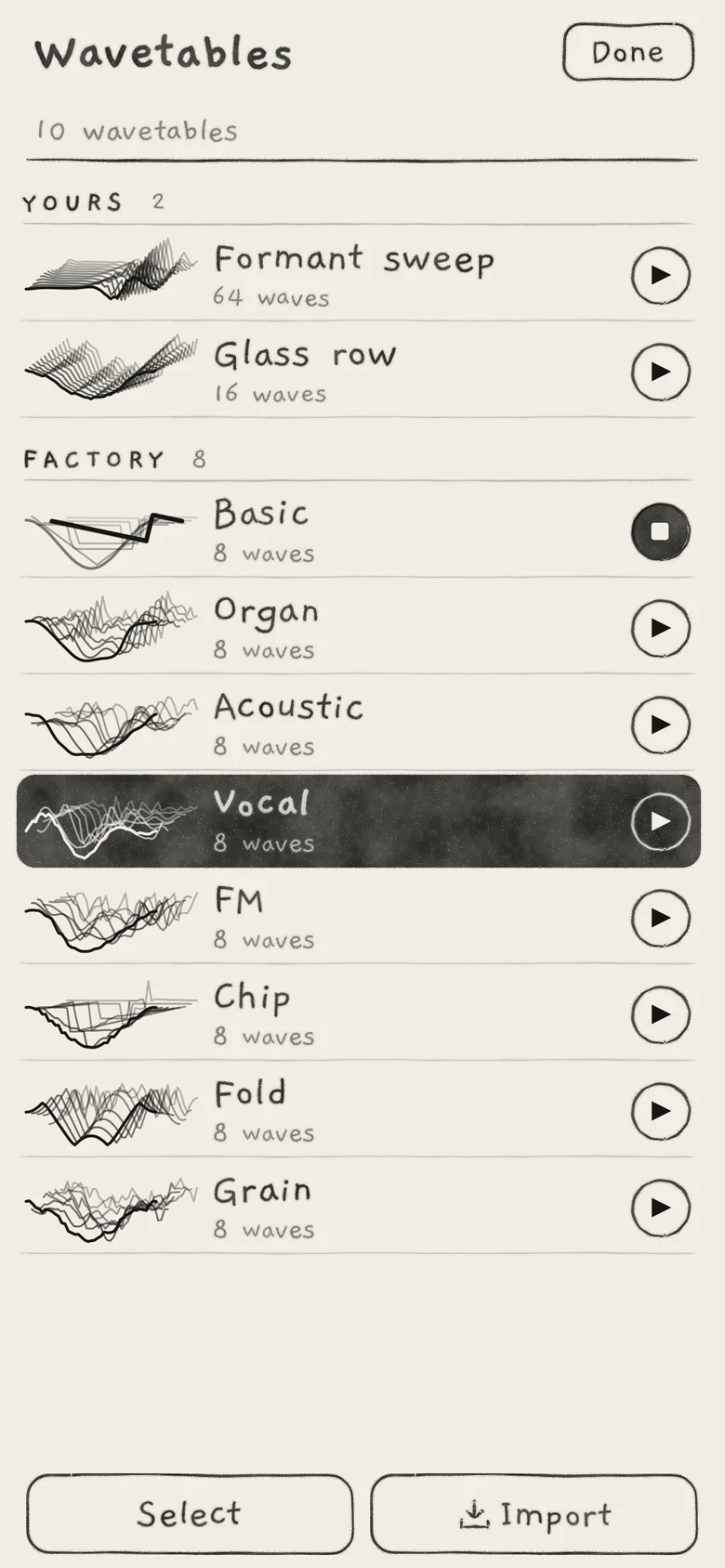
The bank box opens the Wavetables list, a full-screen sheet for the focused engine. It holds every table you can choose, and is where you audition, rename, delete and import them.
 123456
- 1Done
- 2Number of tables
- 3Section heading
- 4Drawing, wave being played
- 5Play, here Stop
- 6Table the sound plays
- Done (1) closes the list.
- The line under the title (2) gives the number of tables, the 8 factory banks included.
- YOURS lists your imported tables, oldest first; it appears once you have one. FACTORY lists the 8 banks. Each section heading (3) carries its count.
- Each row draws the table's waves stacked back to front, then gives its name and number of waves. Play (triangle in a ring) sits at the right. On iPad each table is a tile.
- The table the sound plays is filled in ink (6). Tap a row to choose that table for the sound; the list closes.
- A table appears once, however many sounds use it. Two tables with identical waves are one row.
The bar at the bottom holds Select and Import.
#Audition
Tap Play to hear the focused engine's sound playing that table, as the sound is now, unsaved edits included. The note plays on a separate audition engine. Engines 1 to 3 fade to silence while it plays, as during a Library audition (Sound library).
- The audition is one note at the key's root, between C3 and B3, held for up to 2 minutes.
- Position sweeps from the first wave to the last and back, 4 s each way. The drawing (4) marks the wave being played.
- While a row plays, its Play shows a square (5). Tap it to stop. Play on another row switches to that table. Done and choosing a table also stop the audition.
#Rename and Delete
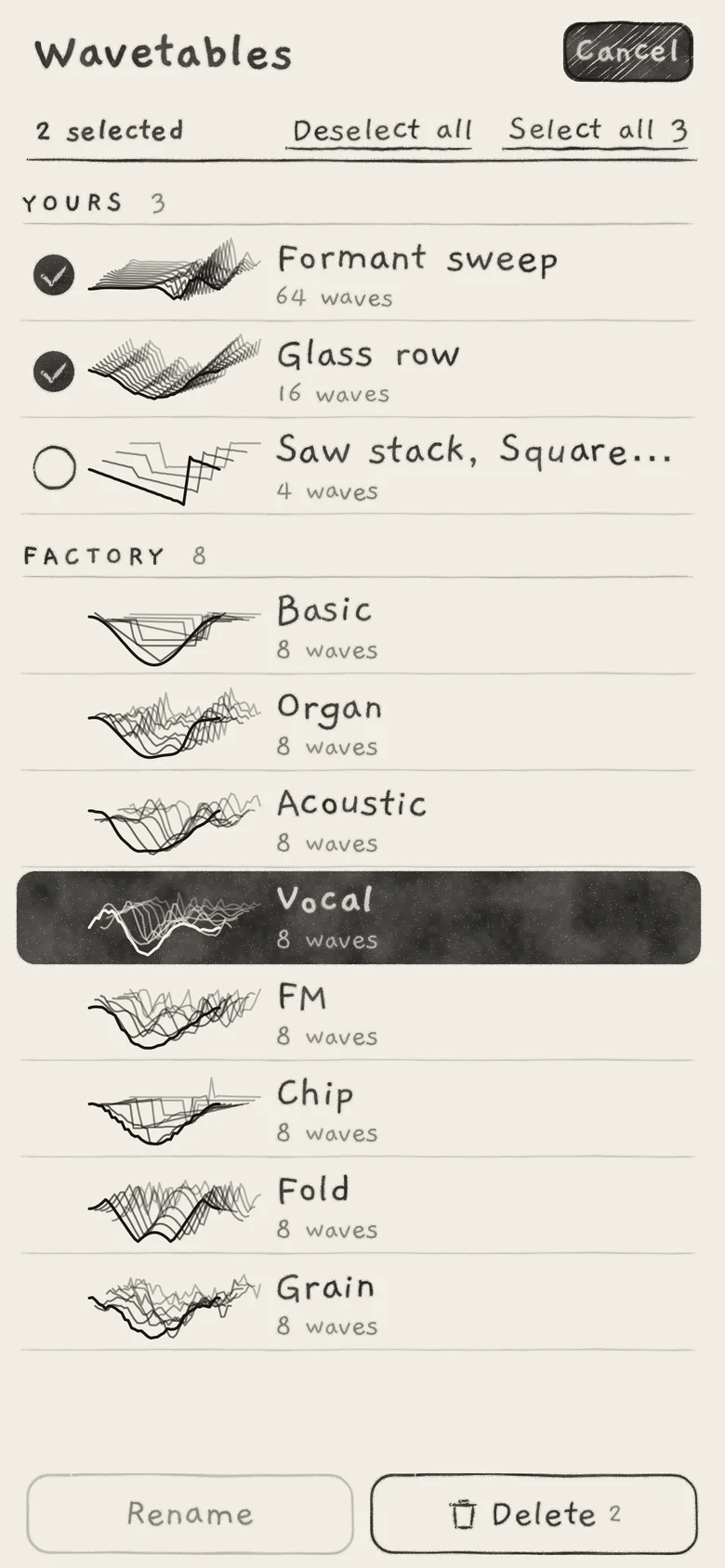
Tap Select to pick tables of yours. Your rows get a tick circle; factory rows have none and cannot be picked. Done becomes Cancel, and the line under the title shows "n selected". Select all, followed by the number of your tables, ticks them all; Deselect all clears the ticks. The bar changes to Rename and Delete.
 1234
1234- 1Tick
- 2Factory rows, no tick
- 3Rename
- 4Delete with count
- Rename works on exactly one ticked table and is greyed otherwise. It opens a card with the name; Rename stores the new name, Cancel keeps the old one. A name already in use gets a number (" 2"). If the rename fails, the list shows "The wavetable could not be renamed".
- Delete carries the number of ticked tables and asks once: "Delete name?" or "Delete n wavetables?". When saved sounds in your library use the tables, the line under it says how many ("3 sounds use them"). Confirm with Delete.
#Import wavetables
Tap Import in the list. The Files picker takes WAV and AIFF files and folders.
- One table per file, named after the file. A name already in use gets a number.
- A folder: every WAV and AIFF file in it, subfolders included, becomes its own table. Other files are listed under LEFT OUT.
- Several single cycles picked together as files, not as a folder, make one table, one wave per file. Its name is the file names joined by commas, in wave order. When any picked file is not a single cycle, each file becomes its own table.
- Mono, or the left channel of a stereo file. Any sample rate; 8- to 32-bit integer or 32-bit float.
- A table identical to one in your library is not stored again.
- Your library holds 200 wavetables.
#Frames
Each file is cut into frames, one cycle each:
- A WAV file that states its frame size uses it. Serum and Vital (
clmchunk) and Surge (srgechunk) write it into their files. AIFF files always follow the rules below. - Otherwise a file of at most 8,192 samples is one cycle.
- A longer file is cut into 2,048-sample frames when its length divides evenly, else into 1,024, 512 or 256.
- When every frame holds two cycles, the frame size is halved, down to 32 samples.
A length that fits none of these is not a wavetable. Up to 128 frames are kept, spread evenly, first and last included. A single cycle becomes a table of two identical waves, so Position has no effect on it.
INK levels each table as a whole to the factory banks' level. Frames keep their relative levels and phases.
#Result card
 123456
- 1Title, folder under it
- 2CAME IN
- 3ALREADY HERE
- 4LEFT OUT with reason
- 5Undo
- 6Done
While files are read, an Importing card shows what was picked, with Cancel. Cancel takes back what the import stored so far.
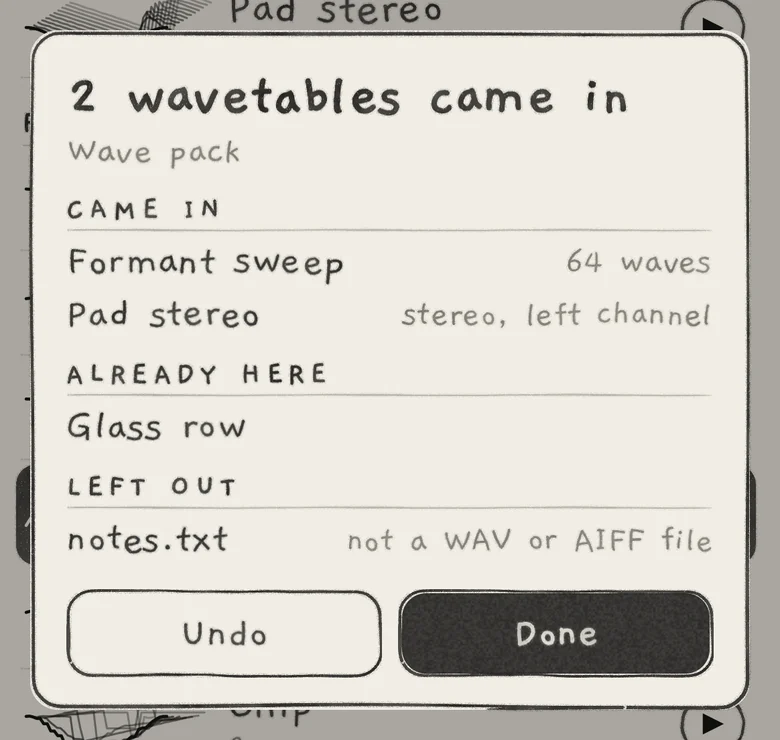
The result card is titled "n wavetables came in", or "Nothing new". Under the title it names what was picked: the file or folder, or the number of files.
| Heading | Lines |
|---|---|
| CAME IN | Each new table, with one note: "one cycle", "n frames, 128 kept", "stereo, left channel" or "n waves", the first that applies. |
| ALREADY HERE | Each picked table whose waves are already in your library, under that table's name. It is not stored again. |
| LEFT OUT | Each file that did not come in, with its reason. |
Undo removes every table this import stored. It is on the card only while the card is open. Done closes the card.
| Reason | Cause |
|---|---|
| Not a WAV or AIFF file | The file cannot be read as WAV or AIFF. In a folder, a file without a WAV or AIFF extension is listed as "not a WAV or AIFF file". |
| No audio in the file | Fewer than 2 samples. |
| Too long for a wavetable | More than 4,194,304 samples (about 87 s at 48 kHz). |
| The file is damaged | The audio could not be read. |
| Not a wavetable: n s of audio | No frame size fits the length. |
| Silent | The frames hold no signal. |
| the library holds 200 wavetables | Your library is full. Delete tables to make room. |
| could not be stored | The table could not be written to your library. |
When a single picked file fails, a "Can't import" card names it, gives the reason and "Nothing was changed.", with OK.
On a Mac: tables come in with sound and project files; the list has no Import.
#Sounds, projects and hosts
- A sound names its table; saving the sound saves that reference. Exported
.inksoundsand.inkprojectfiles carry the tables their sounds use. On import, a table already in your library is matched by its waves and not stored twice (Save and share sounds, Projects). - A sound whose table is missing plays the factory bank saved in it.
- A custom
wavetab.uf2in a Plinky import becomes one of your tables, 17 waves, named after the folder; the pack's Wavetable sounds play it. With the Plinky firmware's own wavetab, or none, they play Basic (Save and share sounds). - The app and the AUv3 share one library. A table imported, renamed or deleted in one shows in the other, also while its list is open. Import works in the AUv3 on iPhone and iPad.
- On the Sound tab, choose Wavetable in the generator box, then tap the bank box.
- Tap Import.
- In Files, select four single-cycle WAV files, then open them.
- The card lists one table under CAME IN, "4 waves"; its name lists the files in wave order. Tap Done.
- Tap the new row under YOURS. Position 1.0 plays the first file named, 8.0 the last.