CHAPTER 9 OF 54 · PLAY
Play the Grid
The Grid is a flexible arrangement of notes: 8 by 8 pads, every one in the engine's key (Keyboard, key and scale). Each column runs up the scale. Stride and Degree set how the columns relate, so the same surface can be laid out in fifths, fourths, octaves or any interval up to an octave. Choose it on the engine sheet › KEYBOARD.
#Where the layout comes from
The Grid comes from Plinky, the instrument INK grew out of. Plinky treats its pads as eight strings: each column is a string rising in scale steps, and neighbouring strings are usually tuned a fifth apart, as on a violin or a mandolin. Grid controllers such as Ableton Push use the same idea with fourths.
Two things follow. Every pad is in the key, so no pad plays a wrong note. And a finger shape, a chord or a run, can be moved to another place on the surface and still plays a similar figure.
#Layout
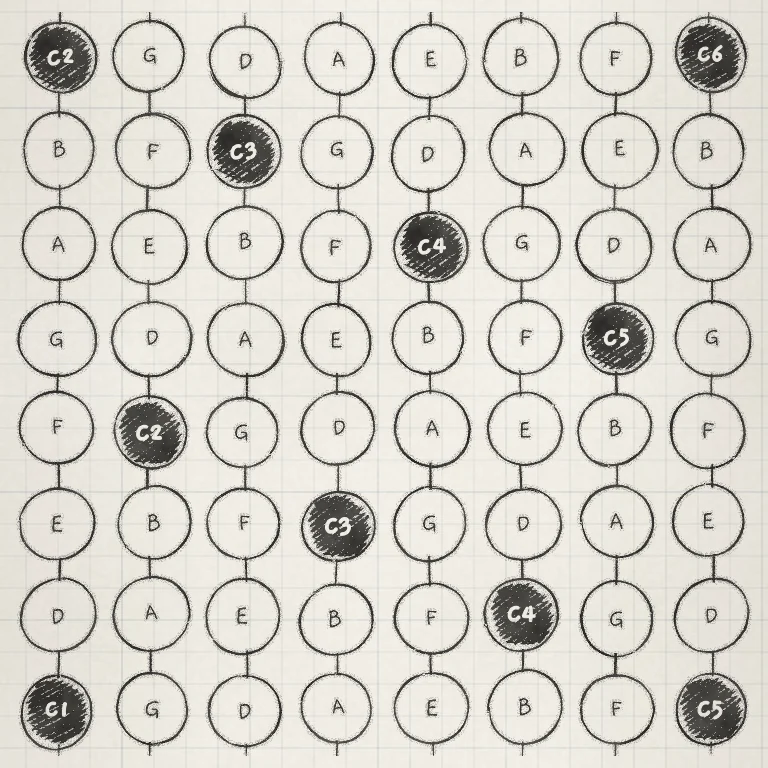 123
123- 1Root pad
- 2Column 2 starts on G
- 3Column 8
Each column has eight pads, one scale step apart, lowest at the bottom. Each column starts Stride semitones above the one to its left, moved onto the nearest note of the scale. With the Init sound in C major the bottom row reads C G D A E B F C: fifths, kept in key, so F stands in for F♯.
Each pad shows its note name. Root pads are dark and show the octave (C1, C2). A ~ after a name means the sound's Pitch is tuned between semitones; the name is the nearest note. Pads the sequencer is playing light up grey.
On a Mac the computer keyboard plays the Grid (Find your way).
#Stride, Degree and Microtone
The layout and pitch controls sit in the OSC section of the Sound tab.
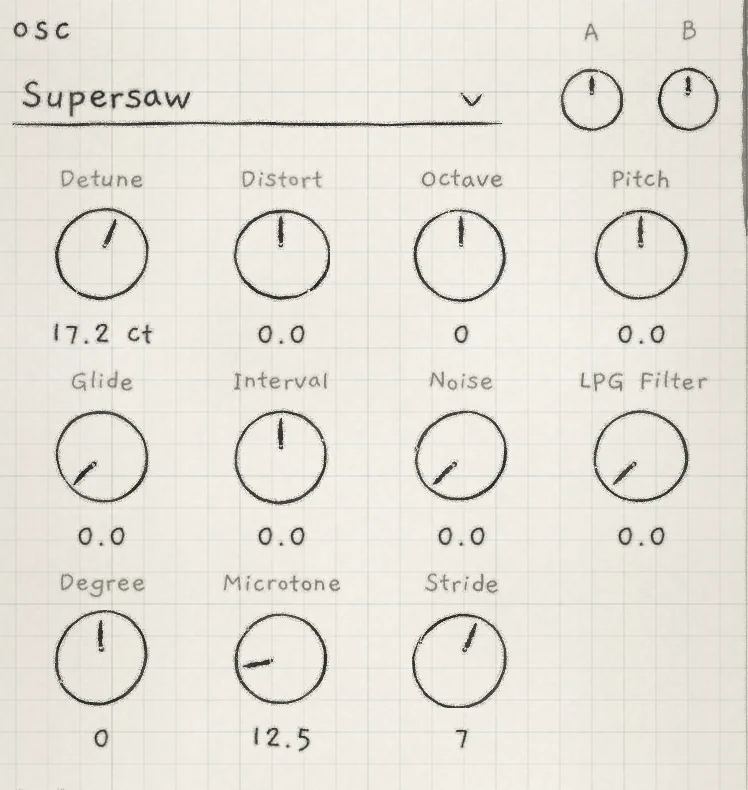 1234
1234- 1Glide
- 2Degree
- 3Microtone
- 4Stride
- StrideThe interval from one column to the next, kept in key. 0 to 12 semitones. Init: 7 (a fifth).
- DegreeMoves every pad up or down the scale by the same number of scale steps. Bipolar: negative values move down. −23 to +23. Init: 0.
- MicrotoneHow far a note bends when your finger moves off the centre of its pad. 0.0 to 100.0; at 100.0 the pad's edge is a semitone away. Init: 12.5.
- GlidePortamento between a voice's pitches. Init: 0.0. See Oscillators.
#Stride
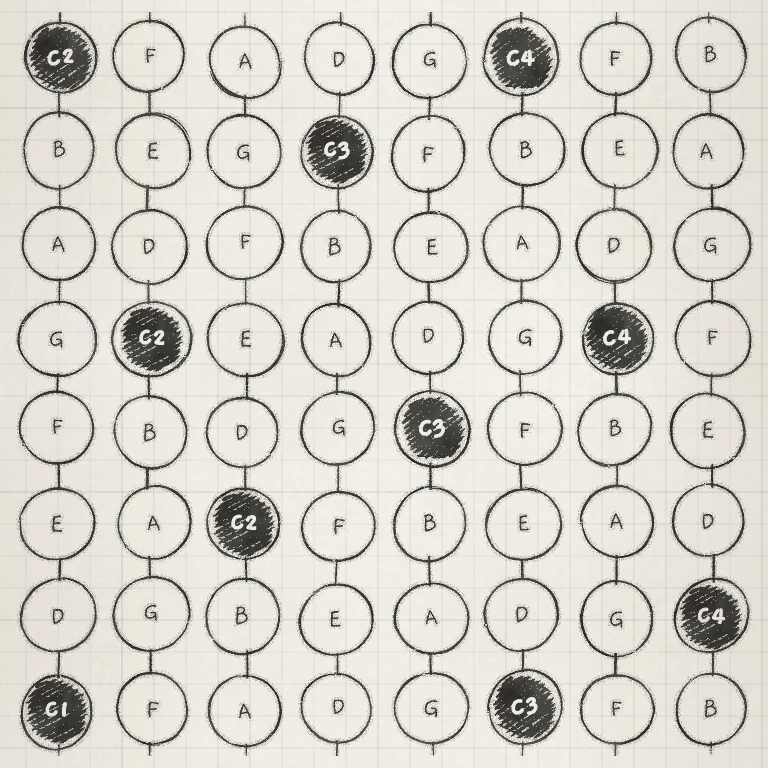
Stride sets what you get when you move one column to the right:
| Stride | Next column | Playing |
|---|---|---|
| 7 (Init) | a fifth up | Tuned like a violin or mandolin. Wide range under one hand. |
| 5 | a fourth up | Tuned like a bass guitar, or a Push in its default layout. Closer intervals, less range. |
| 12 | an octave up | Each column repeats the one before it, an octave higher. |
| 0 | the same notes | Eight identical columns. |
Every column start is moved into the key, so the interval is sometimes a semitone narrower or wider than Stride says. The F in the C major row above is one such case.
#Degree
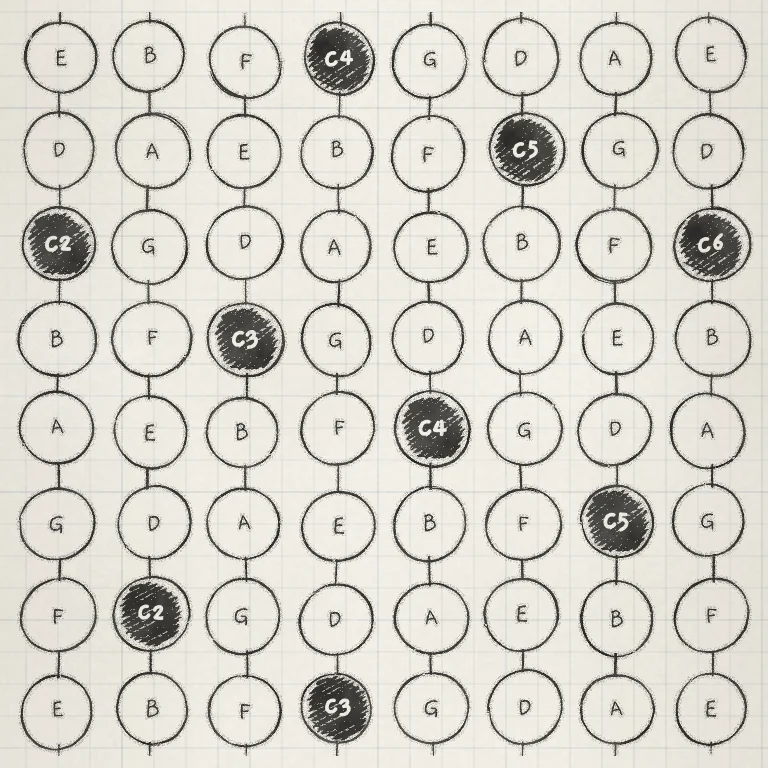
Degree moves every pad by the same number of scale steps, up for positive values and down for negative. At Degree 2 in C major the Grid starts on E: the same finger shapes now play from the third of the scale. Root and Scale stay as they are.
Scale steps differ in size, so Degree can change the intervals between columns. At Degree 2 the bottom row reads E B F C G D A E: between columns 2 and 3 the fifth G to D becomes the tritone B to F.
#Microtone
A pad's centre plays its note in tune. Move your finger above the centre and the note bends sharp; below it, flat. Microtone sets how far. At 0.0 a slide up a column steps from note to note. At 100.0 the bend reaches a semitone at the pad's edge, so a slide glides smoothly between notes a whole tone apart.
Microtone sets pitch from position; Glide sets how long a voice takes to reach a new pitch. The two combine.
Notes from MIDI have no position on a pad. On them Microtone detunes the voice's oscillators against each other instead, up to about a quarter semitone at 100.0. The Phase generator ignores it there.
#Greying, modulation and saving
On the Chords and Strings keyboards the Stride and Degree knobs are greyed. On Chords their Matrix rows play Voicing and Spread instead (Play Chords). On Strings their Matrix rows still move the strings as they move the Grid's columns (Play Strings).
Stride, Degree and Microtone each have a Matrix row of the same name, in the PITCH group. All three are saved with the sound. Stride and Degree also belong to a pattern's key: a pattern saved with a key stores Root, Scale, Stride and Degree and sets them when chosen (Edit and save patterns).
#Slide
A finger keeps its voice for the whole touch. Sliding up or down moves the voice through the pads of its column; sliding sideways moves it onto the new column's notes. Neither starts a new attack. Flattening the finger in place does not move the note.

#Pressure
Each voice has its own pressure (First ten minutes). On iPhone and iPad a touch gives pressure in two ways: how hard the finger strikes, read from the device's motion as it lands, and how far it flattens while held, read from its contact area.
Pressure sets the level each voice's amp envelope aims for. The amp envelope drives the low-pass gate, so pressure shapes level and brightness together. The amp envelope's Sensitivity sets how much pressure counts (Amp envelope). Further destinations are Prs cells in the Matrix (Modulation matrix).
#Touch page
Settings › PLAYING › Touch sets how a touch becomes pressure on the Grid, Keys and Chords, and on a Mac the pressure a click plays (Set up your playing).
#Hold
Hold latches notes so they sound after the finger lifts (First ten minutes). Each engine has its own.
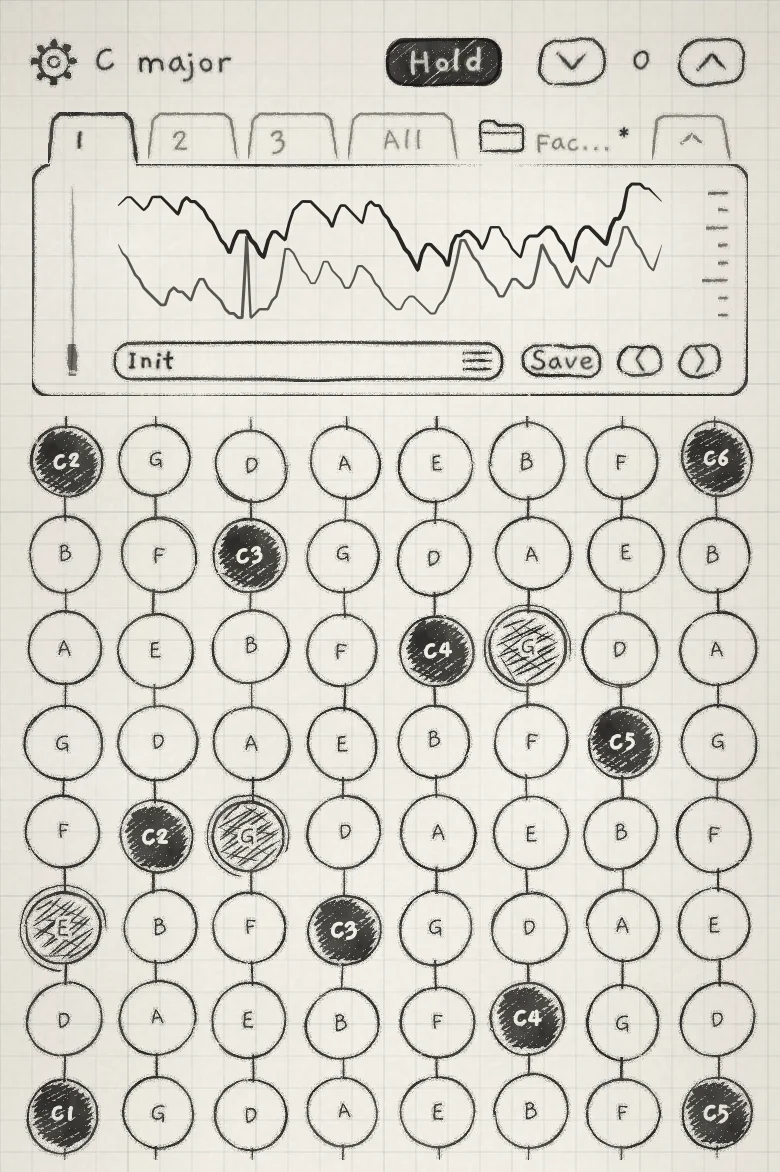 12
12- 1Hold
- 2Latched note
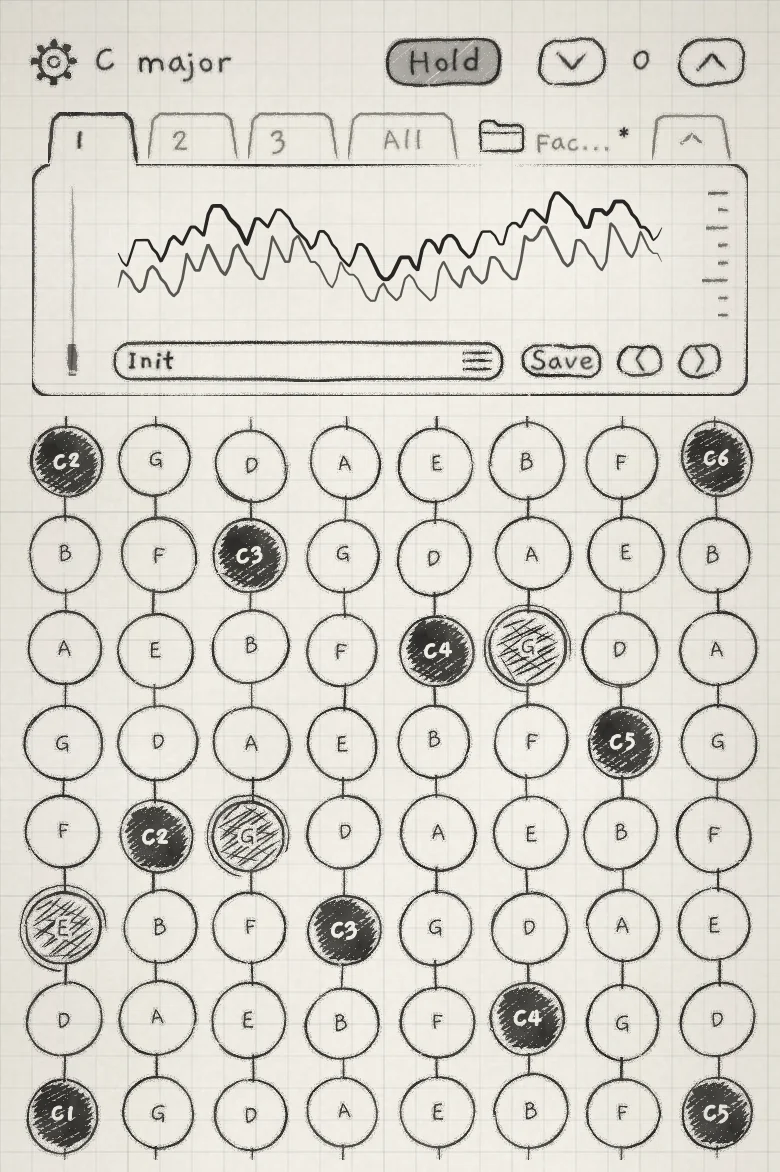 1
1- 1Hold, pale
| Action | Result |
|---|---|
| Tap Hold, play, lift | The note latches at the strongest pressure of the press. One note per column, 8 at most. |
| Press another pad in a column with a latched note (Hold on) | The latched note is released; the new note latches on lift. |
| Press a latched pad and keep the finger down | The finger plays that note's pressure live. On lift it stays latched at the lifting pressure. |
| Tap a latched pad quickly, without moving | That note is released, with Hold on or off. |
| Tap Hold off with notes latched | The notes keep sounding and new notes no longer latch. Hold is drawn pale until none remain. |
| Press in a latched note's column (Hold off) | The press borrows that voice. On lift the latched note sounds again. |
| Double-tap Hold | Hold turns off and every latched note of the engine is released. Tails ring out. |
| Choose another keyboard on the engine sheet | Every latched note is released and Hold turns off (Keyboard, key and scale). |
Hold is stored with the sound: Save records whether it is on, and choosing a sound sets Hold to the sound's state. Notes already latched keep sounding through a sound change. MIDI CC 69 switches Hold, 64 and above for on (MIDI implementation).
A project saved with Hold on keeps its latched notes, and they sound again when the project opens. Notes left latched with Hold off are not restored. Hold is never an undo step (Undo and redo).
Keys and Chords follow the same rules with their own differences (Play Keys, Play Chords). Strings does not latch; a double-tap on Hold stops its ringing strings (Play Strings).
- Tap Hold.
- Press the bottom pad of columns 1 and 2, then lift.
- Tap Hold off. It turns pale and the two notes keep sounding.
- Play a melody in columns 3 to 8.
- Press a pad in column 1: it takes the drone's voice. Lift, and the drone note returns.
- Double-tap Hold to release the drone.