CHAPTER 2 OF 54 · START HERE
Set up your playing
These settings decide how your hands reach the sound: each engine's playing surface, how a touch becomes pressure, and how a slide on Keys moves. They belong to the app, so loading a sound or a project leaves them as they are. Set them once, before the tour in First ten minutes.
#Choose a keyboard
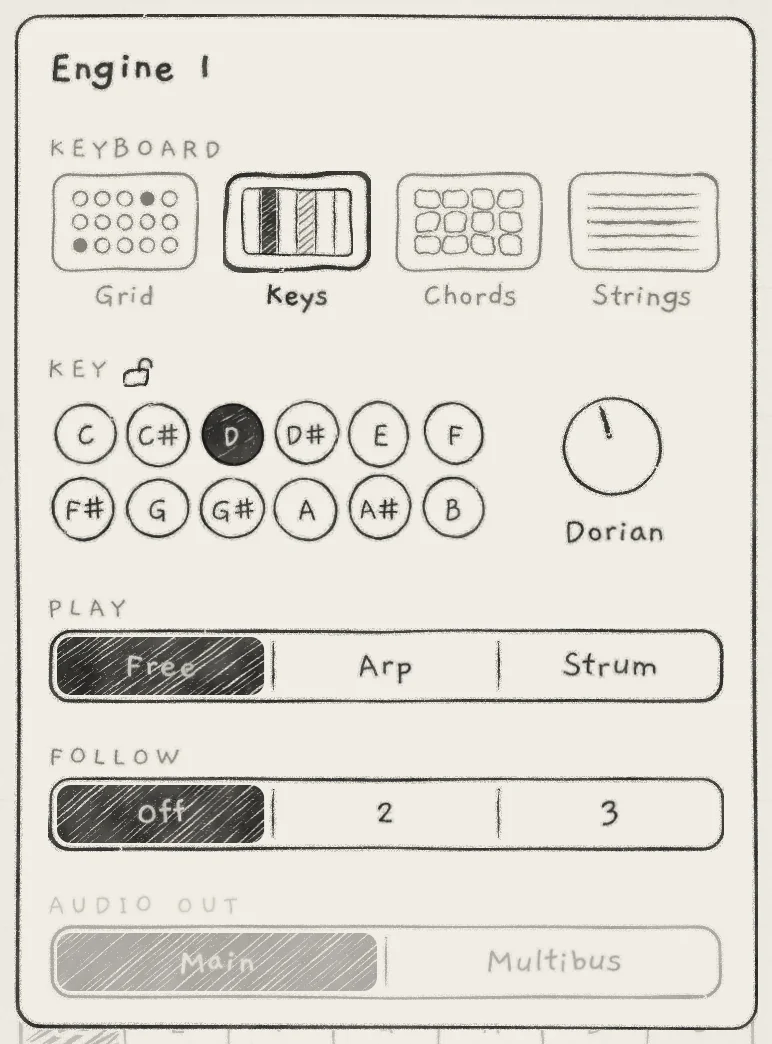 1234
1234- 1Grid
- 2Keys, chosen
- 3Chords
- 4Strings
Each engine plays from its own keyboard. Tap the key in the top row ("C major" on first launch) to open the engine sheet, then tap a drawing in its KEYBOARD row. The chosen keyboard has a heavier box and its name in bold.
- Grid8 by 8 pads in the key, each column rising in scale steps; a melody or chord shape plays a similar figure anywhere on the surface. Init on every engine (Play the Grid).
- KeysA continuous keyboard laid out like a piano, one key per scale note; pitch follows the finger sideways for slides and vibrato (Play Keys).
- ChordsOne touch plays a whole chord; the columns are the scale's degrees, the rows add notes and colour (Play Chords).
- StringsEight strings tuned to one chord, strummed like an Omnichord's strumplate; strum speed, not pressure, sets each pluck's level (Play Strings).
Engine 1 can play the Grid while Engine 2 plays Chords. Switching an engine's keyboard releases its notes latched with Hold and turns Hold off. The other rules of the switch are in Choose a keyboard.
#Touch
On iPhone and iPad a touch gives each note its pressure in two ways. The strike is read from the device's motion as the finger lands; the held press, from how far the fingertip flattens. Settings › PLAYING › Touch sets how both become pressure on the Grid, Keys and Chords, for every engine. Strings reads the speed of a strum instead and ignores these settings.
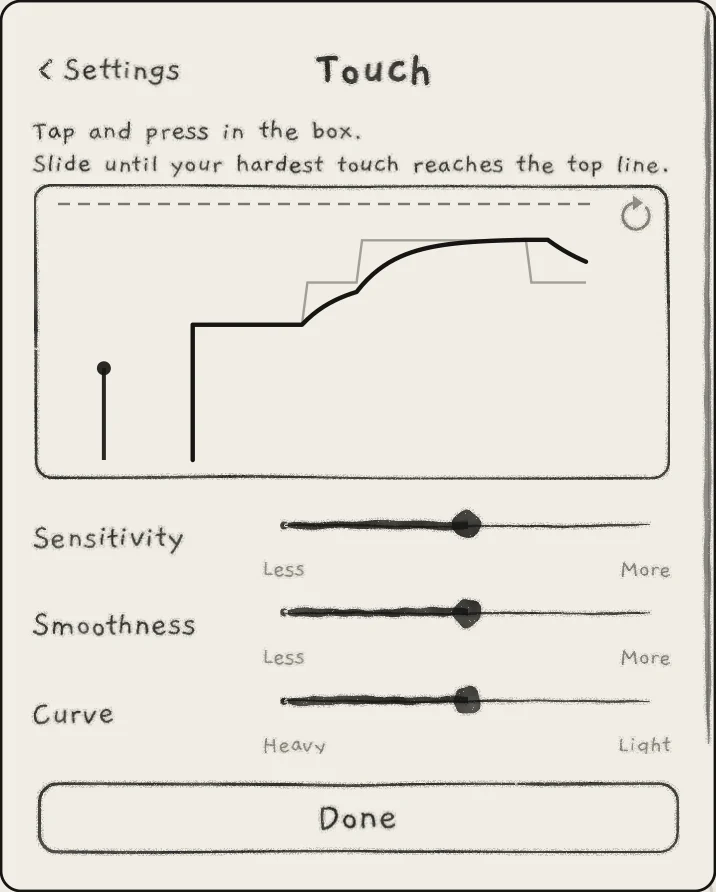 1234
1234- 1Top line
- 2Tap
- 3Held press
- 4Clear
The box at the top plays the engine on view and draws your recent touches. A tap draws a stem up to its strike. A held press draws a black line over time, with the contact-size steps iOS reports in grey behind it. The dashed line at the top is the most pressure INK plays. The circular arrow at the box's top right clears it.
Moving a slider redraws the touches already in the box, so one set of touches shows the effect of each setting.
- SensitivityHow hard a tap or press must be to reach the top line. Toward More, a lighter touch reaches it. Less to More. Default: the middle.
- SmoothnessHow a held press moves between the contact-size steps iOS reports. Toward Less it follows quickly in small steps; toward More it moves smoothly and more slowly. Default: the middle.
- CurveHow strength builds from soft to hard, on taps and presses. Toward Heavy, only a hard touch is strong; toward Light, a medium touch is already strong. Default: the middle.
The sliders show no number. Set them in this order, as the page's own lines suggest:
- Tap and press in the box as hard as you play.
- Move Sensitivity until your hardest touch reaches the top line.
- Tap softly, medium and hard. Move Curve toward Heavy if medium touches reach too high, toward Light if they stay too low.
- Hold a press and flatten the finger slowly. Move Smoothness toward More if the line climbs in steps, toward Less if it lags behind the finger.
The ENVELOPE section's Sensitivity knob is a different control, saved with the sound: it sets how much of this pressure counts (Amp envelope).
#Slide control
Slide control sets how pitch moves while a finger slides between keys on Keys, and where it lands when the finger stops. It applies to Keys only. Open Settings › PLAYING › Slide control; the first page of Settings shows the current choice beside the row.
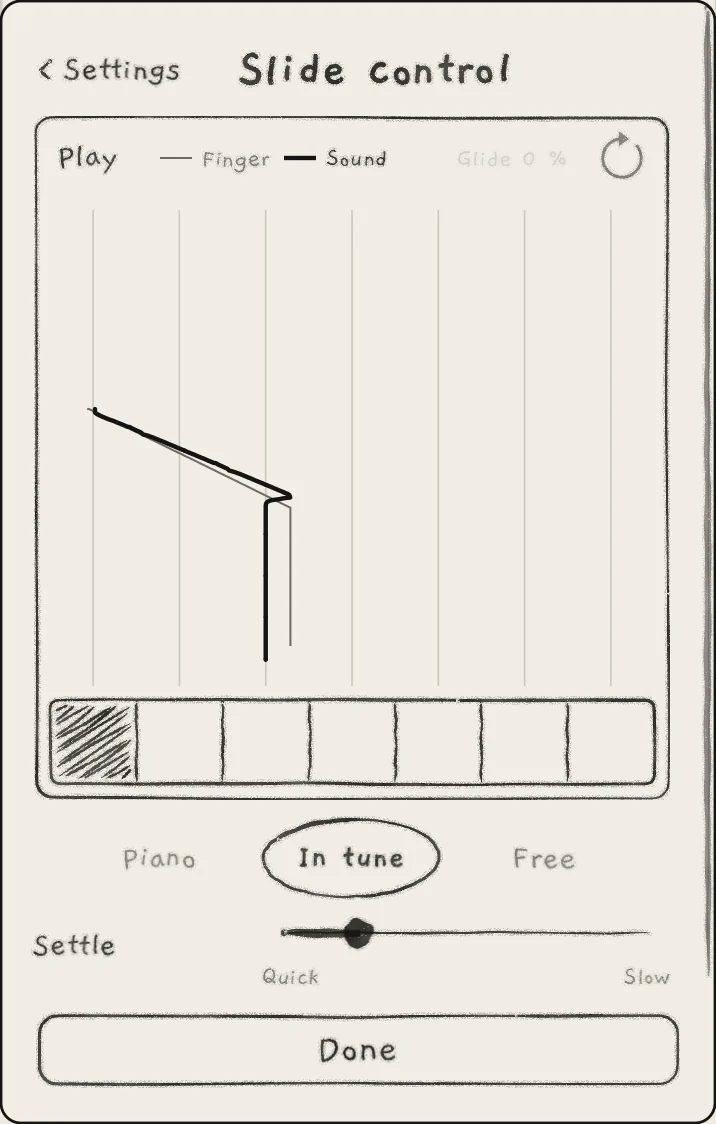 123456789
- 1Play
- 2Finger and Sound lines
- 3The sound's Glide
- 4Reset
- 5Keys of the box
- 6Piano
- 7In tune
- 8Free
- 9Settle
- PianoPitch steps from key to key, as on a piano. Each key the finger crosses ends the previous note and strikes its own on another voice; earlier notes ring out with their release.
- In tuneDefault. Pitch follows the finger; when the finger stops, the pitch moves onto the key's note over the Settle time.
- FreePitch follows the finger and stays where it stops, as on a fretless instrument. Once the finger has left its landing point, nothing returns it to the key's note.
- SettleUnder In tune only: the time from a stop to the key's note. Quick to Slow, 20 ms to 1 s; default 45 ms. The bar shows no number.
On In tune, settling starts as soon as the finger stops. Settle sets only how fast a stopped finger lands on the note; the pitch during a slide is the same at every value. How each choice treats vibrato, Hold and the sound's Glide on the keys is in Play Keys.
#Compare the choices in the box
The box at the top of the page records a one-finger slide and draws it, so one movement can be compared through each choice. It plays one octave of Engine 1's keys in Engine 1's key, on a copy of Engine 1's sound; Engine 1 itself is not changed. When Engine 1 plays a Tape-mode Granular sampler sound, a factory Lead plays instead, in the same key.
The newest movement draws at the bottom, above the keys, and scrolls up; the last 3 s of playing show. The thin pencil line, Finger, is the finger's position. The thick ink line, Sound, is the pitch the chosen setting produces. Choosing another setting redraws Sound for the same movement.
Play replays the recorded movement through the current setting; while it plays, the button reads Stop. Reset (circular arrow) clears the box. The pencil value at the top ("Glide 0 %") is the sound's Glide; change it on the Sound tab.
#On a Mac
Settings › PLAYING › Touch holds one slider, Mouse expression: the pressure a click or a drag plays on the Grid, Keys and Chords, 0 to 100 %, default 65 %. The computer keys A S D F G H J K play the Grid at the same pressure. The value is not kept: INK returns to 65 % each time its window opens. On Keys, a click's height on the key still moves its pressure, as a finger's does.
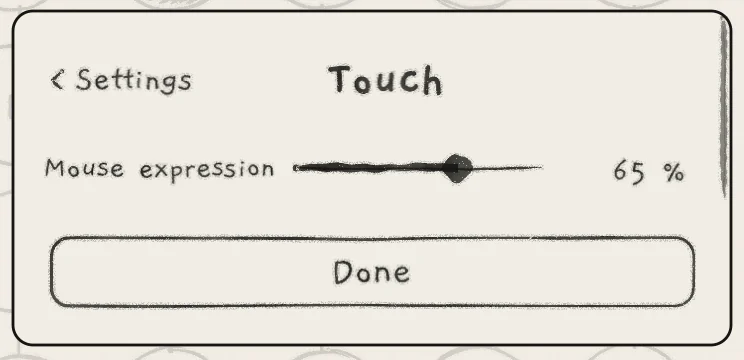 1
1- 1Mouse expression
Slide control works as on iPhone, but on a Mac it returns to In tune, with Settle at 45 ms, when INK quits.
#From a MIDI controller
A MIDI note takes its pressure from the controller, not from the Touch page. It starts at its velocity, then follows aftertouch or MPE Slide when they arrive. Velocity 127 equals INK's hardest tap at the default Touch settings. MIDI In is Off on every engine in a new project; turning it on, channels and MPE are covered in MIDI in.
#Where the settings are kept
| Setting | Kept |
|---|---|
| Keyboard | App, one per engine. In a host, each INK instance keeps its own in the host's session. |
| Sensitivity, Smoothness, Curve | App, on this device. On iPhone and iPad the app and the INK plug-ins share them. |
| Slide control, Settle | App. On iPhone and iPad the app and the INK plug-ins share them. On a Mac, reset when INK quits. |
| Mouse expression | Not kept: 65 % each time INK's window opens. |
| MIDI In | Project (Projects). |
None of these is saved in a sound. Undo and redo leave the app settings as they are (Undo and redo). Every setting's scope is listed in Settings and background audio.
- Open Settings › PLAYING › Slide control and choose In tune.
- In the box, press the first key, slide to the third and stop between its centre and the fourth key.
- Choose Free, then Piano, and tap Play after each.
- The Sound line settles onto the third key's note on In tune, stays where the finger stopped on Free, and steps key by key on Piano.