CHAPTER 10 OF 54 · PLAY
Play Keys
Keys is a continuous keyboard: one key per note of the engine's scale, laid out in rows like a piano. Pitch follows the finger sideways, and each note has its own pressure.
The idea comes from continuous MPE surfaces such as the Haken Continuum, where every note can slide, vibrate and swell on its own. Keys keeps that freedom but lays out only the notes of the engine's key, so a finger landing anywhere starts in key.
Choose Keys on the engine sheet › KEYBOARD (Choose a keyboard). The other keyboards are the Grid (Play the Grid), Chords (Play Chords) and Strings (Play Strings).
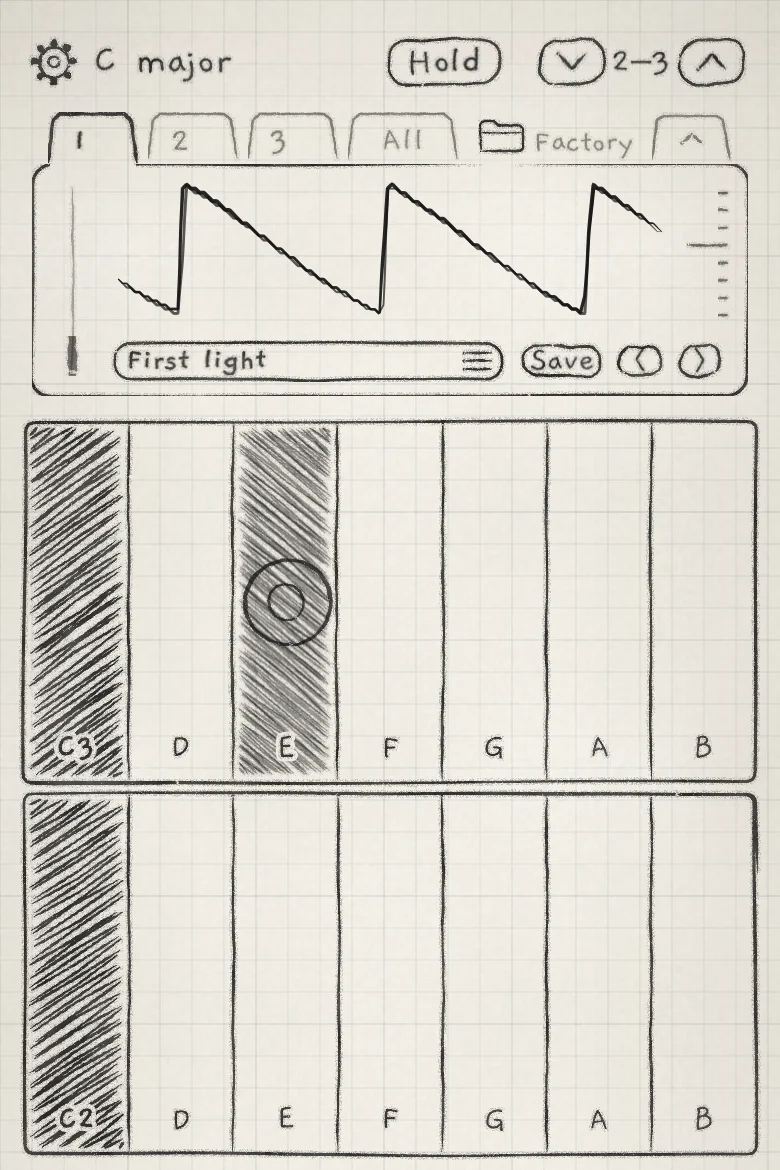 123
123- 1Octave arrows and range
- 2Root key
- 3Pressed key
#Layout
Each key is one note of the engine's scale, named at its foot. The root key is hatched and carries its octave number (C3). Keys whose nearest semitone is a black piano key have a grey hatch. A ~ after a name means the note sits between semitones; the name is the nearest note. Each row continues where the row below it ends.
| Where | Rows | Each row |
|---|---|---|
| Upright | 2 | 1 octave |
| On its side | 2 | 2 octaves |
| Half keyboard (Make room) | 1 | 1 octave, its notes named above it (C2–B2); lower and upper choose that octave or the one above |
| All page band (Mixer and All page) | 1 to 3 | 1 to 3 octaves, as many as keep the keys close to piano proportions |
A pressed key is hatched, darker with more pressure, with a ring under the finger. Held notes and notes the sequencer plays draw in grey.
The Octave arrows in the top row move the octaves the keybed shows; on Keys they do not transpose the sound. The range shown ("2–3") replaces the Octave number and is saved with the project (Octave).
#Slice zones
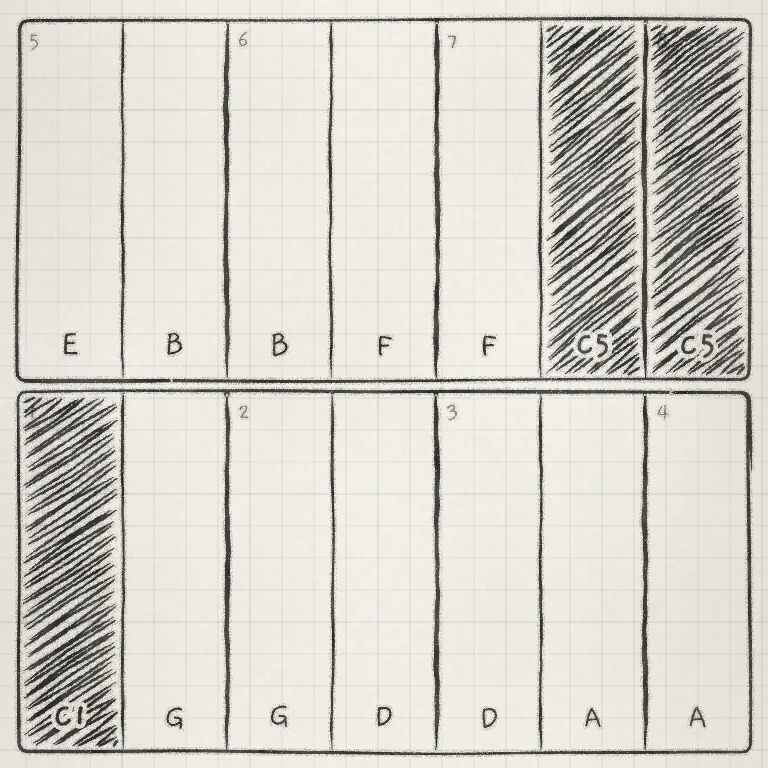
On a Granular sampler sound in Tape mode, the keys become eight slice zones, numbered at their top left, zone 1 at the bottom left. Within a zone, sliding bends the pitch between keys; crossing a zone edge moves the note to the next slice. Slide control does not apply to zones (Tape and Pitched).
 1
1- 1Slice number
#Pitch and pressure
Each finger plays its own note. Its sideways position sets the pitch; its height on the key and its touch set the pressure.

| Axis | Sets |
|---|---|
| Sideways | Pitch. Each key's centre plays its note; between centres the pitch follows the finger along the folded scale. How a slide moves and lands is set by Slide control. |
| Up the key, with touch | The note's pressure: Matrix source Prs, the same source the Grid's touch feeds. |
The landing sets the pressure from touch and height together; a press at the top of a key starts at the maximum. After the landing, sliding up raises the pressure toward the maximum at the top of the key, and sliding down lowers it toward the minimum at the bottom, even after a hard strike. Pressing harder or easing off adds on top.
Touch is read as on the Grid, through Settings › PLAYING › Touch (Touch). Microtone does not bend notes on Keys: each note plays at its key's centre, and the finger's position bends it through the folded scale instead (Microtone).
A finger that moves to another row takes its note there at once, at the same horizontal position: upright, an octave up or down. The pressure carries on from where it was.
On a Mac: a click plays at the pressure set by Mouse expression on the Touch page (On a Mac); its height on the key moves the pressure as a finger's does.
#Folded scale
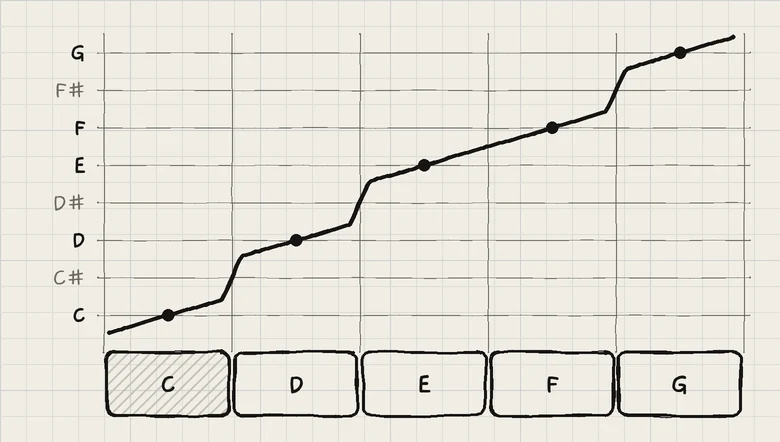
Keys maps finger position to pitch as a chromatic keyboard folded onto the scale. Past a row's end, the pitch continues into the scale's next notes on the following row.
 123
123- 1Key centre: the scale note
- 2Left-out note (C#) crossed at the edge
- 3E and F, a semitone apart, in one line
- Each key's centre plays its scale note exactly.
- Inside a key, the pitch follows the finger at one semitone per key width.
- Notes the scale leaves out between two keys are crossed quickly, in a narrow band at the key edge.
- Keys a semitone apart, such as E and F, join in one straight line.
So a slide from one key to the next passes every semitone between them, and most of each key's width stays close to its own note.
A slide changes key at the key's edge. A resting finger, a vibrato or a finger pressing harder changes key only a little past the edge, so a finger lying across an edge does not flip between the two keys.
#Slide control
Settings › PLAYING › Slide control sets how pitch follows a slide on Keys and where it lands. Piano steps from key to key, In tune settles onto the key's note when the finger stops, and Free stays where the finger stops. The setting, with Settle and a box to compare the choices, is covered in Slide control. On the keys:
- On every choice, a new note starts on its key's note wherever the finger touches.
- Rocking the finger sideways plays vibrato on In tune and Free; on In tune the vibrato stays centred on the key's note. On Piano the pitch stays on each key's note, so rocking does not bend it.
- The sound's Glide acts on jumps only: a new note from the voice's previous pitch, a row change, and each key Piano strikes. Pitch that follows the finger is not glided (Glide).
#Hold on Keys
Hold works as on the Grid (Hold), with these differences:
- Up to 8 notes latch, on any keys and rows; the Grid's one-note-per-column rule does not apply. With 8 latched, a new latched note replaces the oldest. Latching a key that is already held replaces the earlier copy.
- A held note sounds its key's note, in tune on every Slide control choice, at the strongest pressure shortly before the lift.
- A finger on a held key edits its pressure with height and touch. Dragging moves the note to other keys and rows; it stays held on the key the finger lifts from. A quick tap releases it, as on the Grid.
- With Piano and Hold on, a glissando ends its passing notes; only the key the finger lifts from stays held.
- With Hold off and all 8 voices in use, a new finger borrows the oldest held note's voice and gives it back on lift.
- On an iPhone, a sixth finger makes iOS cancel every touch. Keys counts this as a lift: with Hold off every note ends; with Hold on the notes stay held.