CHAPTER 31 OF 54 · YOUR OWN SAMPLES
Import and record
A Granular sampler sound plays the samples in a kit of eight slots (Granular sampler). Importing a file or recording a take puts your own audio into one of those slots. Every new sample is converted to 31,250 Hz, INK's engine rate, and is at most 67.1 s long.
Import and record are in the standalone app on iPhone and iPad. On a Mac and in a host, the kit view has no Import or Record buttons; kits made in the app play in the plug-in (INK in a host).
#The kit view
Tap Kit in the SAMPLER section of the Sound tab to open the kit view, where samples are brought in and edited.
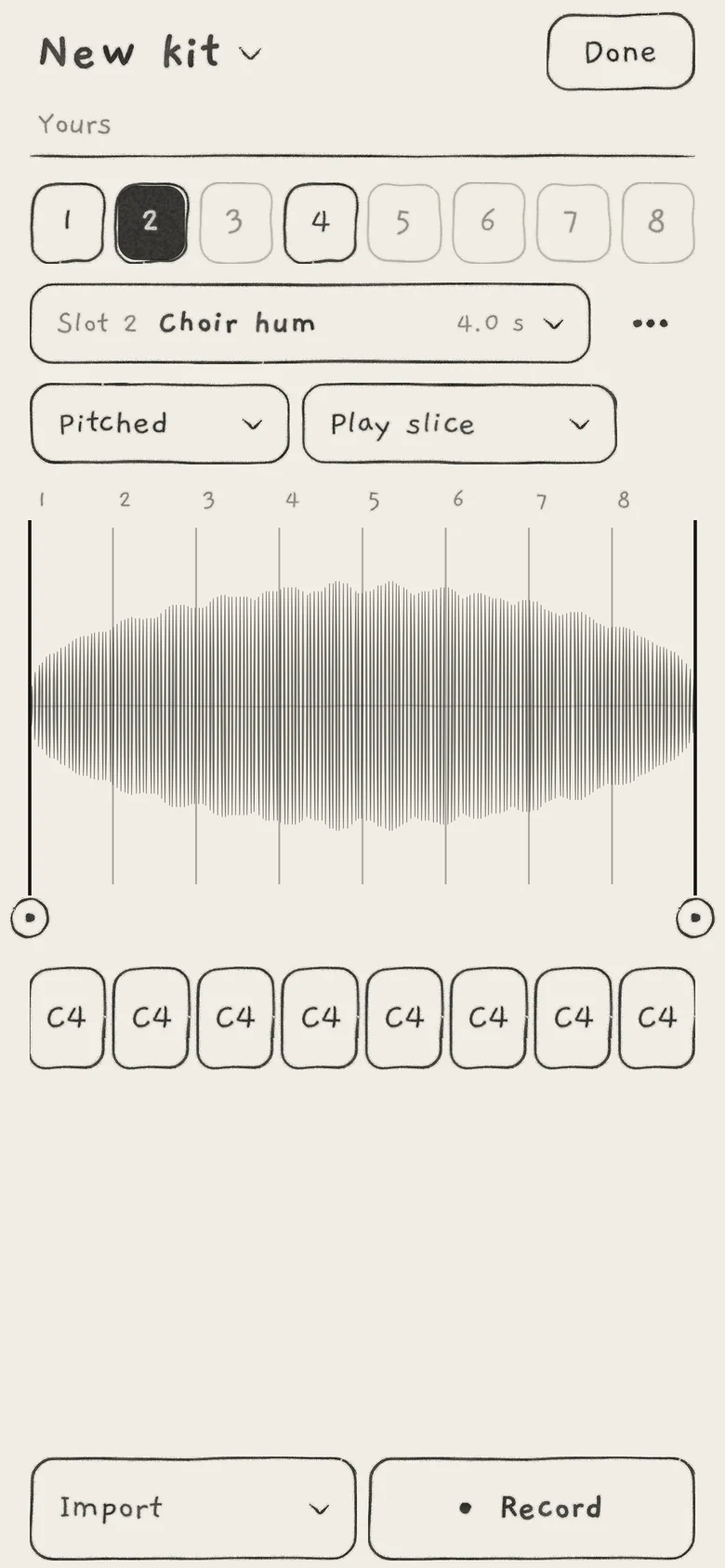 12345678
- 1Kit name
- 2Status line
- 3Slot tabs 1 to 8
- 4Slot field
- 5Waveform with slice lines
- 6Slice pads
- 7Import
- 8Record
The numbered tabs are the kit's slots. The inked tab is the slot the sound plays, and the slot a new file or take goes to. Tapping a tab makes the sound play that slot, an edit of the sound, and plays the start of its sample. A faint tab is empty; a dashed tab holds a missing sample (Empty, Missing, Not saved).
The kit's name at the top opens the Kits list. The line under it, the status line, says whose kit it is: Yours for your own kit, Factory for a factory kit, Factory · changed for a factory kit you have changed. Under the tabs, the slot field names the chosen slot's sample and its length. The slot field, the waveform, the pads and the Kits list are explained in Trim, slices and kits.
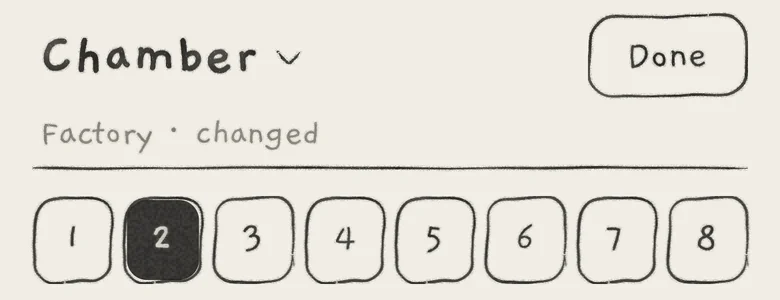 12
12- 1Kit name
- 2Factory · changed
#Import a file
Choose a slot, tap Import and choose a source. Files takes one or more audio or video files; Gallery takes the sound track of one video from the photo library.
INK reads WAV, AIFF, CAF, MP3, M4A, AAC, ALAC and FLAC, and the audio track of MOV and MP4. It keeps the first two channels; the sampler plays one mono mix of them, chosen with L+R, Left or Right (Trim, slices and kits). A file longer than 67.1 s is cut there, and its slot field reads Cut at 67 s.
With several files, the first goes into the chosen slot and the next ones into the kit's following empty slots. Files left over when the kit is full go to Yours only. The status line counts them: "3 files · 1 only in Yours".
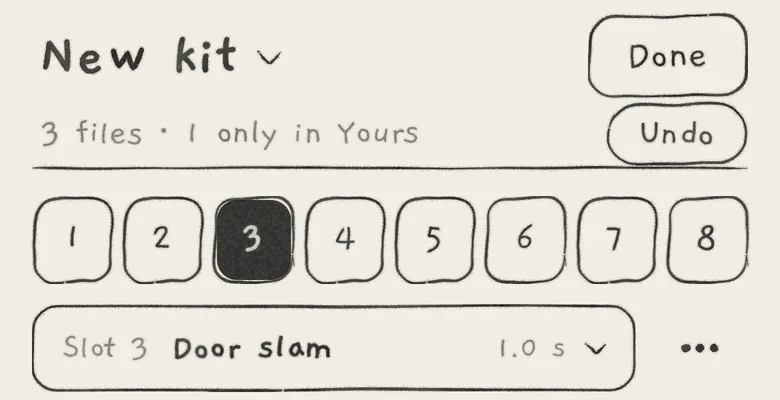 123
123- 1Status line
- 2Undo
- 3Slot field
While a file comes in, the slot field shows its name, a progress line and the share read ("42%"). Clear (× icon) cancels it. Each file lands in the slot it was started for, even after you choose another slot or close the kit view.
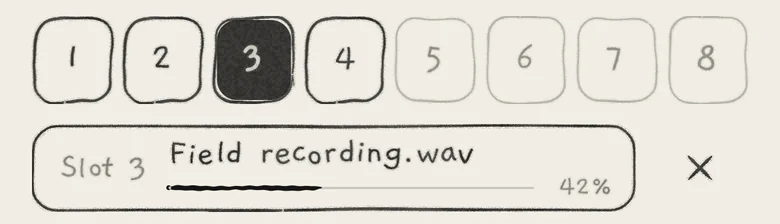 123
123- 1File name
- 2Progress line and share read
- 3Clear
A file that fails shows its name and the reason until you clear it with × or close the kit view:
- Unreadable file: INK cannot decode the file.
- No audio: the file has no audio track.
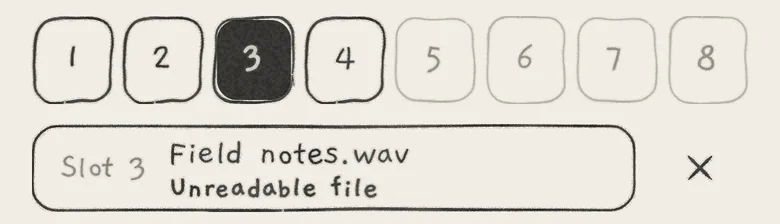 12
12- 1File name and reason
- 2Clear
An audio or video file opened in INK from Files, AirDrop or the share sheet opens the kit view and imports into the slot the sound plays. Sound and project files go to the Library and the project list (Save and share sounds, Projects).
#Undo
A new file or take lands in its slot and in Yours at once, and the sound plays the slot that received it. Nothing waits for confirmation.
Undo, at the right of the status line, puts the slots back as they were before the last import or take; the new samples stay in Yours. Undo is available until you choose another slot or leave the kit view, and never survives closing the app. A file of an undone import that is still coming in goes to Yours only.
A sample that cannot be written to storage reads Not saved in the slot field; Try again, at the right of the status line, writes it again (Empty, Missing, Not saved).
#The record screen
Choose a slot and tap Record. The record screen opens, titled RECORD SLOT and the slot number. Cancel closes it and keeps nothing, also during a take.
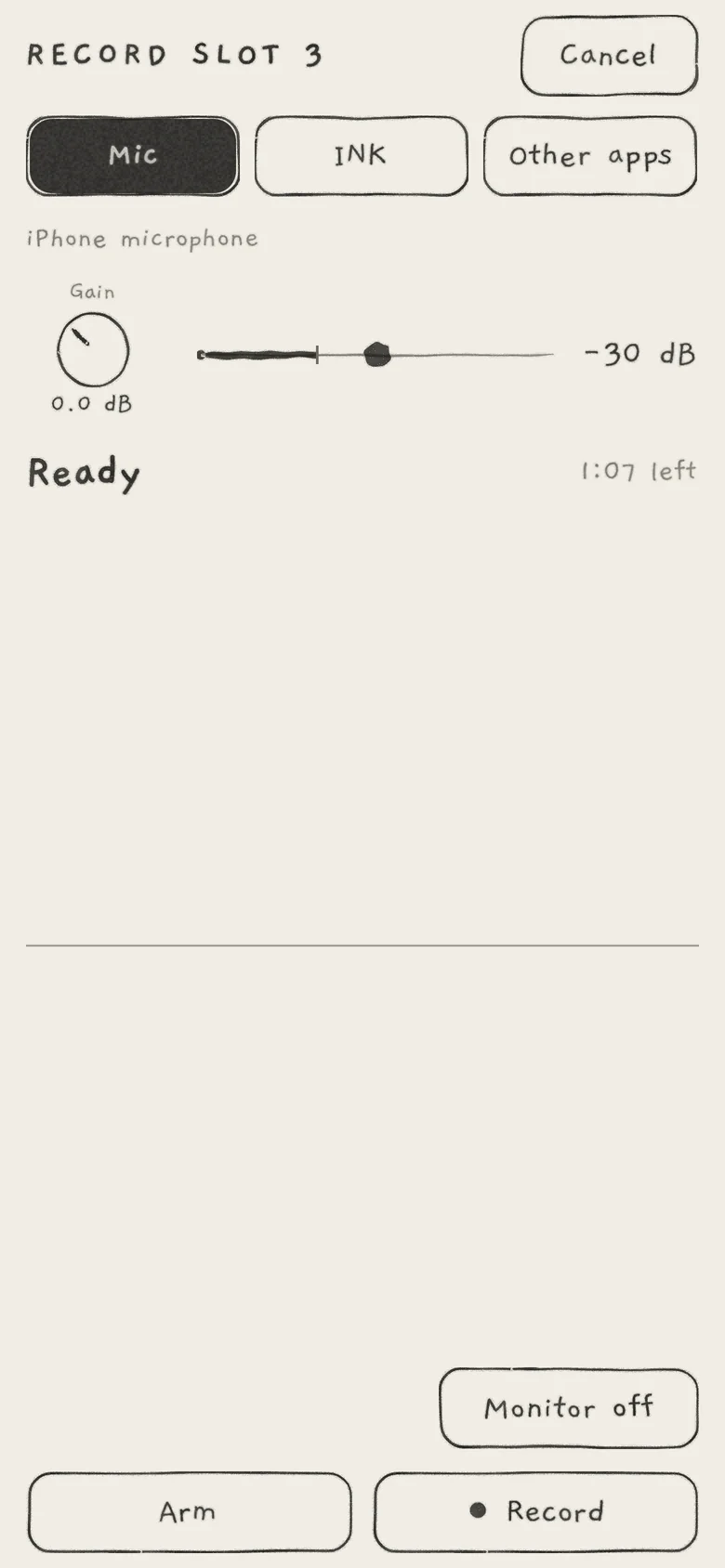 123456789101112
- 1Cancel
- 2Sources
- 3Input
- 4Gain
- 5Level meter
- 6Threshold
- 7State
- 8Time left
- 9Waveform of the take
- 10Monitor
- 11Arm
- 12● Record
The buttons under the title choose the source:
- Mic: the built-in microphone, or a connected USB audio interface; the button then reads USB. iOS asks for microphone permission the first time the record screen opens on Mic.
- INK: INK's own output (Resample INK).
- Other apps: what other apps play, captured through the system's screen-sharing sheet on the entire screen. Choosing it opens the sheet. Standalone app, iOS 27 or later; where the device does not offer it, the button is absent.
The line under the sources names the input: "iPhone microphone", the interface's name, "INK Synth", or the share state. It adds "Bluetooth" when INK plays to a Bluetooth output, and "Clip" once the input has reached full scale.
- GainInput gain for Mic, USB and Other apps; hidden for INK. −12 to +24 dB. Default: 0.0 dB; double-tap returns to it.
- Level meterInput level after Gain, −60 to 0 dB, with a tick holding the recent peak.
- ThresholdThe level at which an armed take starts. Drag its marker along the meter; its value shows at the right. −60 to −3 dB. Default: −30 dB.
- Monitor offPlays the Mic or USB input through INK; reads Monitor on when on. Off by default. Shown only with headphones, a USB interface or a line output, never on the speaker or Bluetooth.
Under the meter, the state line shows the recorder's state and the time left (States). The waveform below it draws the take as it is recorded. The source buttons are disabled during a take. A change of audio route turns monitoring off.
#Arm or record
● Record starts the take as the finger lands. The take also keeps a moment of the input from before the press, so an attack played on the press is complete.
Arm waits in the state Armed. The take starts when the input, after Gain, first reaches the threshold, and includes the same moment before it. Use Arm to start a take on its first transient. Tap Arm again to return to Ready, or ● Record to start at once.
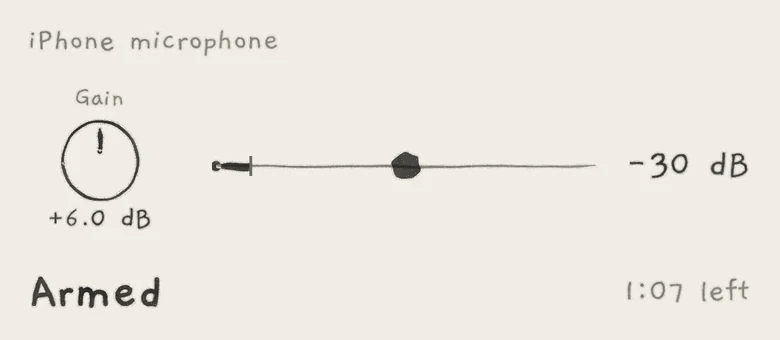 12345
12345- 1Gain
- 2Level meter
- 3Threshold
- 4Threshold value
- 5State
#Slice while recording
During a take, Arm and ● Record become Slice and Stop. Each tap on Slice starts the next of the sample's eight slices as the finger lands, so the slices fall on what you play. Slicing by tapping during the take comes from Plinky's sampler (Where INK comes from).
Slice 1 starts at the beginning of the take. The line under the state shows the slice being recorded: Slice 2/8 after the first tap. Seven taps mark slices 2 to 8; the eighth tap stops the take.
After an earlier Stop, the last tapped slice and the untapped ones share the rest of the take in equal parts. Two taps, for example, give slices 1 and 2 as tapped, and slices 3 to 8 as six equal parts from the second tap to the end. The slice lines can be moved afterwards (Trim, slices and kits).
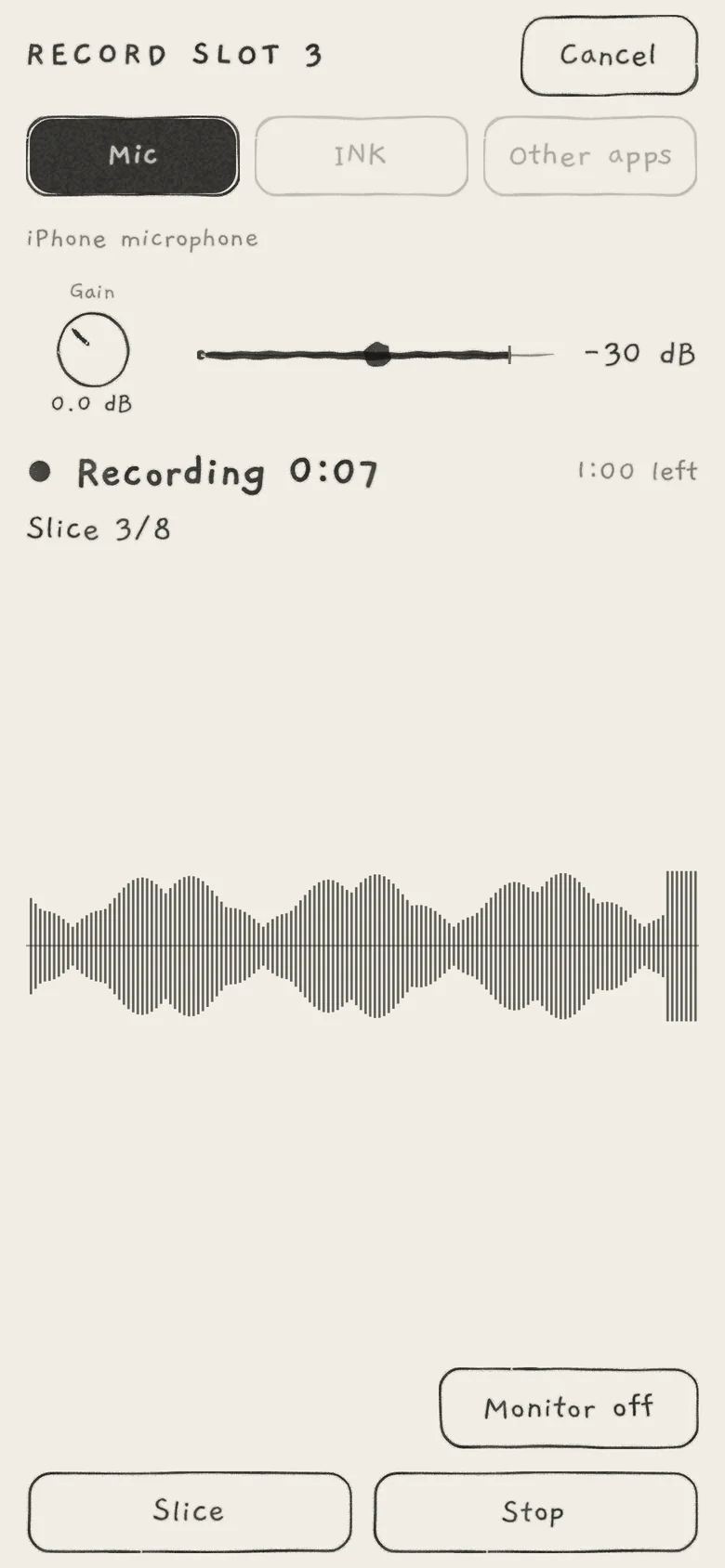 12345
12345- 1State and take length
- 2Slice being recorded
- 3Waveform of the take
- 4Slice
- 5Stop
The time left counts down from 1:07. When a take ends, the record screen closes and the take lands in the slot and in Yours. It is named Recording (Mic or USB), Capture (Other apps) or Resample (INK), with a number added when the name is taken.
With Mic, switching to another app stops a take and keeps it. With Other apps, recording continues while INK is in the background.
#States
The state line shows the recorder's state, or what became of the last take until the next press.
| State | Meaning |
|---|---|
| Ready | The input is open. |
| Armed | Waiting for the threshold. |
| ● Recording 0:12 | Recording; the time is the take's length. |
| Stopping | The end of the take is being written. |
| Cut at 67 s | The take reached 67.1 s and stopped. The slot field shows it too. |
| Nothing recorded | The take held no audio; nothing is kept. |
| Input changed | The input changed mid-take: another device or rate, headphones or an interface plugged in or out. The take stops there and is kept. The slot field shows it too. |
| Input lost | The input disappeared during the take. The take is kept. |
| Not saved | The take could not be converted. Try again converts it again. |
| Microphone off | Microphone permission refused. Settings opens INK's page in iOS Settings. |
| Not available | The input could not be opened. |
| Not shared | Other apps: the screen is not shared. Arm or ● Record opens the sharing sheet and acts once the share is confirmed. |
| Sharing | Other apps: the share is confirmed and starting. |
| Stopped | Other apps: the share ended; the system's error code may follow in brackets. Arm or ● Record opens the sheet again. |
If the input changes or disappears while Ready or Armed, the recorder opens the current input and returns to Ready, with Input changed or Input lost in the state line.
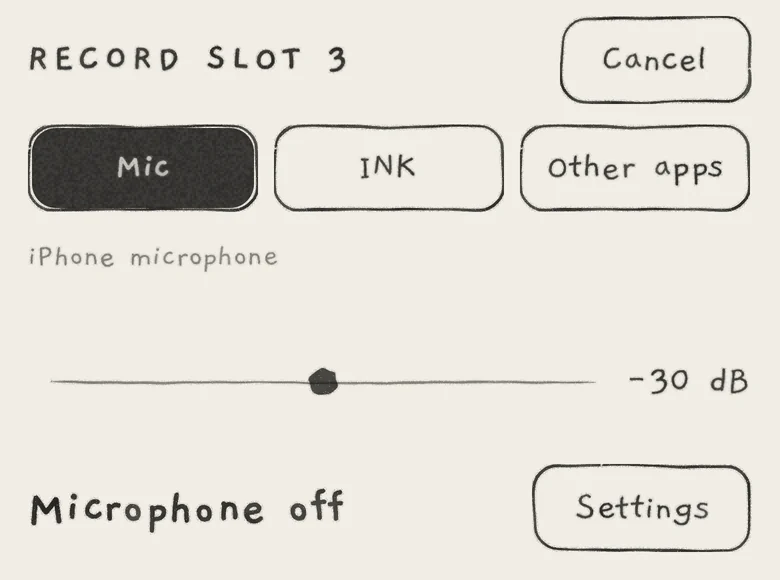 12
12- 1State
- 2Settings
Once the screen is shared, the input line reads Shared, with Stop sharing at its right, and adds ", no sound" while no audio arrives. Ending the share, with Stop sharing or the system's indicator, stops a take and keeps it.
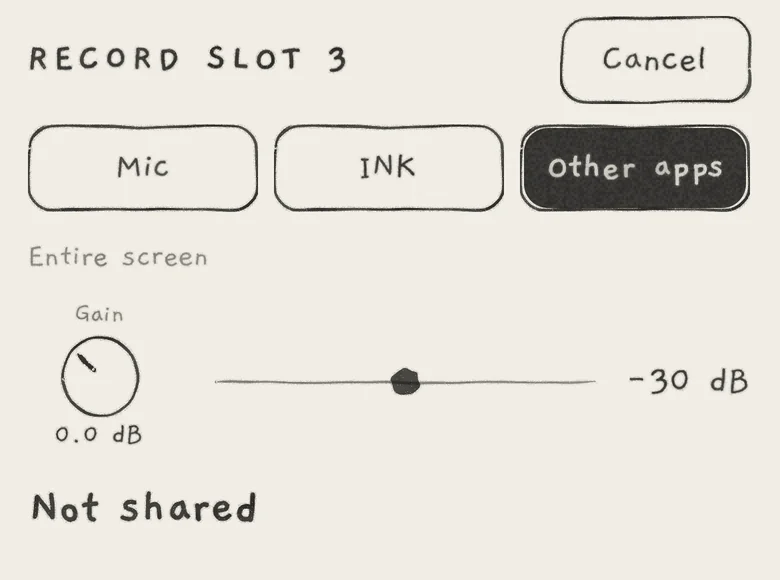 123
123- 1Other apps
- 2Input: Entire screen
- 3State
#Resample INK
Resample records INK's own output into the slot. Choose INK and tap Arm or ● Record: the All page opens with a record card at the top, so you can play while INK records.
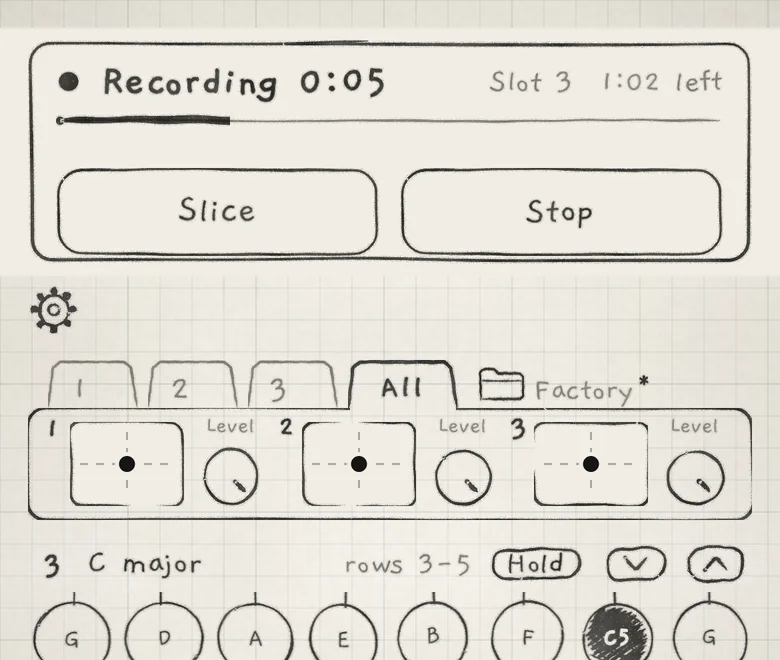 123456
- 1State
- 2Slot and time left
- 3Level
- 4Slice
- 5Stop
- 6All page
The card shows the state, the slot, the time left and the level. Armed, it holds ● Record and Cancel, which returns to the record screen and keeps nothing. Recording, it holds Slice and Stop. Arm and the threshold work as for Mic.
The take is the sum of all three engines after OUTPUT (Mixer and All page), effects included, whatever each engine's Audio out. It includes the engine whose kit receives it. Previews in the kit view and the Sample list are left out. The take keeps both channels and passes through a safety limiter, as INK's output does.
- Load a Granular sampler sound and tap Kit. Tap the kit's name, then New: the sound plays an empty kit.
- Choose tab 1 and tap Record. Keep Mic.
- Drag the threshold above the room's noise and tap Arm.
- Say three words. Tap Slice on the second and third word, then Stop.
- Press the waveform in slices 1 and 2: each plays one word. Slice 3 starts on the third word; slices 3 to 8 share the rest of the take.