CHAPTER 1 OF 54 · START HERE
First sound
INK has three engines, each a complete synthesizer with its own sound and keyboard. On first launch it shows Engine 1. The card at the top shows the sound's waveform, level and name; the Grid in the middle plays it; the Sound tab below edits it. Touch a pad on the Grid to play a note.
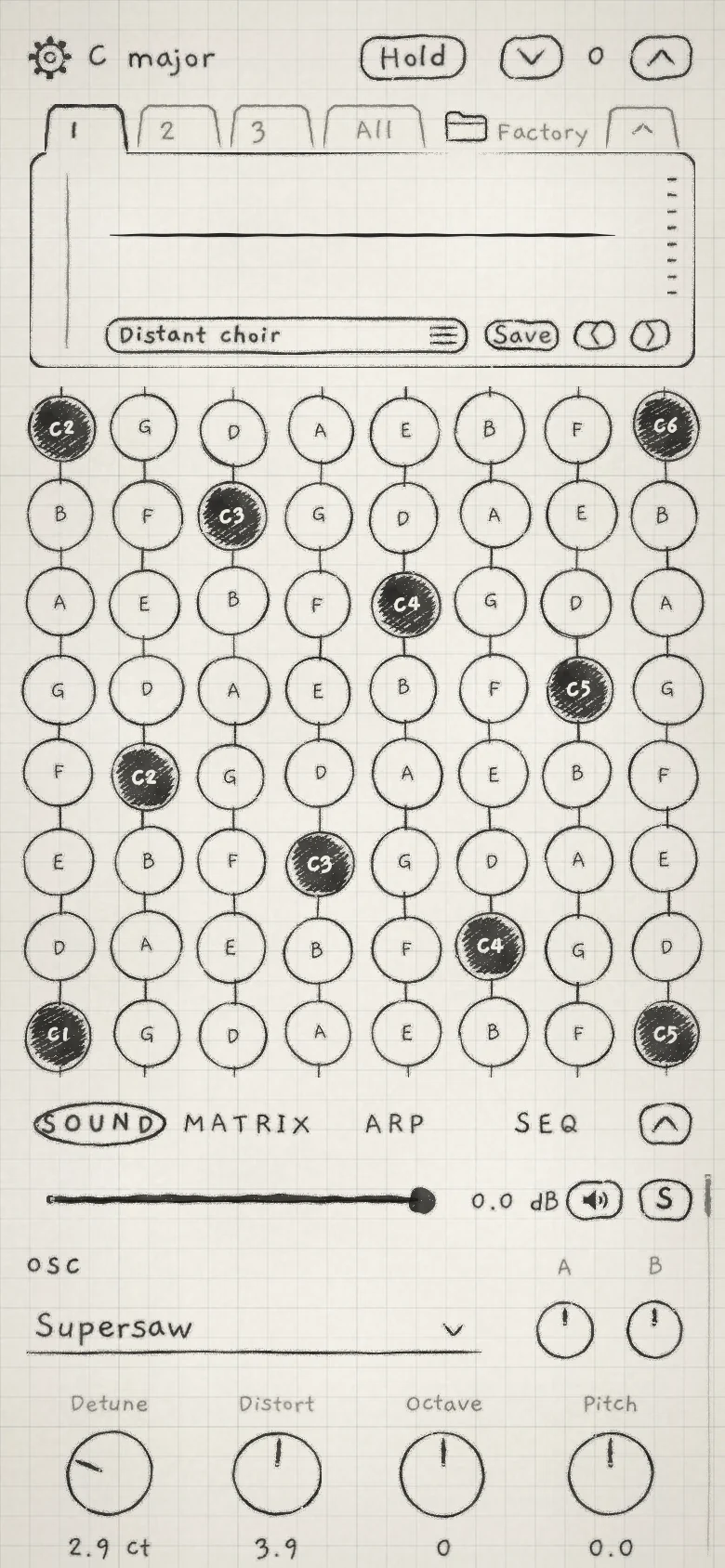 123456
- 1Engine tabs
- 2Sound name
- 3Previous and next arrows
- 4Grid
- 5Engine strip
- 6Macro A and B
#Engines
The tabs 1, 2 and 3 above the card switch between Engine 1, 2 and 3. Each engine plays its own sound on its own keyboard, and all three can sound at once. All shows a mixer for the three engines and a keyboard for each (Mixer and All page). Specifications and signal flow are in The three engines.
#Load a sound
Each engine plays one sound: its generator, envelopes, filter, modulation and effects, stored as one entry in the Library. Tap the sound name on the card to open the Library. An asterisk after the name marks unsaved edits.
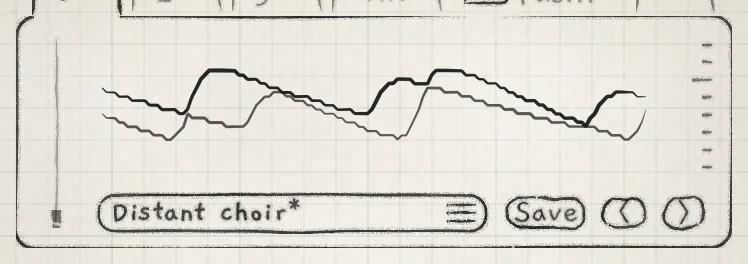 12345
12345- 1Level meter
- 2Waveform display
- 3Sound name, edited
- 4Save
- 5Previous and next arrows
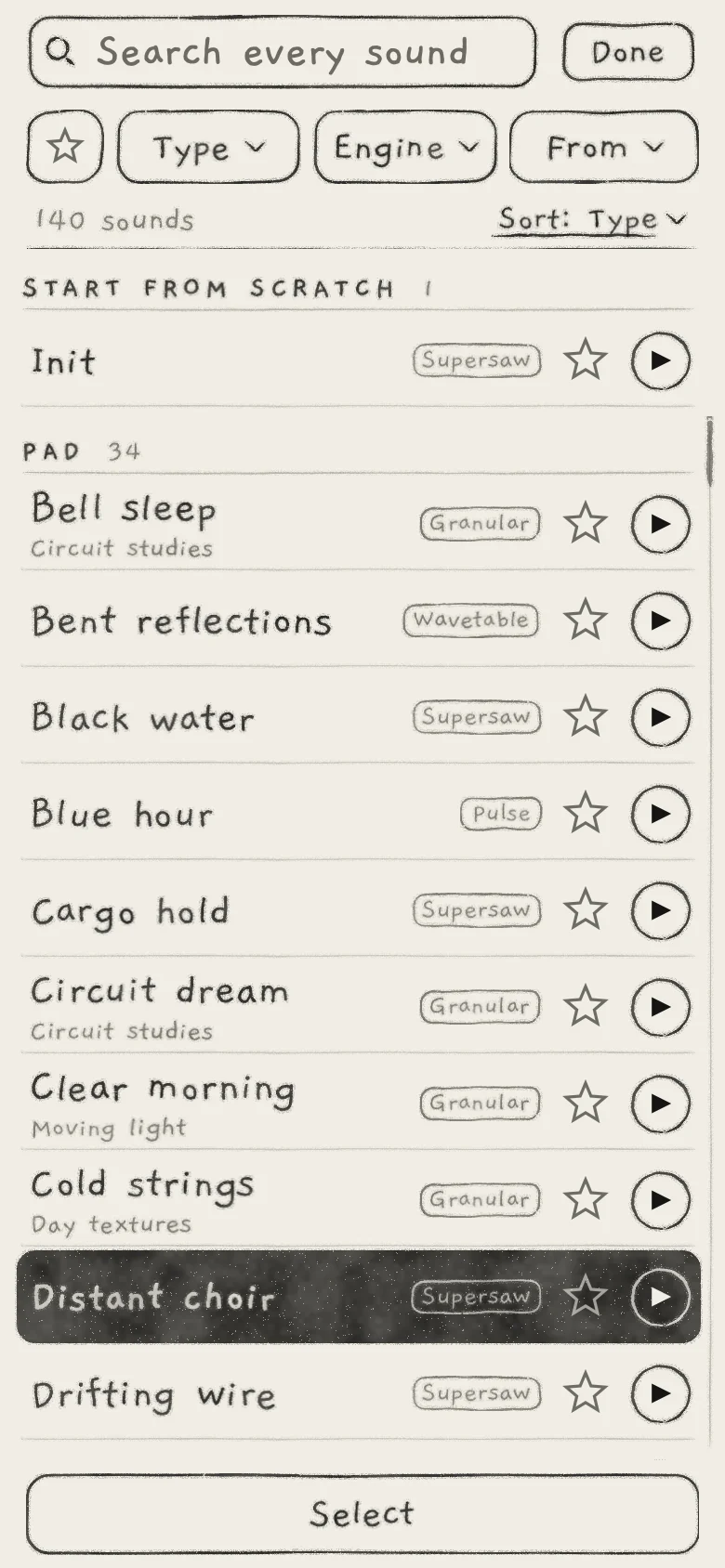 12345678
- 1Search
- 2Favourites
- 3Type
- 4Engine
- 5From
- 6Sort
- 7Init
- 8A sound row
The search field at the top narrows the list as you type. The filters under it combine:
- The star shows only the sounds you marked as favourites.
- Type filters by category: Pad, Lead, Bass, Pluck, Keys or FX.
- Engine filters by generator: Supersaw, Pulse, Wavetable, Granular or Phase (The three engines).
- From filters by origin: Factory, Mine or an imported pack folder.
Clear appears while a filter or a search is set and resets them all. Sort: Type orders the list by Type, Name or Newest.
Tap a row to load its sound into the engine and close the Library. If the engine's sound has unsaved edits, INK first asks whether to save them (Save and share sounds).
#Library rows
 12345
12345- 1Name
- 2Kit
- 3Generator
- 4Star
- 5Play button
Each row shows the sound's name, its generator, a star and a play button. A second line, where there is one, names the sound's kit, its pack folder or its author. The row of the sound the engine plays is inked. Tap the star to mark the sound as a favourite. The full row is described in Sound library.
The play button lets you audition a sound without loading it: INK plays a short phrase chosen for the sound's type, in the engine's current key. The engines are silent while the audition plays. Tap the play button again, or close the Library, to stop. Settings › LIBRARY › Audition with plays one of your patterns instead of the phrase (Sound library).
Init is the row under START FROM SCRATCH at the top of the Library. It stays there whatever the filters and the search, as the starting point for a new sound.
The previous and next arrows (‹ ›) on the card step through the Library's current list, with its filters and sort order applied. An edited sound asks first, as a row does. The rest of the card is described in Find your way.
#Play the Grid
The Grid is INK's default keyboard: 8 columns of 8 pads. Each pad plays one note of the engine's key, so no pad plays a wrong note. The layout comes from Plinky, the instrument INK grew out of, which tunes its columns like the strings of a violin (Play the Grid).
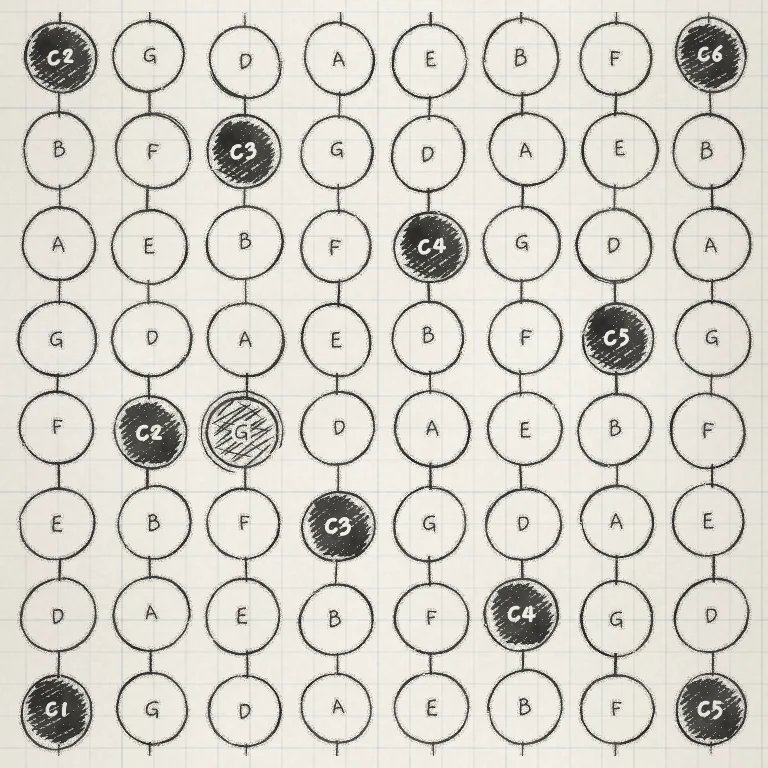 1234
1234- 1One column
- 2Root pad, C1
- 3Pressed pad
- 4Bottom row: C G D A E B F C
Notes rise up each column in scale steps. Each column starts Stride semitones above the one to its left, moved onto the scale. Stride is saved with the sound; at 7, a fifth, the Init value, the bottom row in C major reads C, G, D, A, E, B, F, C. Root pads are inked and carry their octave number (C1, C2 and up).
A finger keeps its voice while it moves. Slide it to another pad, in any direction, and the voice moves to that pad's pitch without a new attack; Glide sets how fast the pitch moves. Stride, Degree and how touch is read are covered in Play the Grid.
#Other keyboards
Each engine can play from another keyboard instead. Tap the key name beside the cog (C major on first launch) to open the engine sheet, which sets the engine's keyboard, key and play mode (Find your way). Choose under KEYBOARD:
- Keys: a continuous keyboard, one strip per scale note, with pitch following the finger sideways (Play Keys).
- Chords: one touch plays a whole chord; the columns are the scale's degrees, the rows add notes and colour (Play Chords).
- Strings: a strumplate after the Omnichord's, its strings tuned to one chord (Play Strings).
Keyboards and keys are covered in Keyboard, key and scale.
#Macro A and B
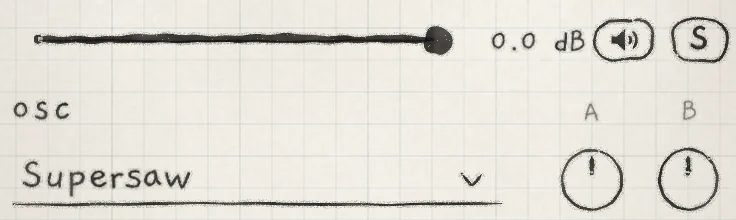 1234567
- 1Level fader
- 2Level in dB
- 3Mute
- 4Solo
- 5Generator
- 6Macro A
- 7Macro B
Every sound has two macros, Macro A and Macro B. Each moves whatever the sound routes from it in its Matrix (columns A and B), so their effect differs from sound to sound. They are the knobs printed A and B at the top right of the Sound tab's first section (OSC, or SAMPLER on the Granular sampler). Turn them while a note sounds.
On All, each engine's macros are one XY pad: A across, B up (Mixer and All page). Assigning the macros is covered in Macros and dice.
#No sound
The level meter, the thin vertical bar at the left of the card, shows this engine's level as it leaves INK: after its level fader, Mute, Solo and OUTPUT, the app-wide gain at the bottom of the Sound and Arp tabs. Other engines are not in it. It shows a cross while the engine is muted or OUTPUT is at zero.
- The meter moves. The engine reaches INK's output. Check the device volume, the headphones or the audio interface.
- The meter stays still or shows a cross. Check the engine's level fader and Mute (the speaker icon), both in the engine strip at the top of the Sound tab and in the engine's column on All, then OUTPUT (Mixer and All page). If another engine is soloed with S, this engine's speaker icon is drawn in faint pencil grey and the engine stays silent until that Solo is off.
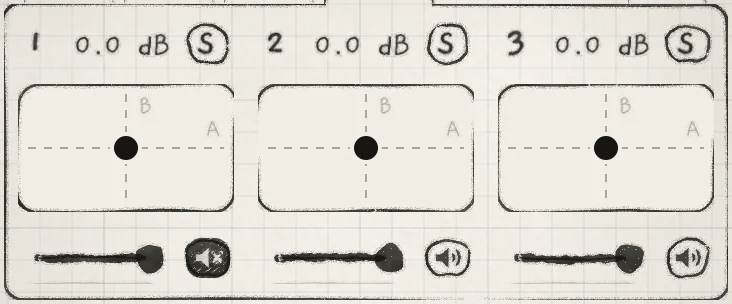 123456
- 1Engine number
- 2Level in dB
- 3Solo
- 4XY pad
- 5Level fader and meter
- 6Mute, on
INK also runs as an AUv3 plug-in inside other apps. In a host, check the host's audio routing as well (INK in a host).
#Play from a MIDI keyboard
MIDI In is Off for every engine in a new project. The setting is saved with the project, so each project keeps its own.
- iPhone and iPad: tap the cog and open Settings › MIDI. Under PLAY INK FROM, each device INK can hear has a row and each engine a column. Tap the dot in the INK 1 column on your device's row; if Engine 1's In was Off, it becomes Any. Set Channel under INK 1 to Any or to one channel.
- Plug-ins: open Settings › MIDI Settings and set Engine 1's In to the channel your keyboard sends on.
- Mac app: it opens no MIDI inputs. Play INK from MIDI as a plug-in in a host (On a Mac and in plug-ins).
The engine tab you select does not change which engine receives MIDI. Channels, MPE and devices are covered in MIDI in.
#Try it
- Tap the sound name. Open Type, choose Pad and tap a row.
- Play a few pads, then slide one finger up a column.
- Tap the star on a row to mark a favourite.
- Tap the play button on a Bass row to audition it, then tap the row to load it.
- Play a note with one finger and turn A and B with another.
- Tap All and tap Engine 1's Mute. Engine 1 stays silent until you tap Mute again.