CHAPTER 7 OF 54 · START HERE
Undo and redo
INK keeps one undo history for the whole instrument: the last 20 changes to every engine's sound, key, mixer settings and patterns. Swipe in from the left edge of the screen to undo and from the right edge to redo, the directions of back and forward in iOS.
#Edge swipe
 12
12- 1Hexagon
- 2Steps left
 12
12- 1Hexagon
- 2Steps left
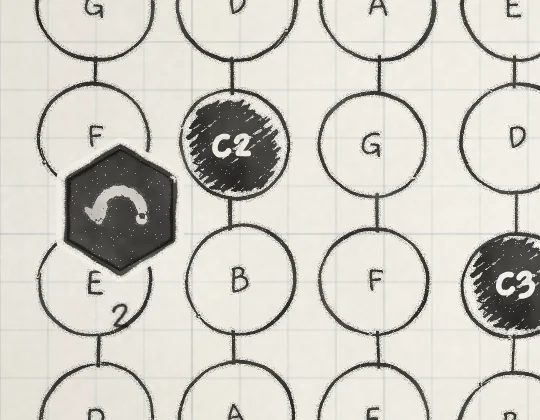
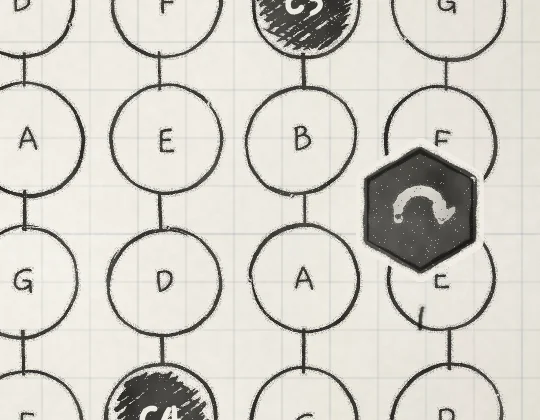
The left and right edges each hold a narrow strip the full height of the screen. A touch that starts in a strip never plays a pad or moves a knob. Drag inwards from the left strip to undo, from the right strip to redo. A drag that starts mostly up or down scrolls the page instead.
As you pull, a hexagon comes out of the edge behind the finger and inks in. When it is full, the iPhone gives a haptic tick. Release to apply the step; the hexagon leaves through the top of the screen. Pull back before you release to cancel.
The number under the hexagon is the count of steps left in that direction. With nothing to undo or redo, the hexagon stays grey and only nudges out of the edge. The strips do nothing while a sheet or menu covers the screen.
#Three-finger swipe
 12
12- 1Undo
- 2Redo
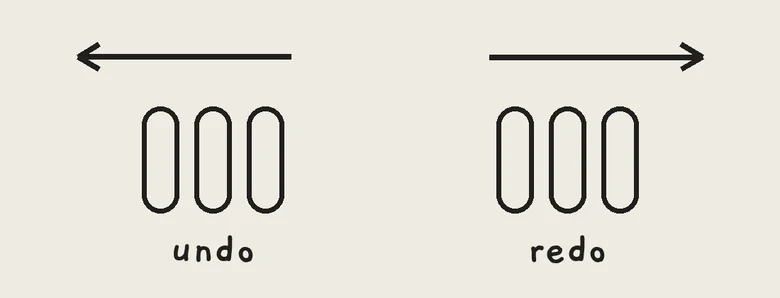
Swipe three fingers to the left anywhere on the screen to undo, to the right to redo. In a host such as AUM, the host takes the screen edges; the three-finger swipe still reaches INK. It works on iPhone and iPad, in the app and in a host, and does nothing under a sheet or menu.
Land the three fingers together, then move them sideways together, quickly. Anything else plays as usual: a held chord that slides, a fourth or late finger, a finger lifted early, a slow or mostly vertical move. If the three fingers moved a knob or a Matrix cell on their way, that change is dropped and never becomes a step.
#What a step is
A step is one gesture: a knob drag, a sound chosen, a dice roll, a pattern edit. INK records it when the change comes to rest, so two quick moves in a row become one step. An undo before then records the pending change first, then undoes it.
Each step is a snapshot of the whole instrument:
- every engine's sound and kit, with all knob values and Matrix amounts;
- each engine's Arp and Strum settings, octave, key, Lock and Follow;
- each engine's Level, Mute and Solo, and its AUDIO OUT row on the engine sheet;
- the project's MIDI In channels and MIDI routes;
- the patterns: edits, recorded takes and which pattern each engine plays.
Undo and redo leave the rest as it is: the page and tab on view, the selected engine, Hold and its held notes, played notes, OUTPUT (Mixer and All page), the Seq tab's Quantize, and the chord a Follow leader last played (Key lock and Follow). App settings stay too: the Settings pages, from the PAPER theme to Touch and Slide control, and each engine's KEYBOARD row on the engine sheet.
A restore never interrupts playback. Patterns keep running, Hold and its held notes stay, and the view stays on the current page.
#Branching
 123
123- 1Step 3 entered again
- 2Showing
- 3Undo path
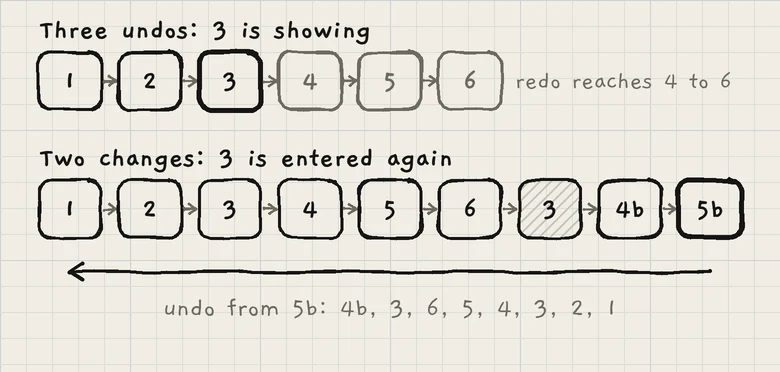
A change after an undo deletes nothing. INK enters the step you went back to again as a new step, then records the change after it, so undo still reaches the steps you undid. Redo reaches only the steps the last undos left; after a change there is nothing to redo.
With steps 1 to 6, three undos and two changes (4b, 5b), the history reads 1 2 3 4 5 6 3 4b 5b. Undo from 5b walks back through 4b, 3, 6, 5, 4, 3, 2 and 1. The re-entered step counts towards the 20; the oldest steps fall off first.
#On a Mac
Drag with the mouse in from the left edge of the window to undo, from the right edge to redo. The strips, the hexagon and the step count work as on iPhone. These edge drags are the Mac's undo and redo.
#Other undos
 1
1- 1Undo
 1
1- 1Undo
Three places have an Undo of their own, separate from the undo history. Each steps back only, and each is forgotten when the app closes.
- Undo (curved-arrow icon) in the Seq transport steps back through pattern edits and recorded takes. A pattern's entries go when you save or discard it. Pattern edits are also steps in the undo history. See Edit and save patterns.
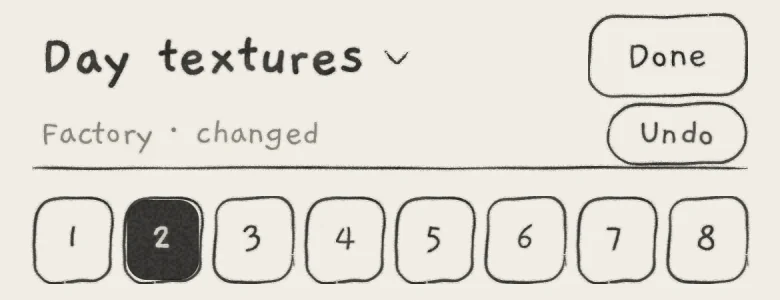
- Undo in the kit view's status line puts back what the last import or recording replaced in the slots; the new samples stay in Yours. It goes when you choose another slot, import or record again, or close the kit view. See Trim, slices and kits.
- Undo on the result card after an import of sounds, projects or wavetables removes what that import added. See Save and share sounds, Projects and Wavetables.
- On the Sound tab, turn Cutoff down, then turn Resonance up.
- Swipe in from the left edge until the hexagon is full, then release. Resonance returns to its earlier value.
- Swipe in from the right edge and release. Resonance is up again.
- Undo twice, then turn Cutoff to a new value.
- Undo twice more. The first undo returns the original sound; the second returns the lowered Cutoff with the raised Resonance.