CHAPTER 41 OF 54 · LIBRARY AND PROJECTS
Sound library
The Library holds every factory sound, every sound you saved and every sound you imported. In it you find a sound, audition it and load it into an engine. Saving, export and import are in Save and share sounds.
#Open the Library
Tap the sound name on the card. The Library opens full screen, scrolled to the sound the engine plays; a sound you choose loads into that engine.
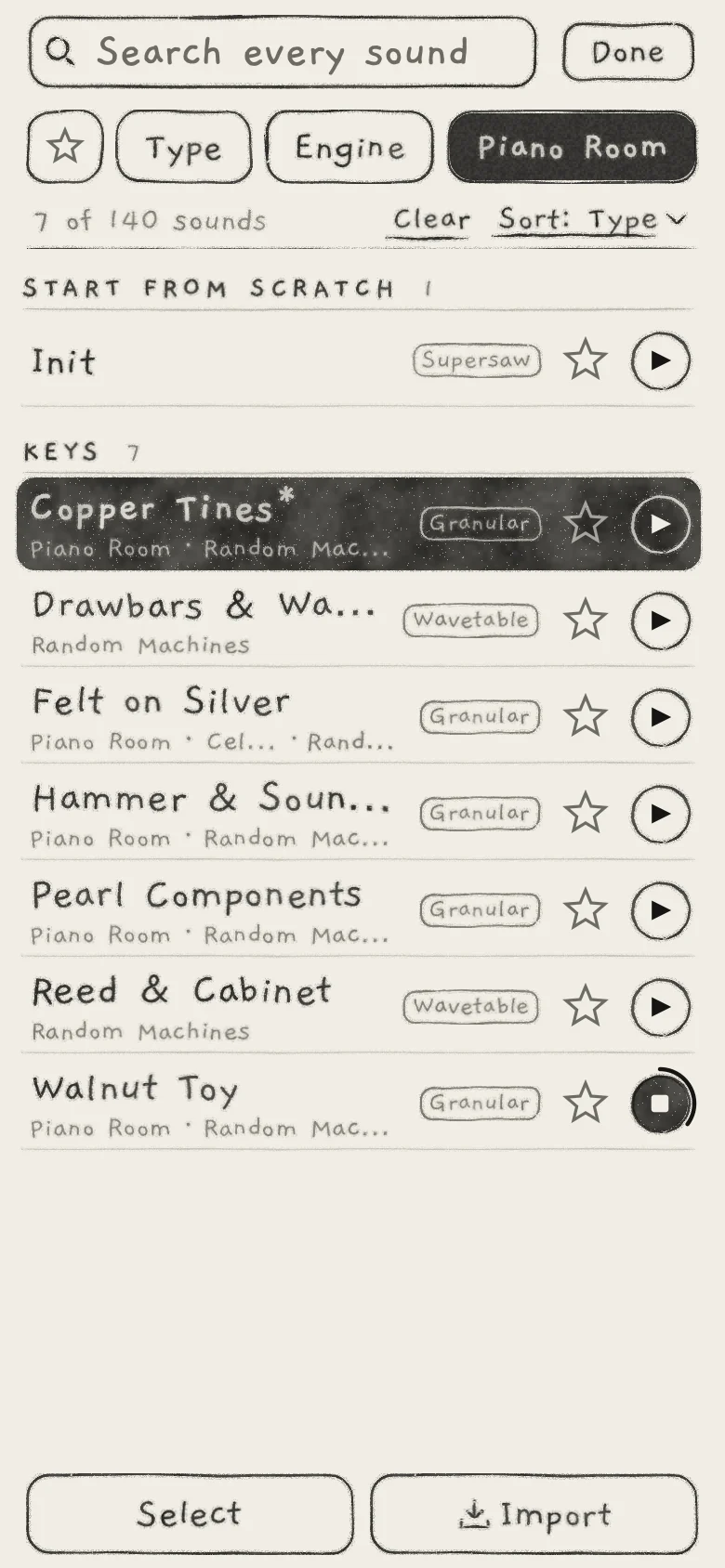 12345678910111213
- 1Search field
- 2Favourites
- 3Type
- 4Engine
- 5From, set
- 6Status line
- 7Clear and Sort
- 8Init, pinned
- 9Heading with count
- 10Playing sound, edited
- 11Audition in progress
- 12Select
- 13Import
On iPhone each sound is a row. On iPad, on a Mac and in wide plug-in windows the sounds are tiles in columns.
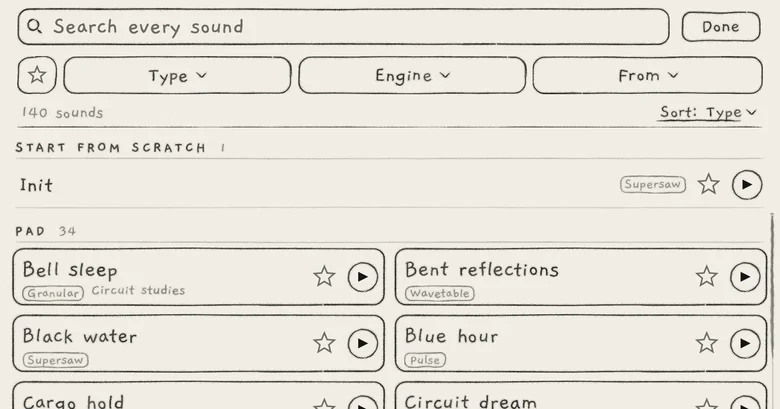 12
12- 1Tile
- 2Generator badge
Filters, search and sort stay as you left them each time the Library opens, until INK quits. Done closes the Library and stops any audition.
On a Mac: Escape closes an open card, then ends Select mode, then closes the Library.
#Search
Search every sound narrows the list as you type. Each word must appear in the name, type, generator, kit, pack, author or tags; "arp" also finds sounds saved with the arp on. Case and accents are ignored ("cafe" finds "Café"). Clear search (cross icon) empties the field.
#Filters
The filter buttons under the search field each open a single-choice menu. Filters combine with each other and with the search. An unset filter shows its own name; a set one is inked and shows its value.
Under the filter buttons, the status line counts the sounds shown: "140 sounds", or "7 of 140 sounds" while a filter or search is set. It reads "3 deleted sounds" under From › Deleted and "3 selected" in Select mode. Its right end holds the Clear, Kit and Sort links.
- Favourites(star icon)Shows starred sounds only.
- TypeShows one category, the one saved with the sound: All types, Pad, Lead, Bass, Pluck, Keys, FX.
- EngineShows one generator: All engines, Supersaw, Pulse, Wavetable, Granular, Phase. It filters by generator, not by Engine 1, 2 or 3.
- FromShows sounds by origin: Everywhere, Factory, Mine, Deleted, then one entry per imported pack.
- KitShows the Granular sounds on one kit: All kits, then each kit with its count. A link in the status line while Engine is Granular.
- SortOrders and groups the list: Type, Name or Newest. A link in the status line that reads Sort: Type; Type when INK starts.
- ClearResets every filter and the search; Sort stays. A link in the status line while any filter or search is set.
Each menu entry shows how many sounds it would leave with the other filters as they are. All types, All engines, Everywhere and All kits show no count. Counts exclude Init.
From filters by origin. Factory: factory sounds you have not saved over, except Piano Room, which has its own entry. Mine: sounds you saved in INK and factory sounds you saved over; imported sounds are listed under their pack. Deleted: hidden factory sounds, listed only while there are some (Delete and restore).
A pack is the set of sounds imported from one file or folder. Its From entry shows its name, then the author of most of its sounds and its count ("Night pads", "Meska · 7"). When other authors share the pack, their number follows the main author ("Meska +2 · 7").
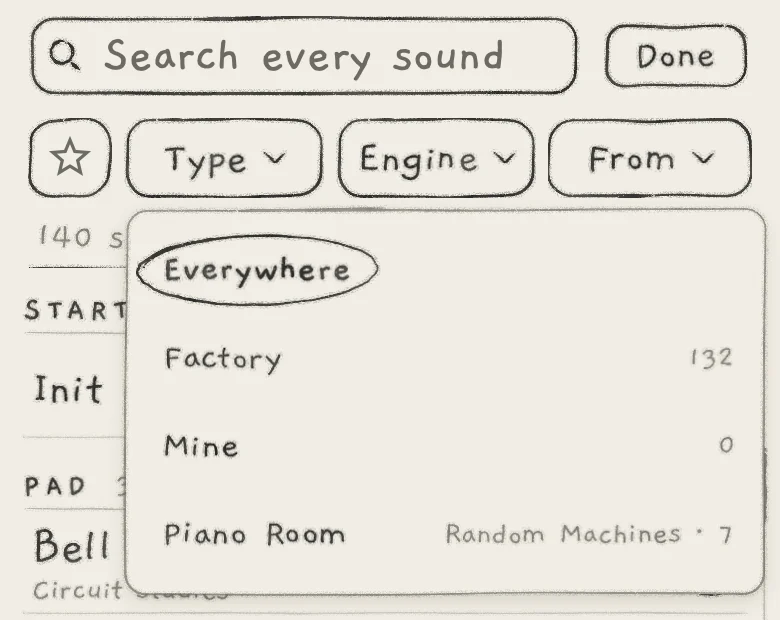 123
123- 1No count
- 2Count
- 3Pack: main author and count
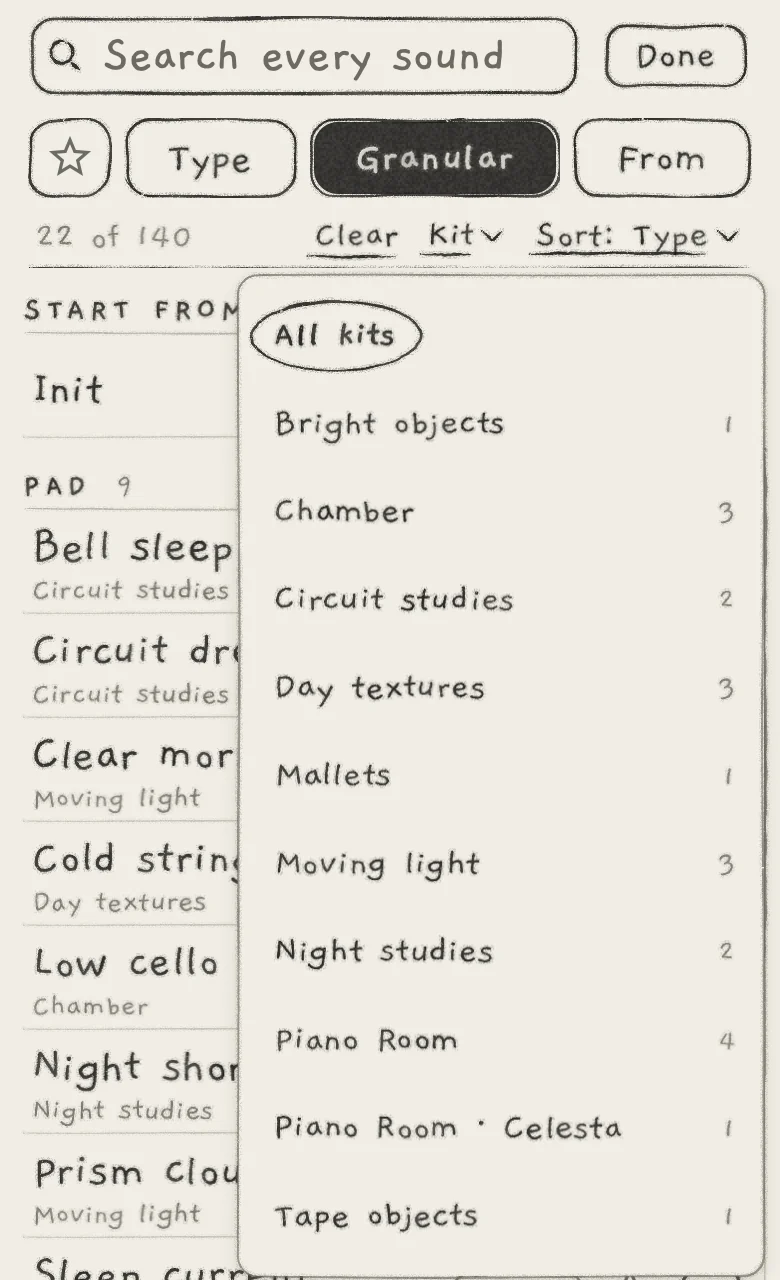 1234
1234- 1Engine, set
- 2Clear
- 3Kit link
- 4Kit count
A kit with a missing or damaged recording reads Missing in the Kit menu. Choosing another generator clears the kit.
#Sort and headings
The list is grouped under headings with counts. Type: one heading per category in the order Pad, Lead, Bass, Pluck, Keys, FX, alphabetical within each. Name: one heading per first letter. Newest: TODAY, YESTERDAY, THIS WEEK, THIS MONTH and EARLIER by when a sound was saved or imported, then FACTORY.
#Rows
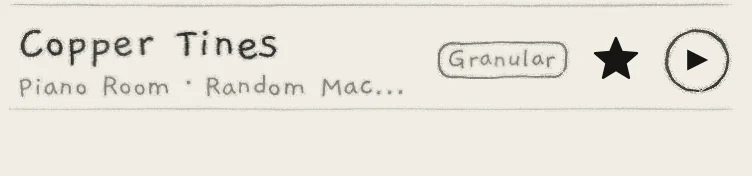 123456
- 1Name
- 2Kit
- 3Author
- 4Generator badge
- 5Star
- 6Play button
- Name, with an asterisk on the playing sound when it is edited.
- Generator badge: Supersaw, Pulse, Wavetable, Granular or Phase.
- Second line: the kit (Granular sounds only), the pack, the author. The pack is left out when it equals the kit's name or From shows it.
- Boxed marks: Missing after a kit with a missing or damaged recording; changed on a factory sound you saved over.
- Star: stars or unstars the sound for the Favourites filter.
- Play button: auditions the sound (Audition).
The playing sound's row is inked. Long text is cut with "…". With no match the list reads "No sounds".
#Init
Init is pinned under START FROM SCRATCH above the scrolling list. Filters and search never hide it. While the on-screen keyboard is up it gives way to the results.
Init is a Supersaw sound; the Init values in this guide are its values. It cannot be saved over (Save and share sounds).
#Choose a sound
Tap a row to load the sound and close the Library; a tap on the playing sound only closes it. If the playing sound has unsaved edits, a card asks whether to save them first, and Cancel on it keeps the Library open (Save and share sounds).
The previous and next arrows on the card step through the Library's list as its filters and sort leave it, wrapping at either end (Find your way).
#Audition
The play button plays a sound on a separate audition engine. The engine's own sound, edited or not, is untouched. Engines 1 to 3 fade to silence during an audition but keep running, so patterns and held notes go on unheard.
While it plays, the button is filled with a stop square and its progress around the edge. Tap it again to stop. Another sound's play button switches the audition to that sound. Choosing a sound or closing the Library stops it.
The audition plays the sound as this engine would after loading it, arp settings included (Arp). Audition with in Settings sets what it plays (Audition with):
- Built-in: about 3 s in the engine's key, from the root nearest middle C. Pad, FX and Init hold a triad on the root, with the root doubled an octave below; Lead, Keys and Pluck play a short line; Bass plays a short line two octaves lower.
- A pattern: its first four bars at its saved tempo, on its own clock, then its notes ring out. It plays in the key saved with the pattern, else in the key of the engine that played it when you picked it, never in the open project's key.
#Audition with
Audition with is the row at Settings › LIBRARY. Its value reads Built-in or the chosen pattern's name; a tap opens the Audition with sheet.
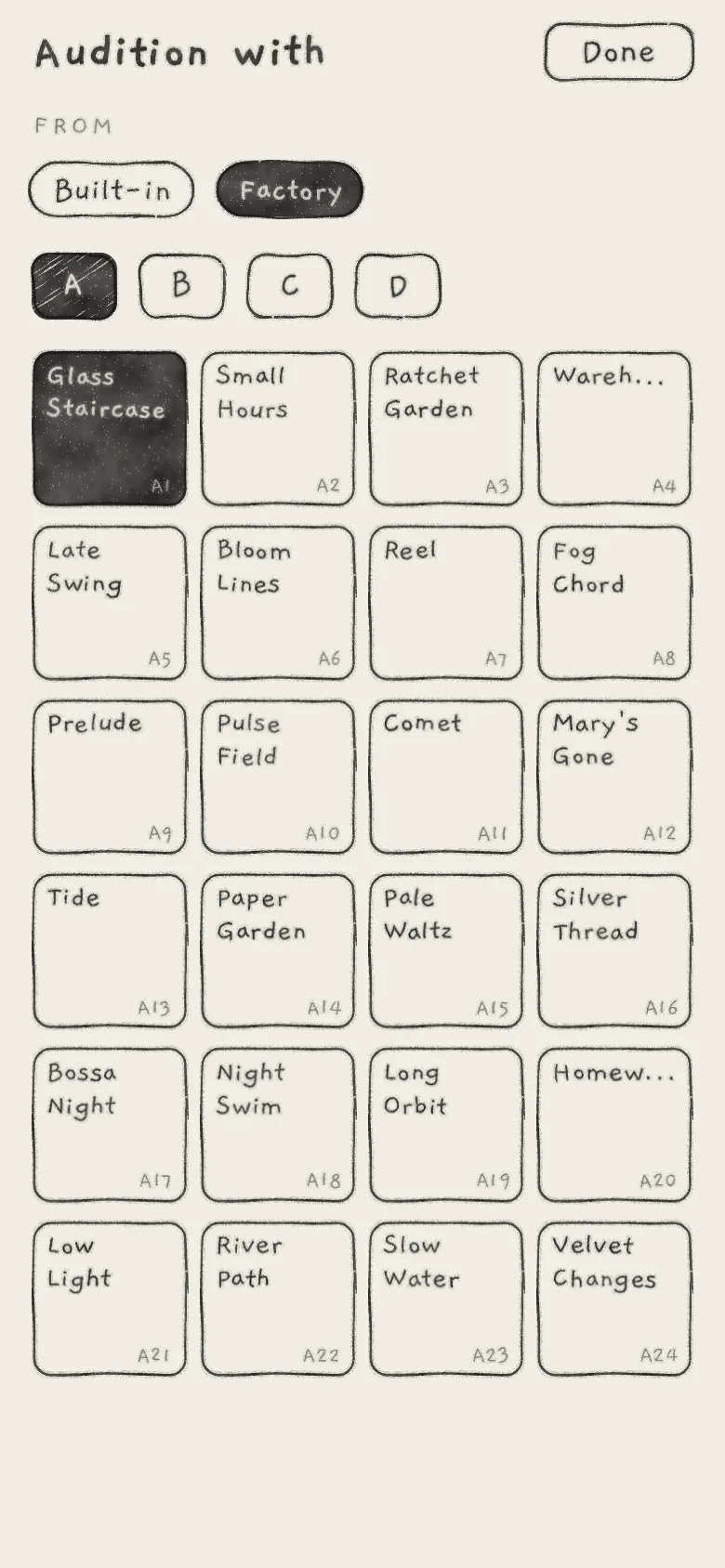 1234
1234- 1Built-in
- 2Project
- 3Banks A to D
- 4Picked pattern
The sheet's FROM row lists Built-in, then every project, the open one included. For a project, A to D choose the bank, and its 24 pattern slots show below (Banks and pattern slots). Tap a pattern to pick it: it is inked and nothing plays. Empty slots cannot be picked. Built-in returns to the phrases.
The pick is a copy kept in the app's settings, so later edits to the original pattern, its bank or its project do not change it. The app and the plug-in share it. The sheet opens on the current pick's project and bank.
#Select mode
The bar at the bottom holds Select and Import. Select starts Select mode, where a tap ticks a sound instead of loading it.
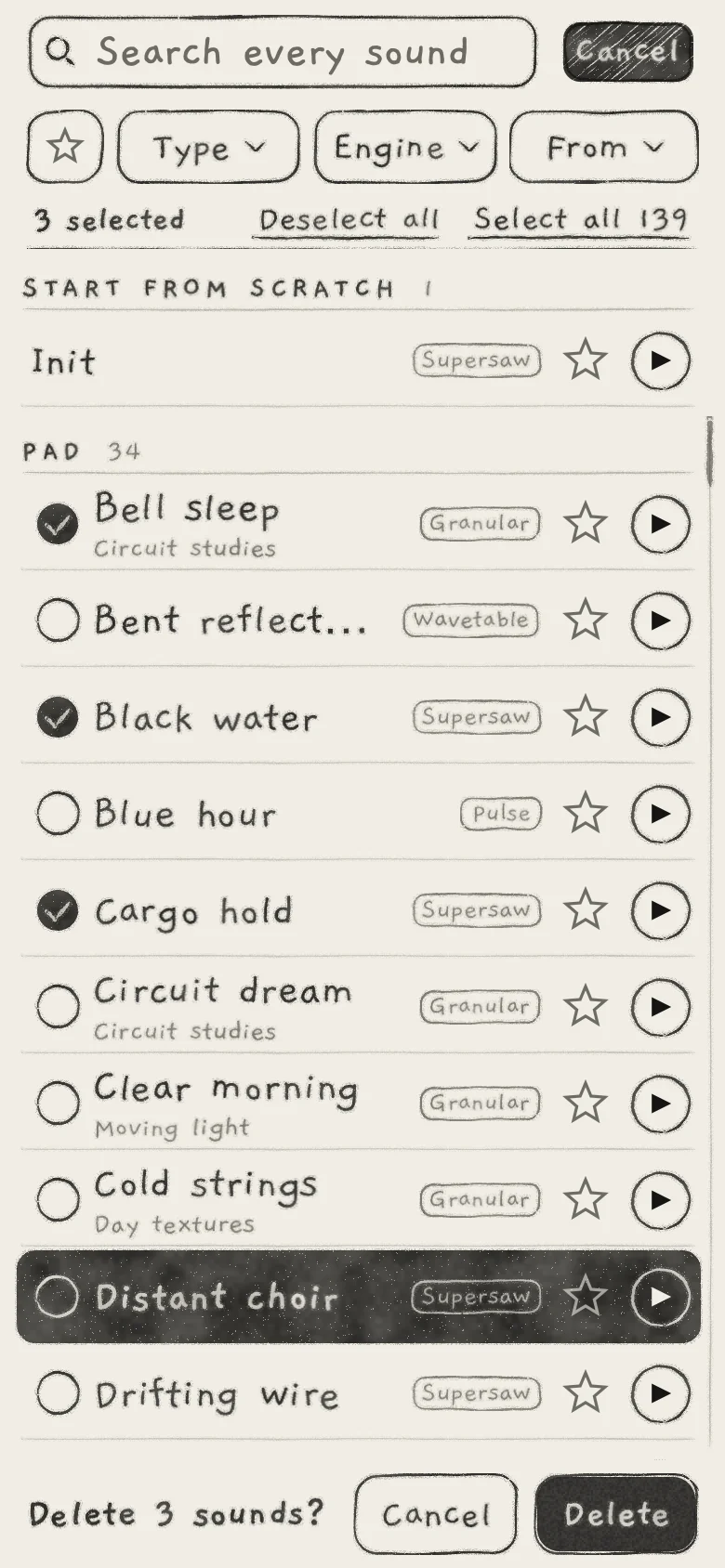 12345678
- 1Cancel
- 2Count
- 3Deselect all
- 4Select all 139
- 5Init, no tick
- 6Ticked
- 7Question
- 8Delete

- CancelEnds Select mode. It replaces Done at the top.
- Select allTicks every sound the filters and search show; its count follows (Select all 139). A link in the status line, hidden once all are ticked.
- Deselect allClears the ticks. A link in the status line once a sound is ticked.
- StarStars the ticked sounds. Reads Unstar when every ticked sound is starred.
- ExportOpens the export card (Save and share sounds).
- DeleteDeletes the ticked sounds after the bar asks "Delete 3 sounds?" with Cancel and Delete.
Each bar button shows its count and is greyed while nothing is ticked. Init cannot be ticked. Import, outside Select mode, opens the file picker; import and export are in Save and share sounds.
On a Mac: the app's bar has Star and Delete; export sounds from the app or the plug-in on iPhone or iPad.
The app and the plug-in share one Library, with its favourites and hidden sounds.
#Delete and restore
After Delete, a toast confirms: "Deleted 3 sounds".
- A factory sound is hidden, listed only under From › Deleted. A project, pattern or host session that names it still plays it.
- A factory sound you saved over loses your version and is hidden; Restore brings back the original.
- Your own sound is removed, with no Undo. An engine playing it plays on unchanged.
To restore, choose Deleted in From. The Library switches to Select mode with one bar button, Restore. Tick sounds and tap it; a toast confirms ("Restored 2 sounds"). Cancel, or restoring the last hidden sound, returns From to Everywhere.
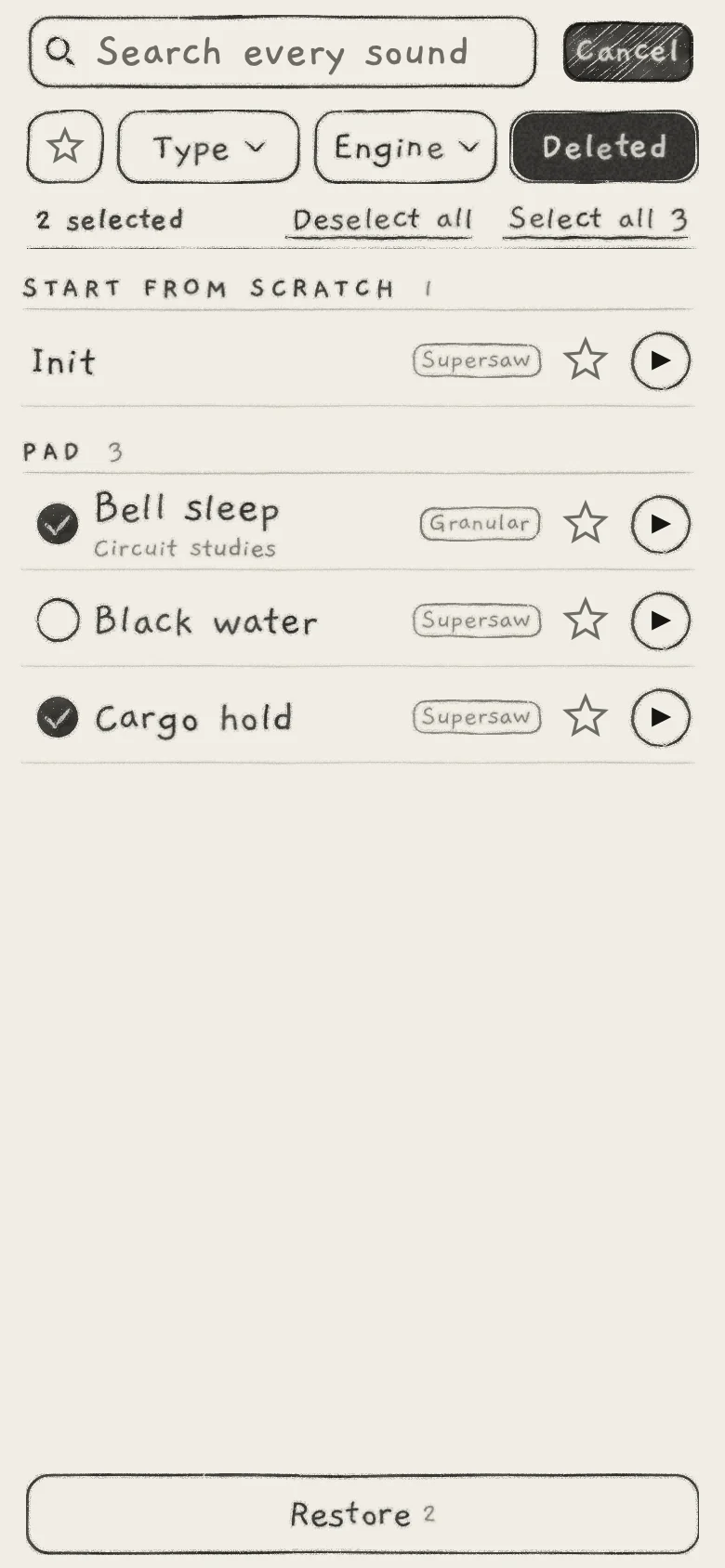 123
123- 1Deleted
- 2Count
- 3Restore with count
#Piano Room
Piano Room is seven factory Keys sounds with their own From entry, Piano Room, credited to Random Machines. Five are Granular sounds on two factory kits; two are Wavetable sounds. They ship inside the app, and deleting one hides it like any factory sound.