CHAPTER 6 OF 54 · START HERE
Find your way
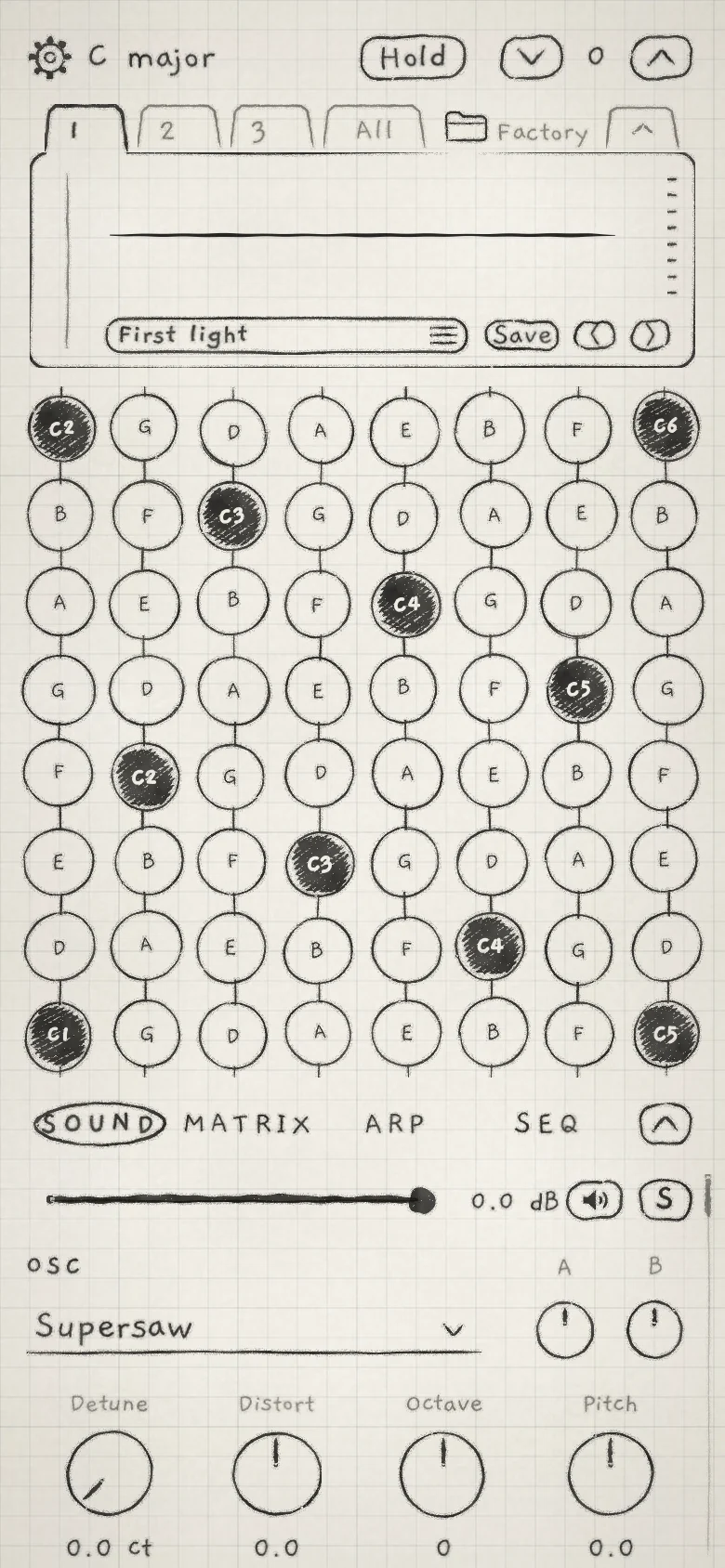
Every engine page has the same layout. The top row holds Settings, the engine's key, Hold and the Octave arrows. Under it, tabs switch between the three engines and the All page, and the card shows what the engine plays. The keyboard fills the middle. Below it, the page tabs open the engine's sound, modulation, arp and sequencer controls.
 123456789101112
- 1Settings
- 2Key
- 3Hold
- 4Octave arrows
- 5Engine tabs
- 6Project
- 7Fold handle
- 8Card
- 9Keyboard
- 10Page tabs
- 11Knobs handle
- 12Engine strip
#Conventions
[[Label]]marks text printed on screen, spelled as printed: Hold, Save as new..., S.- Icon-only controls are named in bold with their icon where they are explained: Mute (speaker icon). Elsewhere they appear by name.
- Section headings are written in capitals, as the app prints them: FILTER, ENVELOPE 2, AUDIO OUT.
- The page tabs print their names in capitals; the guide writes them Sound, Matrix, Arp and Seq.
- Paths use ›: Settings › PLAYING › Touch.
- The guide is written for iPhone. iPad works the same unless stated. Differences start with "On a Mac:" or "In a host:".
- Gestures are tap, double-tap, long press, drag, swipe and press (for pressure). On a Mac: click, double-click, drag, Shift-drag and scroll.
- Init values are those of the Init sound.
#The top row
- Settings(cog icon)Opens Settings: the colour theme, how touch turns into pressure, how pitch follows a slide on Keys, MIDI, what the Library's play button plays, and What's new (Settings and background audio).
- KeyShows the engine's key, Root and Scale, for example "C major". A closed lock in front means the key is locked. A tap opens the engine sheet.
- HoldLatches the notes you play, so they keep sounding after the finger lifts (Play the Grid).
- Octave arrows(˅ ˄)Move the keyboard down or up one octave, −3 to +3; the value shows between them. On Keys, the octaves on screen take its place. The sound itself is transposed with Octave in OSC (Keyboard, key and scale).
#The engine sheet
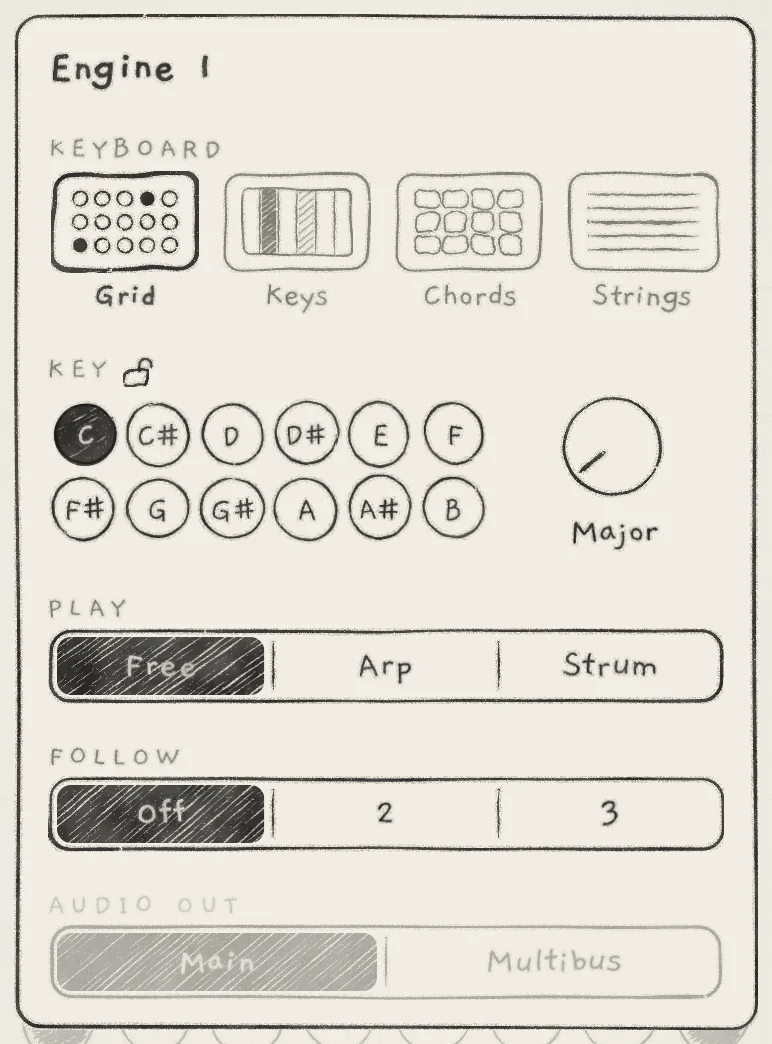
The engine sheet holds the settings that belong to the engine rather than to its sound. Tap the key in the top row to open it. It is titled with the engine's number; a tap beside it closes it.
 12345678
- 1Title
- 2KEYBOARD
- 3Lock
- 4Root
- 5Scale
- 6PLAY
- 7FOLLOW
- 8AUDIO OUT
- KEYBOARDChooses the surface the engine plays from: Grid, Keys, Chords or Strings.
- KEYSets the engine's key: Root with the note pads, Scale with the knob. The lock after KEY keeps this key when another engine or a pattern changes key (Key lock and Follow).
- PLAYPlays your notes as played (Free), through the arp (Arp) or strummed (Strum). The same switch heads the Arp tab (Arp).
- FOLLOWMakes this engine move with the chords another engine plays: Off, or the number of the engine to follow (Key lock and Follow).
- AUDIO OUTIn a host, sends the engine to the main output (Main) or to its own bus (Multibus) (INK in a host).
Keyboard, key and scale covers KEYBOARD and KEY in full.
A row or choice that has no effect is greyed and takes no taps: PLAY on a Strings engine, a FOLLOW number whose engine already follows this one, and AUDIO OUT in the standalone app, which plays every engine through Main.
#Engine tabs
Tap 1, 2 or 3 to open that engine's page. All opens the mixer and a keyboard for each engine (Mixer and All page). Right of the tabs, the folder and the project's name open the project list. An asterisk after the name means the project has changed since its last save (Projects).
An engine's tab carries a dot while its sequencer plays; the dot alternates between two sizes on each step. A dashed ring means the engine is armed and waits for the next bar (Clock and sync).
On an iPhone with a Dynamic Island, held on its side, the All page puts the cog, the folder and the tabs in one column beside the island, without the project's name. The open tab is hatched.
#Page tabs
- Sound: the sound's parameters, from the generator and Sub through the filter, envelopes and LFOs to the effects. See Oscillators.
- Matrix: the modulation matrix. See Modulation matrix.
- Arp: the Free / Arp / Strum switch, the arp settings and the engine's tempo. See Arp.
- Seq: the engine's pattern. See Record patterns.
#The card
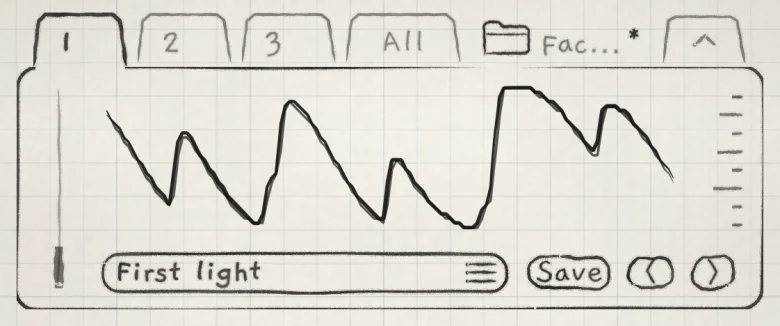
The card above the keyboard shows what the engine plays and which sound it holds. The live waveform display fills its middle, the level meter runs along its left edge, and a dash for each voice sits at its right edge. The row underneath names the sound and loads or saves sounds.
 123456
- 1Waveform display
- 2Level meter
- 3Voice dashes
- 4Sound name
- 5Save
- 6Previous and next
- Waveform displayWith an oscillator generator, the engine's output waveform. With the Granular sampler, the sample with its slice markers and grain positions. On an engine with the Chords keyboard, a tap opens the chord piano; further taps step through the card's views back to the waveform (Play Chords).
- Level meterThis engine's output after its Level, Mute, Solo and OUTPUT. Other engines are not in it.
- Voice dashesOne dash per voice, eight in all. A dash lengthens with its voice's level while it sounds.
- Sound name(list icon)Opens the Library (Sound library). An asterisk after the name means the sound has changed since it was loaded or saved.
- SaveOpens the Save sheet (Save and share sounds).
- Previous and next arrows(‹ ›)Load the previous or next sound in the Library's current list, with its filters and sort.
If the sound has unsaved changes, the arrows first ask whether to save or discard them, as a choice in the Library does (Save and share sounds).
#The Sound tab
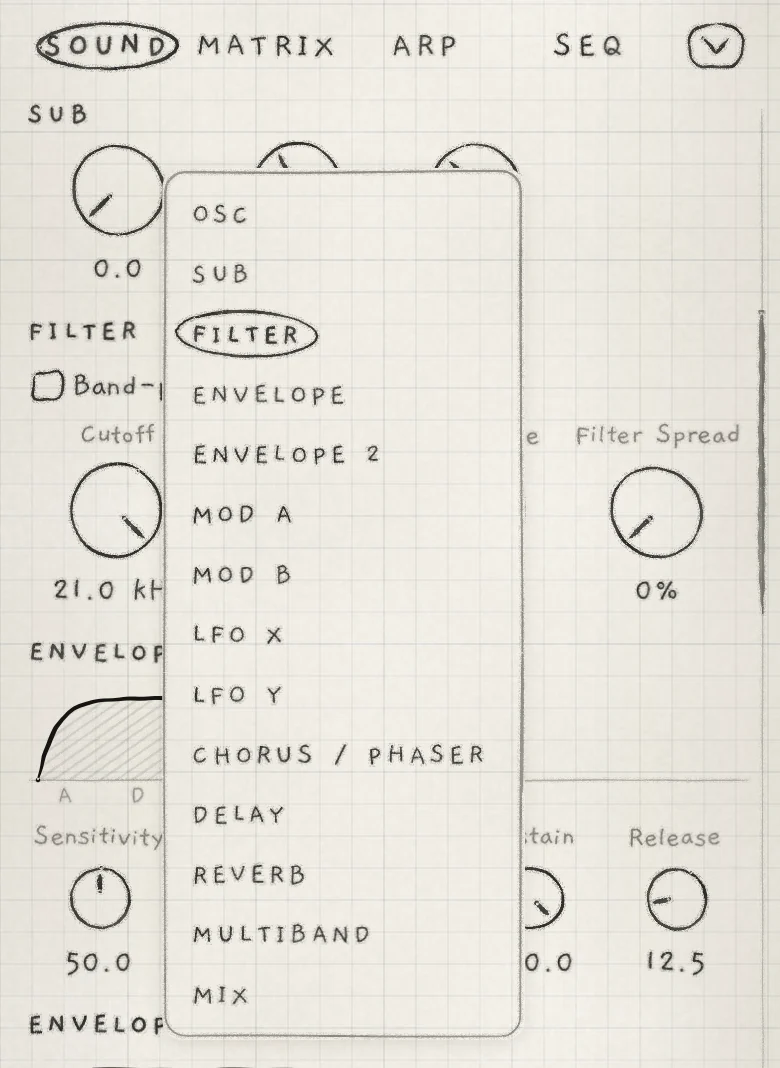
The Sound tab holds the sound's parameters in sections, one under the other, and scrolls. The title of the section you are in stays pinned at the top. Tap any section title, pinned or not, to open the section list, then tap a name to scroll there. A tap beside the list closes it. The Matrix has the same list.
 123
123- 1Section title
- 2Section list
- 3Current section
The sections depend on the generator:
| Generator | Sections, top to bottom |
|---|---|
| Supersaw, Pulse, Wavetable | OSC, SUB, FILTER, ENVELOPE, ENVELOPE 2, MOD A, MOD B, LFO X, LFO Y, CHORUS / PHASER, DELAY, REVERB, MULTIBAND, MIX |
| Phase | OSC, PHASE, then as above from SUB |
| Granular sampler | SAMPLER, SAMPLER JITTER, OSC, then as above from SUB |
Above the first section, the engine strip sets the engine's level and holds its Mute and Solo. At the foot of the Sound and Arp tabs, OUTPUT sets the level of the app's whole output. Both are explained in Mixer and All page.
#Make room
Two handles share the screen between the card, the keyboard and the controls. Neither changes the sound.
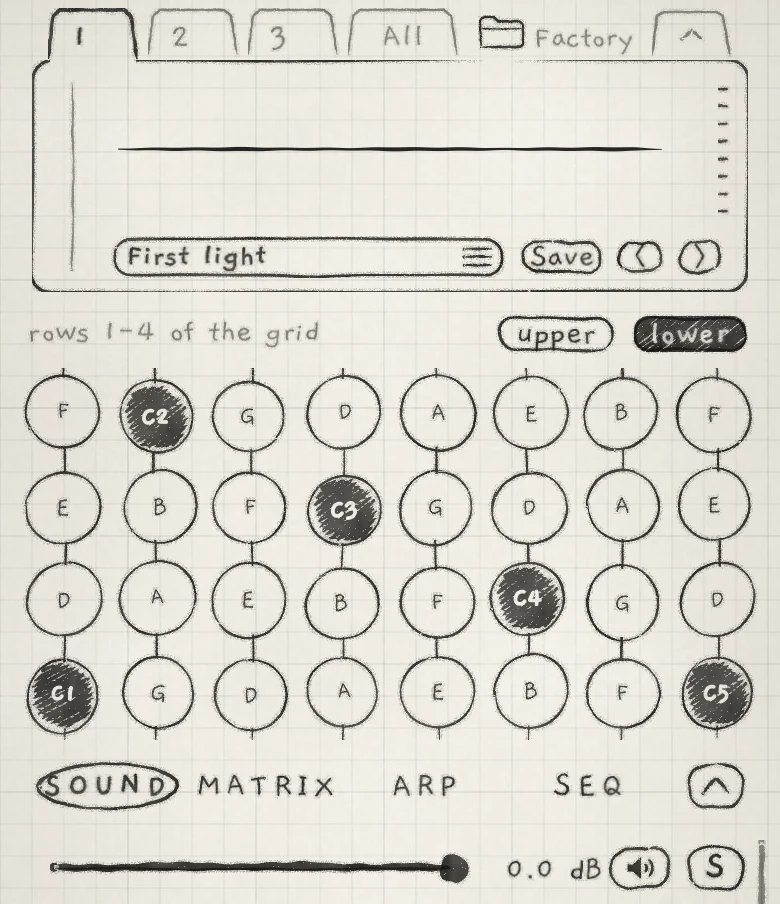 1234
1234- 1Fold handle
- 2Rows shown
- 3upper and lower
- 4Knobs handle
The fold handle (chevron), the tab at the right end of the engine-tab row, folds the card to one row: a small waveform display, the sound name, Save and the arrows. The level meter and voice dashes are hidden while the card is folded. Tap the handle again to open the card.
The Knobs handle (chevron), at the right end of the page-tab row, gives the controls more of the screen. It appears when the iPhone or iPad is upright, with the controls under the keyboard. On Sound and Arp it has three stops: full keyboard, half keyboard and controls only. A tap moves to the next stop, and from controls only back to the full keyboard. A drag up or down moves one stop that way.
On Matrix and Seq the handle has two stops: keyboard and controls only. On an iPhone, the keyboard stop of these tabs is the half keyboard. Controls only folds the card; leaving it restores the card as it was.
With the half keyboard, a line under the card names what is shown ("rows 1-4 of the grid"; on Keys, the notes of the row). upper and lower, at the right end of that line, switch between the upper and lower half.
The open tab, the card's fold and the handle's stop return when the app opens again. In a host, they are saved with the host's session.
#Knobs
Drag a knob up or down to turn it. The face is shaded while your finger holds it. The rate follows the finger: a slow drag makes fine changes, a fast sweep covers the range quickly.
For a fine adjustment, rest the finger on the knob for a moment before you move it. The whole drag then turns at the slow rate, and the face is shaded darker.
A quick vertical swipe that starts on a knob scrolls the page. A slow or sideways drag turns the knob.
Double-tap a knob to return it to its reference value: the value saved in the current sound, not zero.
On a Mac: a drag turns at a constant rate. Shift-drag turns at one tenth of that rate, for fine adjustment. Double-click returns to the reference value. The scroll wheel scrolls the page and never turns a knob.
#On a Mac
On an engine with the Grid keyboard, the computer keys A S D F G H J K play the eight Grid columns, left to right, on the fourth pad from the bottom. Escape releases every note, latched notes included, and silences all three engines.
For undo and redo on a Mac, see Undo and redo.
#Try it
- Tap the fold handle to fold the card, then tap it again.
- Tap the Knobs handle three times: half keyboard, controls only, full keyboard.
- On the Sound tab, tap a section title and choose FILTER.
- Drag Cutoff down, then double-tap it. It returns to its reference value.
- Tap the key to open the engine sheet. Under KEYBOARD, tap Keys. The Grid gives way to Keys.
- Tap Grid to return to the Grid, then tap beside the sheet to close it.