CHAPTER 32 OF 54 · YOUR OWN SAMPLES
Trim, slices and kits
The kit view edits the kit a Granular sampler sound plays: the sample in each of its 8 slots, and how each sample is cut, levelled and sliced. Open it with Kit in the SAMPLER section of the Sound tab; Done at the top right closes it.
Kits follow Plinky's sampler (Where INK comes from): each sample is cut into 8 slices, so that in Tape mode each Grid column plays one slice.
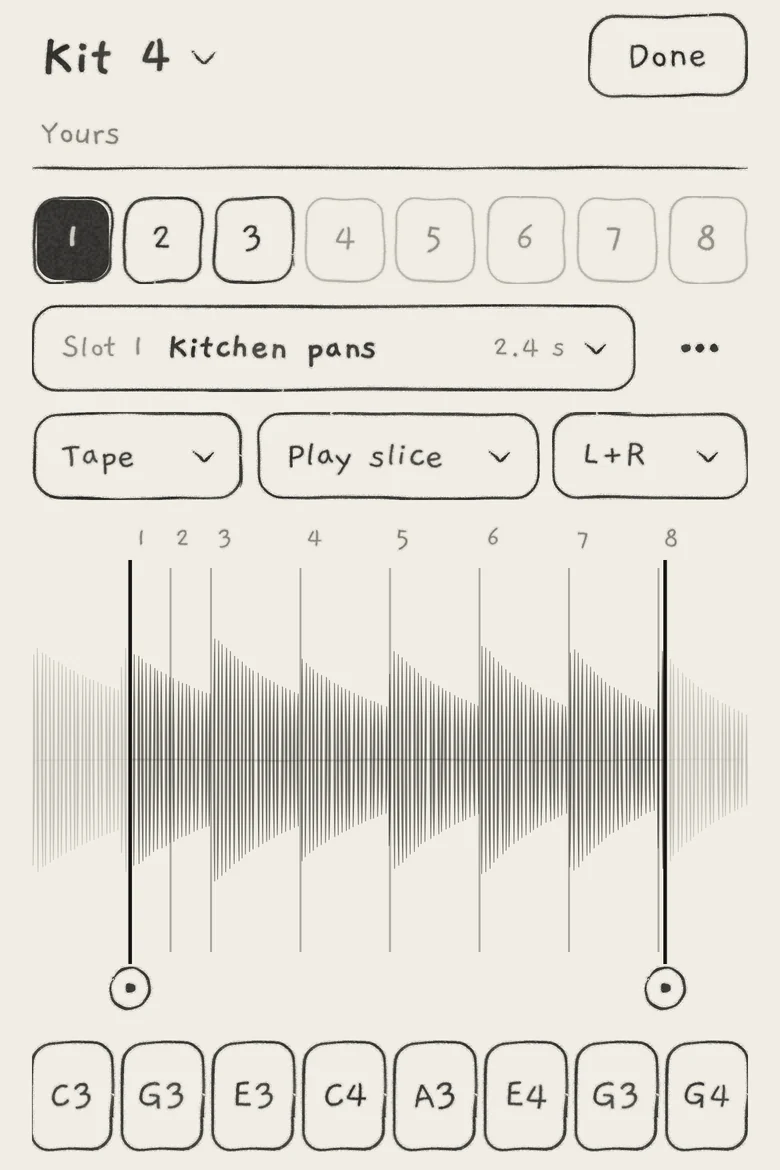 12345678910
- 1Kit name, opens the Kits list
- 2Status line
- 3Slot tabs
- 4Slot field, opens the sample list
- 5Sample menu
- 6Tape or Pitched
- 7Play style
- 8L+R, Left or Right
- 9Waveform and slice lines
- 10Slice pads
- Kit nameOpens the Kits list, where you choose, make, duplicate and reset kits.
- Status lineWhether the kit is yours (Yours), a factory kit (Factory) or a factory kit you changed (Factory · changed). After an import it reports what the files did, with Undo (Import and record).
- Slot tabsChoose the slot the sound plays. A faint tab is empty, a dashed one holds a missing sample.
- Slot fieldThe slot's sample and its length. Opens the sample list.
- Sample menu(⋯)Rename, level or delete your own sample.
- Tape,PitchedHow a note chooses its slice and pitch (Granular sampler).
- Play styleThe area the playhead runs through and what happens at its end (Granular sampler).
- L+R,Left,RightWhich channels of a stereo sample play.
- WaveformShows the sample with its trim handles and slice lines; a press plays the slice under the finger.
- Slice padsPlay each slice through the sound and set its root note.
On a Mac: click and hold where this chapter says press, click for tap, double-click for double-tap, and drag with the mouse.
#What an edit changes
Edits land in three places:
| Edit | Saved in | Heard by |
|---|---|---|
| Trim, Normalised, L+R / Left / Right | the sample | every kit slot that holds the sample |
| The sample in a slot (pick, import, record) | the kit | every sound on the kit |
| Slot tab, Tape / Pitched, play style, slice lines, roots | the sound | this sound; it shows * until saved |
Samples and kits are stored apart from sounds and projects; a sound names its kit.
#Trim
On your own samples the waveform shows the whole recording. A trim handle at each end marks the part that plays; drag a handle by its round grip to move that end. The parts outside the handles are drawn faint and do not play.
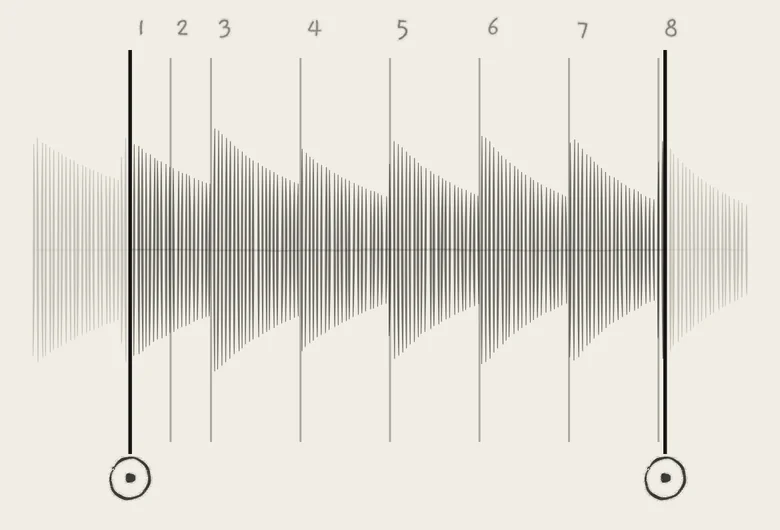 1234
1234- 1Left trim handle
- 2Cut-away part
- 3Right trim handle
- 4Slice line
- A handle snaps to a nearby zero crossing, and to the start or end of the recording when dragged close to it.
- The new trim plays once you lift your finger.
- Slice lines keep their places in the recording. Lines that fall outside the kept part are spread evenly inside it; moving the handles out again brings them back.
The recording itself is never cut: drag both handles to the ends to play all of it again. Factory samples have no trim handles.
#Normalised and channels
The sample menu (⋯ beside the slot field) offers Rename, Normalised and Delete. It appears only on your own samples.
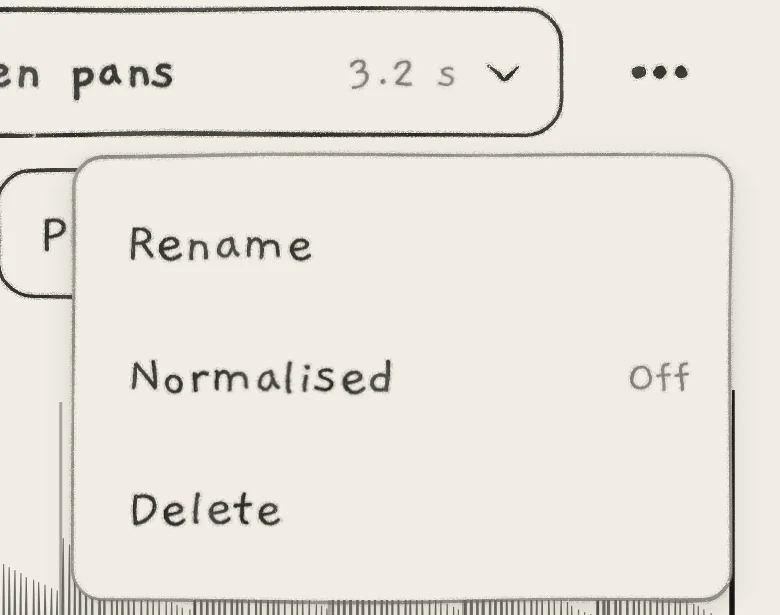 1234
1234- 1Sample menu
- 2Rename
- 3Normalised and its state
- 4Delete
Normalised brings the sample's peak to the level of the factory samples, −6.4 dBFS: it raises a quiet sample and lowers a loud one. It is on for every new sample. The menu shows the state at the right: Off, or On with the gain applied, such as "On · +4.5 dB" or "On · −0.1 dB".
On your own stereo samples a drop-down beside the play style chooses the channels: L+R, Left or Right. INK keeps both channels of a stereo file and plays one mono signal made from them. L+R sums the channels, so material that is out of phase between them cancels; Left or Right plays one channel.
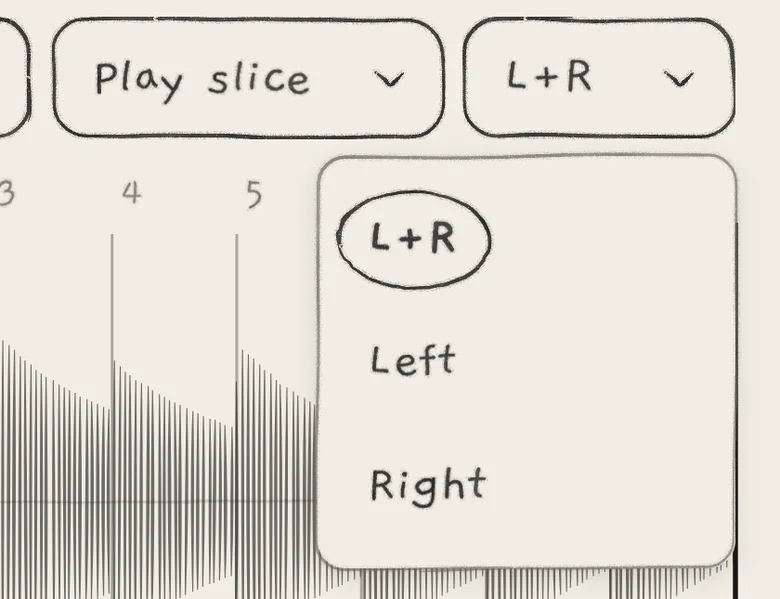 123
123- 1L+R
- 2Left
- 3Right
#Slice lines
The 8 numbered lines on the waveform mark where the slices start.
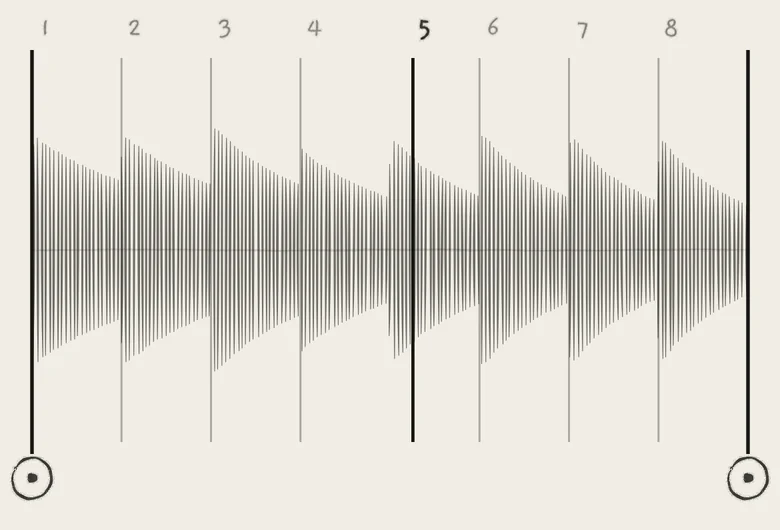 12
12- 1Slice line
- 2Moved line
- Drag a line sideways to move it. A press on or near a line takes the line. Lines may overlap; from a stack, the first drag takes the line on the side you move to.
- Double-tap a line to return it to the kit's position. A moved line has a bold number.
- Press anywhere else on the waveform to hear the slice under your finger, dry (without the sound's envelopes, filter or effects), until you lift.
#Slice pads and roots
The 8 pads under the waveform show each slice's root note. A press plays that slice through the sound: in Tape mode from the slice's start, in Pitched mode at its root.
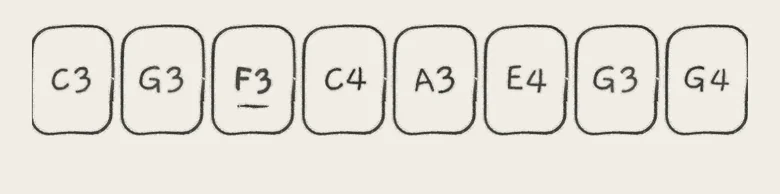 12
12- 1Slice pads
- 2Moved root
Drag a pad up or down to change its root in semitones. Double-tap to return it to the kit's root. A moved root is bold and underlined. Roots run from C−1 to G9 and are saved in the sound.
In Pitched mode the root sets how far a slice is transposed: a root one octave too high makes that slice play one octave too low. Tape mode ignores the roots.
INK finds the roots of your own samples from the audio: when a sample is first written or shown, again after a trim or an L+R, Left or Right change, and for one slice when you let go of a moved line. A slice without a clear pitch keeps its root. Factory samples keep their prepared roots.
#Sample list
Tap the slot field to open the sample list, titled with the kit and slot ("Kit 4 · Slot 1"). The line under the title counts your samples and the factory ones.
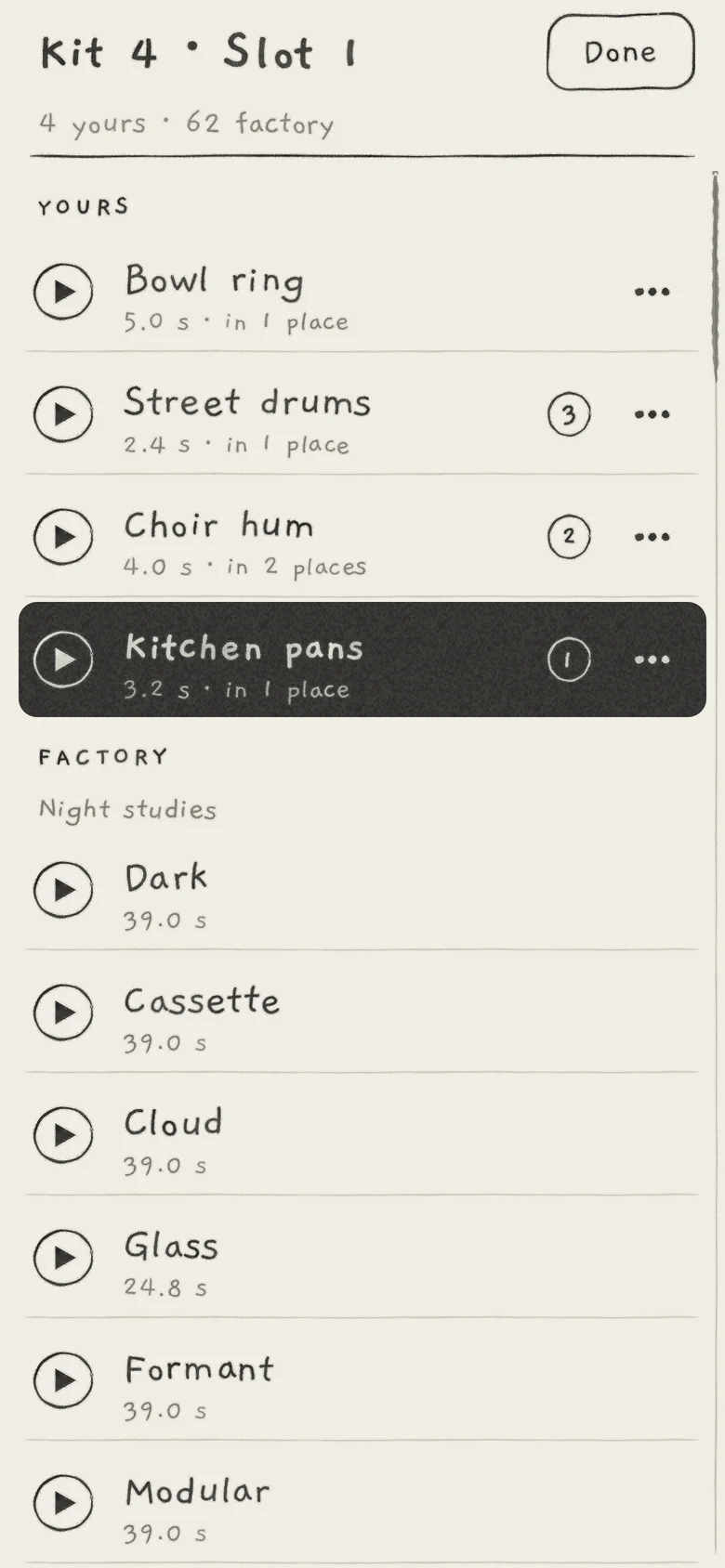 123456
- 1YOURS
- 2FACTORY
- 3Play mark
- 4Slots of this kit that hold it
- 5Length and places used
- 6Sample menu
- Tap a row to put that sample in the slot. Opened from an empty slot, the list stays open on the next empty slot until the kit is full.
- Tap the play mark to hear the sample dry to its end; tap again to stop.
- Each row shows the sample's length; your own samples also show how many kit slots hold them ("in 2 places"). The slots of this kit that hold a sample are circled on its row.
- A sample of this slot that INK cannot find heads YOURS, marked Missing (Empty, Missing, Not saved).
- On your own samples the three dots offer Rename, Duplicate and Delete. A duplicate shares nothing with the original, so it can be trimmed and levelled separately.
#Kits
Tap the kit name to open the Kits list: YOURS, then FACTORY, each row with the kit's samples. The current kit is inked.
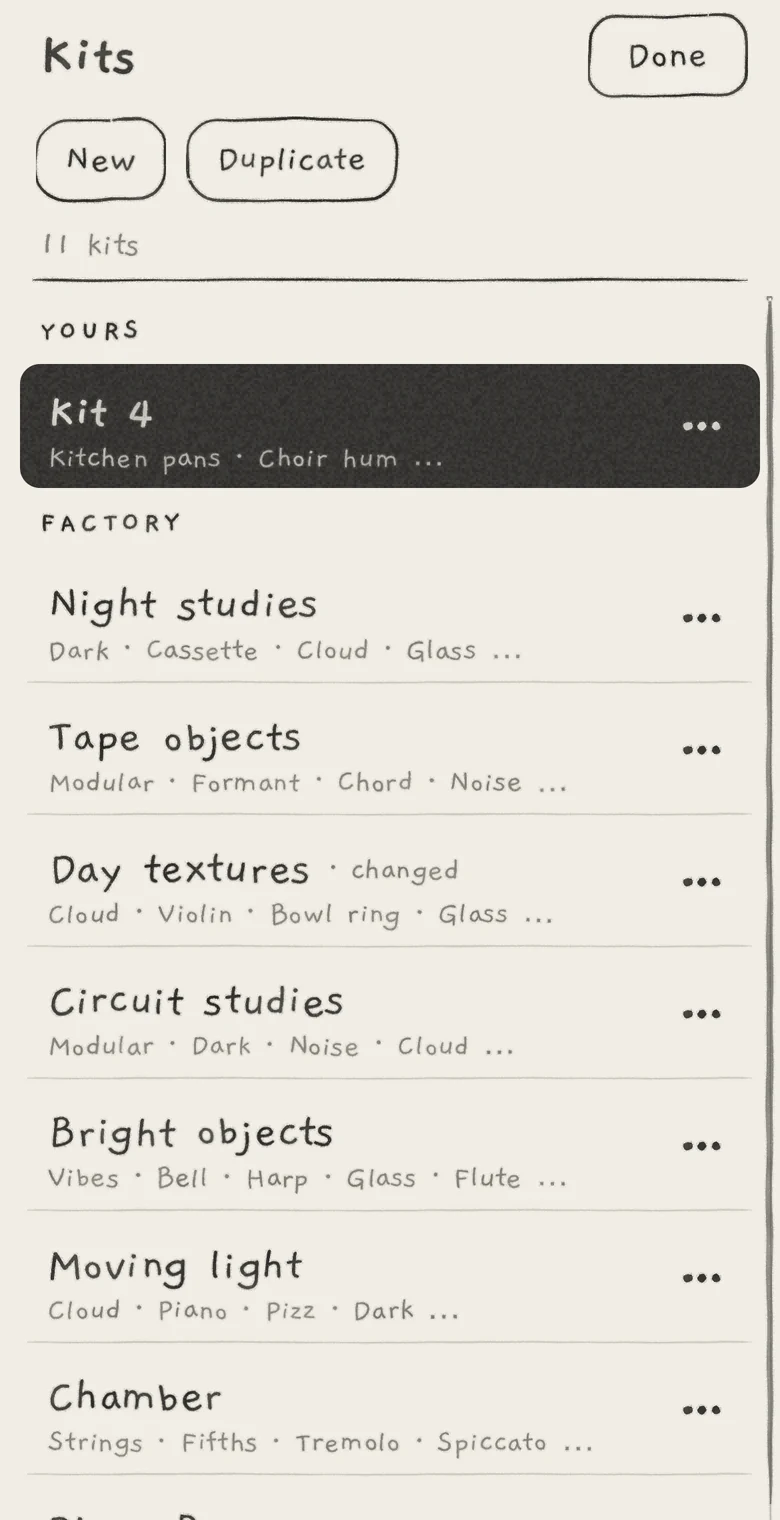 12345
12345- 1New
- 2Duplicate
- 3Your kits
- 4Factory kits
- 5Changed mark
- New makes a kit of 8 empty slots ("New kit") and puts the current sound on it.
- Duplicate copies the current kit as it plays now ("<name> copy") and puts the current sound on the copy.
- Tap a kit to put the current sound on it. The sound shows * until you save it. It keeps its settings, except in slots that hold a different sample on the new kit: those take the new kit's Tape or Pitched, play style, slice lines and roots.
- The three dots on your kits offer Rename, Duplicate and Delete; on factory kits, Duplicate and Reset to factory, which is unavailable until the kit is changed.
A changed factory kit shows "· changed" beside its name. A kit with samples that cannot be found shows the count in bold, such as "2 missing". Reset to factory opens a sheet that lists what changed (CHANGED) and the factory sounds on the kit (SOUNDS ON IT).
#Empty, Missing, Not saved
The slot field and tabs show three states without a playable sample.
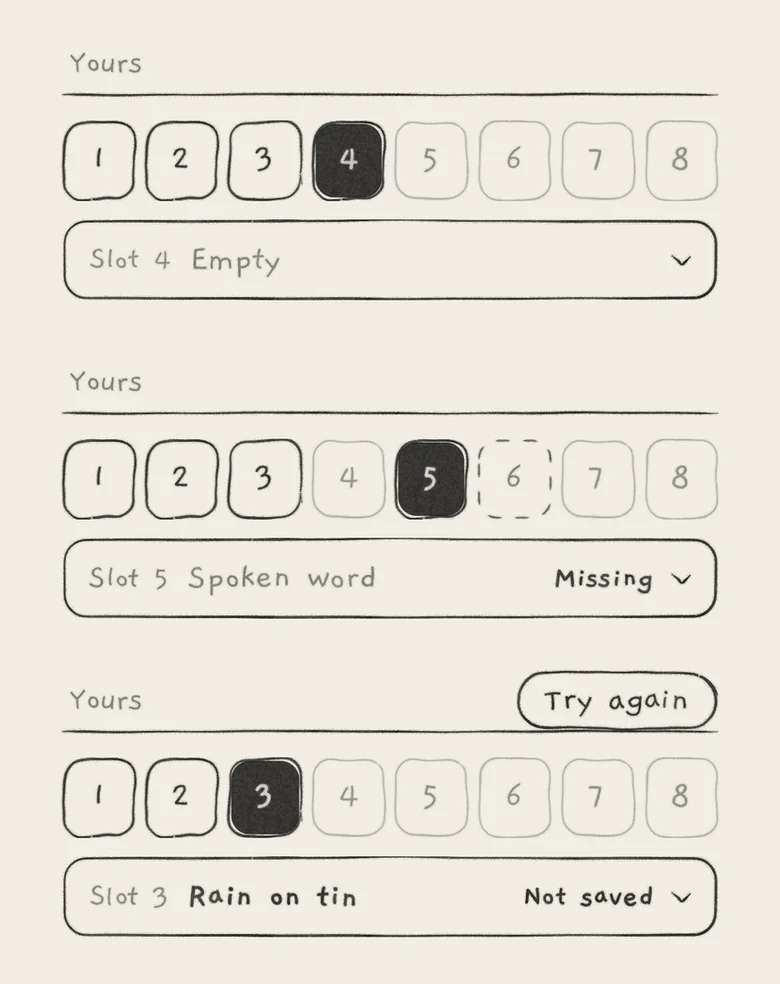 12345
12345- 1Empty
- 2Missing
- 3Tab of a missing sample
- 4Not saved
- 5Try again
- Empty: the slot holds nothing. Its tab is faint.
- Missing: the slot names a sample INK cannot find, because it was deleted or its files are damaged. The field keeps the sample's name, the tab is dashed and the pads do not play. Choose another sample from the sample list, or put the sound on another kit.
- Not saved: an imported file or a take could not be written and exists only in memory. Try again in the status line writes it again.
#Delete
Deleting asks first; nothing changes until you tap Delete.
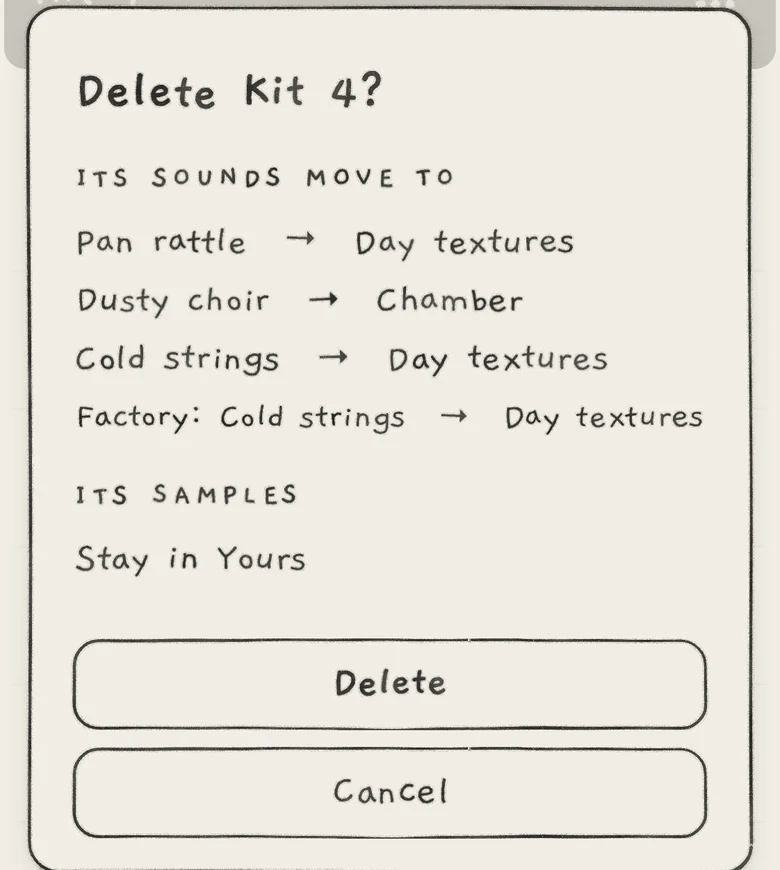 1234
1234- 1ITS SOUNDS MOVE TO
- 2ITS SAMPLES
- 3Delete
- 4Cancel
- A sample: the sheet lists the kits and sounds that use it (USED BY). Their slots then read Missing (THOSE SLOTS WILL SHOW).
- A kit (your own only): the sheet lists where each sound on it moves (ITS SOUNDS MOVE TO): the factory kit it was first made on, otherwise Day textures. Saved sounds move at once, saved projects when they next open. Its samples stay in Yours.
Export a sound from the Library to share it with its kit and recordings (Save and share sounds).
- Load a Granular sampler sound that plays one of your own samples and tap Kit.
- Tap the kit name, then Duplicate. The sound moves onto the copy and shows *.
- Tap the slot field, tap your sample's three dots and choose Duplicate.
- Tap the copy, which heads YOURS with " 2" after its name, to put it in the slot.
- Drag both trim handles in, tap Done and save the sound. The original kit and sample are unchanged.