CHAPTER 42 OF 54 · LIBRARY AND PROJECTS
Save and share sounds
An edit to a sound plays at once but stays in the engine until you save it. Save on the card stores the sound in the Library. Export and Import in the Library move sounds between devices as files. Browsing, filters, Init, Piano Room, deleting and restoring are in Sound library.
#Save sheet
An asterisk (*) after the sound name means the sound that plays differs from its saved version. A project keeps the edits as they play (Projects); the Library keeps only what you save.
Tap Save on the card to open the Save sheet, a card of save choices. Which choices it shows depends on the sound.
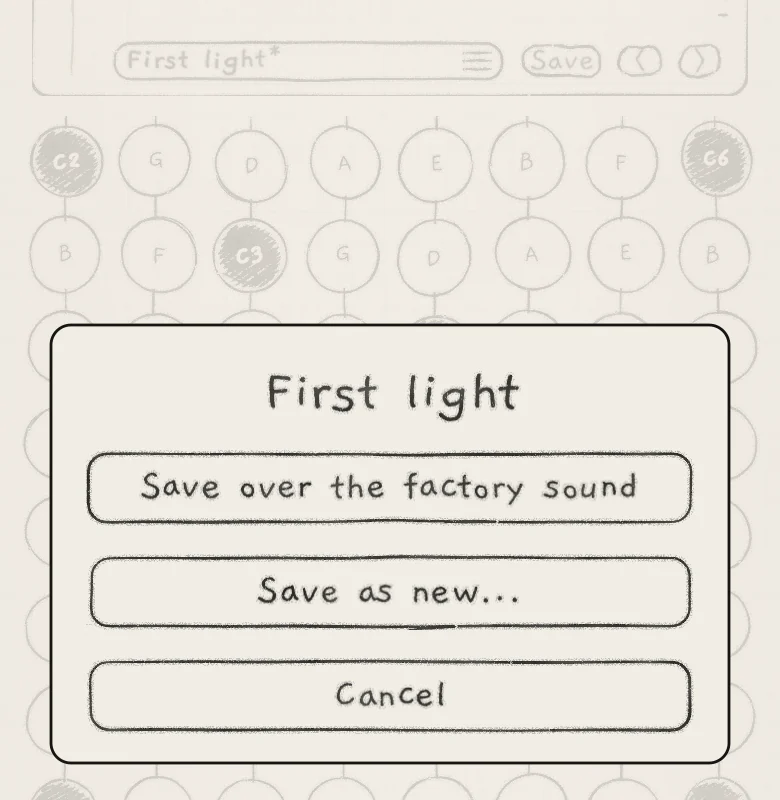 1234
1234- 1Name with asterisk
- 2Save over the factory sound
- 3Save as new...
- 4Cancel
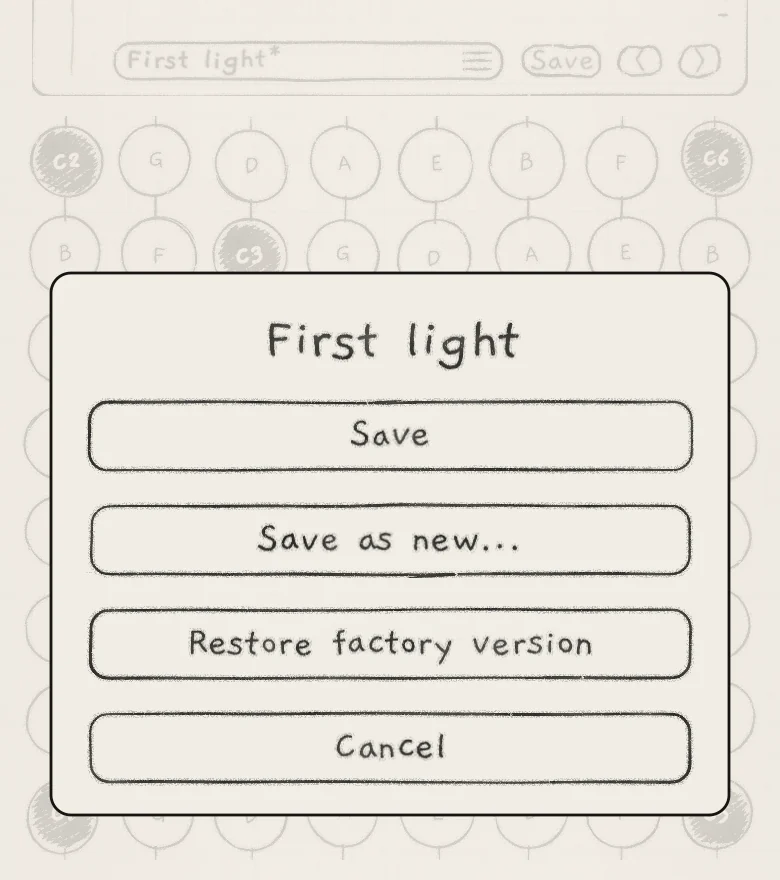 12345
12345- 1Name with asterisk
- 2Save
- 3Save as new...
- 4Restore factory version
- 5Cancel
- Save over the factory soundShown on a factory sound with no saved version of yours. Stores what plays as your version of it.
- SaveShown on your own sound, or on a factory sound you saved over before. Replaces the saved version with what plays.
- Save as new...Keeps the original and stores a new sound. Opens the name card.
- Restore factory versionOnly on a factory sound you saved over. Removes your version; the original plays again.
- Name and category...Only on your own sound. Renames it and sets its category; the card's button reads Rename.
- CancelCloses the sheet. Nothing changes.
On Init the sheet offers only Save as new... and Cancel, so Init always stays Init. The same holds for a sound the Library no longer has, such as a deleted sound still playing from a project.
A factory sound you saved over is listed under Library › From › Mine and shows "changed" in its Library row. Another engine that plays the same sound unedited switches to the saved version; an engine with edits of its own keeps them.
If a save fails, a card reads "The sound could not be saved. Your changes are still playing."
#Name and category
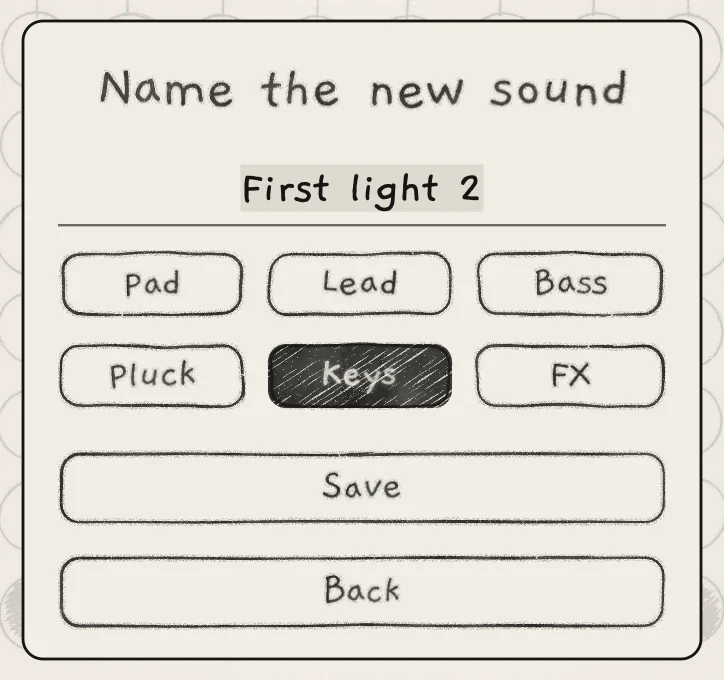 1234
1234- 1Name
- 2Categories
- 3Save
- 4Back
Save as new... opens the card "Name the new sound". The name starts as the current name plus " 2" and takes up to 40 characters. Save stores the sound; Back returns to the sheet.
Every sound has one category: Pad, Lead, Bass, Pluck, Keys or FX. The Library's Type filter and sort use it. The card starts on the current sound's category; on Init none is selected. Save does nothing until the sound has a name and a category.
The new sound becomes the sound that plays and is listed under Mine. The original is unchanged.
#Leaving a changed sound
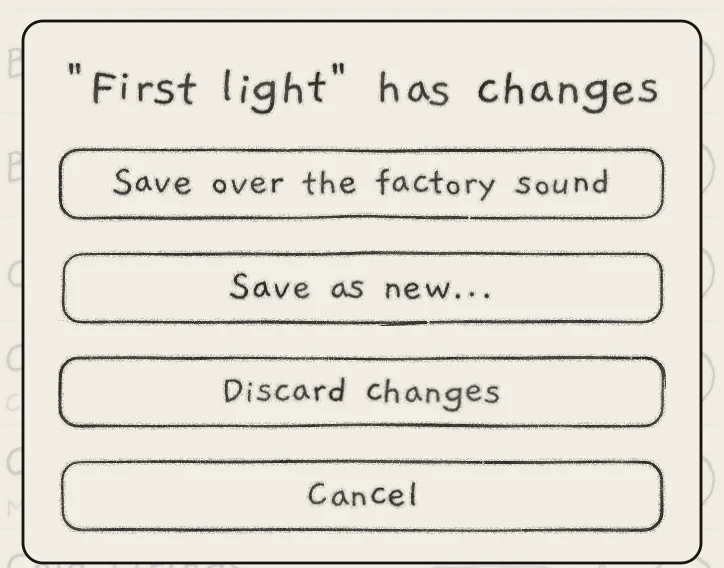 12345
12345- 1Title
- 2Save over the factory sound
- 3Save as new...
- 4Discard changes
- 5Cancel
When the asterisk shows and you choose another sound, a card titled with the sound's name and "has changes" opens first. It opens for a choice in the Library, for the previous and next arrows (‹ ›) on the card, and for a pattern that loads its sound.
- Save (or Save over the factory sound) stores the edits, then loads the new sound. On Init only the other three choices show.
- Save as new... opens the name card, stores the copy, then loads the new sound.
- Discard changes drops the edits and loads the new sound.
- Cancel keeps the edited sound playing.
#What a sound holds
A sound holds:
- The generator, with OSC, PHASE and SUB. A Wavetable sound names the table it plays. A Granular sampler sound adds SAMPLER and SAMPLER JITTER, the kit it plays, and each slot's play mode, slices and roots.
- FILTER with Band-pass, ENVELOPE (the amp envelope) and ENVELOPE 2.
- The LFOs: MOD A, MOD B, LFO X and LFO Y, with Freeze on X and Y and the LFO Sync setting of all four (LFOs and Freeze).
- The effects and output stage: CHORUS / PHASER, DELAY, REVERB, MULTIBAND and MIX.
- Every Matrix amount, and the positions of Macro A and Macro B.
- Hold, on or off.
- On a sound saved with Arp or Strum: that switch position and the arp settings, every arp control except Tempo, Sync and Gate (Arp).
These settings live elsewhere and stay as they are when a sound loads:
| Setting | Where it lives |
|---|---|
| The engine's key: Root and Scale | Project (Key lock and Follow) |
| The keyboard: Grid, Keys, Chords or Strings | App (Keyboard, key and scale) |
| The pattern, with its Tempo, Sync and Gate | Pattern (Edit and save patterns) |
| Level, Mute, Solo and Audio out | Project (Mixer and All page) |
| MIDI In, Out and routes | Project (MIDI in) |
| Your arp settings, played by sounds saved in Free | Project (Arp rhythm and tempo) |
| OUTPUT and Quantize | Project (Projects) |
Some stored values do not set the asterisk: the macro positions, Hold, the Free / Arp / Strum switch, and the base values of Stride and Degree. Save stores them as they are, and loading the sound sets them again. A sound saved in Free leaves your arp settings as they are.
A sound names its kit and its wavetable. The recordings and the table are stored once in the Library and shared by every sound that uses them (Trim, slices and kits, Wavetables).
#Export
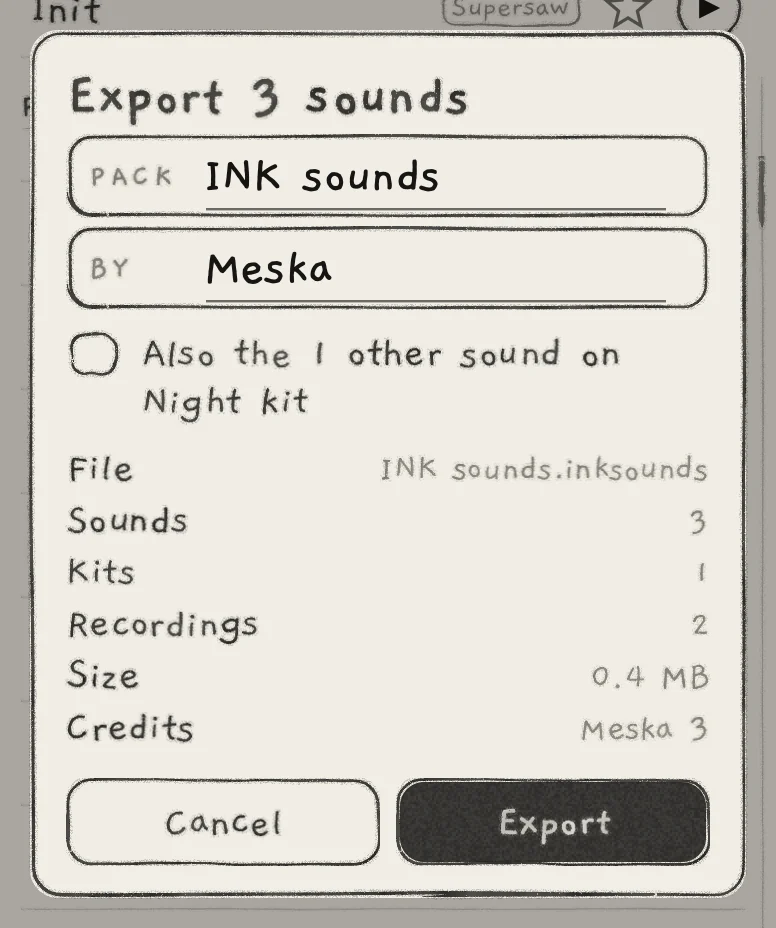 1234567
- 1Title
- 2Pack
- 3By
- 4Also the 1 other sound on Night kit
- 5File and contents
- 6Credits
- 7Export
In the Library, tap Select, tick the sounds and tap Export (Sound library). The card "Export n sounds" opens.
- PackThe pack name, written into the file and used as the file name. Init: the pack of the first ticked sound that came in a pack, else "INK sounds".
- ByThe author written into the file. The next export starts with the last name entered.
- Also the n other sounds on <kit>Shown when a ticked sound plays a kit that goes into the file and other sounds of yours use it. Tick it to export those sounds too. With several kits it reads "on n kits".
- File, Sounds, Kits, Recordings, Wavetables, SizeThe file name, and how many of each the file holds. Wavetables shows only when there are any. Size is an estimate.
- CreditsAuthors and their sound counts, for example "Meska 7 · Sam 2" or "No author 1".
- Left outHow many ticked sounds cannot go.
- Cancel,ExportClose the card, or write the file.
Export writes the .inksounds file. An "Exporting" card with Cancel shows while it runs. Then the system share sheet opens: save the file to Files, AirDrop it or send it.
The file holds the sounds, your kits and any factory kits you changed, with their recordings, and the wavetables of yours that the sounds play. An unchanged factory kit stays behind, since every copy of INK has it. A factory sound you saved over goes as your version and arrives as a new sound.
The file carries the pack name and the By name. Each sound keeps its own author; a sound without one takes the By name. An unchanged factory sound carries no author and is not counted in Credits.
When none of the ticked sounds can go, the card reads "Nothing to export", with one line per sound: "Not found.", "Its kit is gone.", "A recording is missing." or "A wavetable is missing." A write that fails shows "Can't export", the reason and "Nothing was exported."
Export works in the app and in the AUv3 on iPhone and iPad. On a Mac: the Library has Import but no Export; export from INK on iPhone or iPad.
#Import
Tap Import in the Library and choose in the Files picker: .inksounds files, Plinky .uf2 files, ZIPs or folders, several at once. An "Importing" card shows the progress and has Cancel.
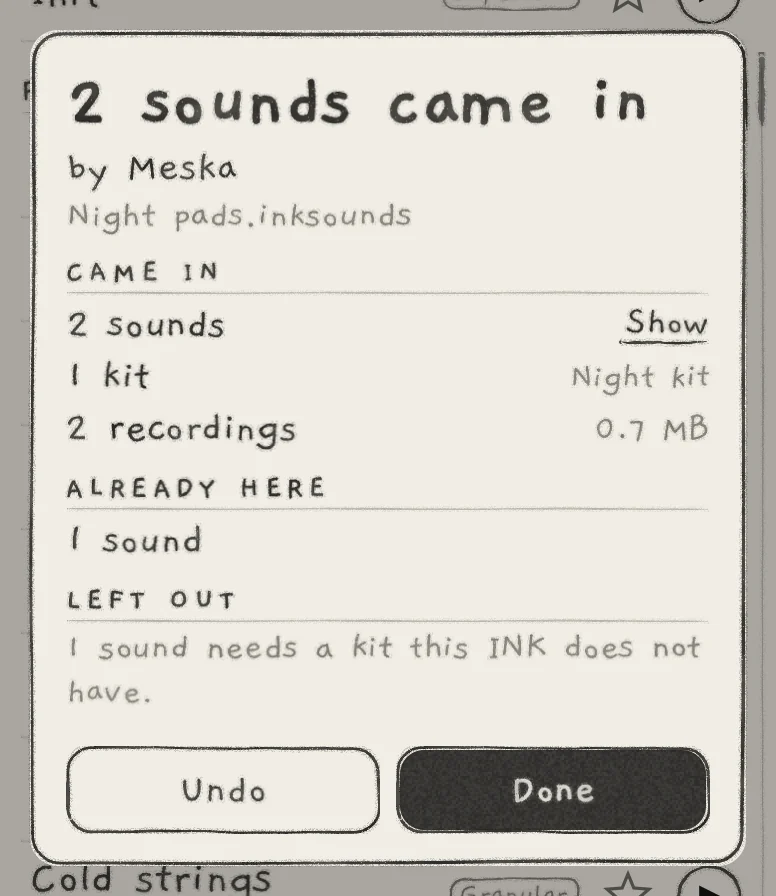 1234567
- 1Title and author
- 2CAME IN
- 3ALREADY HERE
- 4LEFT OUT
- 5Show
- 6Undo
- 7Done
- Title"n sounds came in", or "Nothing new". Under it, "by <author>" when the file names one, then the file name.
- CAME INWhat was stored: the sounds, the kits with the kit's name, the recordings with their size in MB, and the wavetables.
- CREDITSEach author with a sound count, when the pack has more than one author.
- ALREADY HERESounds, kits, recordings and wavetables the Library already has. They are not stored again.
- LEFT OUTOne line for each thing that could not come in.
- ShowCloses the card and sets From to the new pack, clearing the other filters and the search.
- UndoTakes the whole import back: the sounds, and the kits, recordings and wavetables nothing else uses.
- DoneCloses the card.
Importing the same pack twice stores nothing new. An import can be undone only from this card: after Show or Done, delete the sounds in the Library instead. An import that brings nothing in shows "Can't import", the file name, the reason, "Nothing was changed." and OK.
Imported sounds are listed under From by pack name. Import works in the AUv3 on iPhone and iPad; the app and the AUv3 share one Library. On a Mac: Import opens a file dialog for .inksounds, .uf2 and ZIP files; ZIP a folder to import it.
#Files opened from other apps
A file opened in INK from Files, AirDrop or the share sheet goes where it belongs:
| File | Opens | Then |
|---|---|---|
.inksounds, .uf2, ZIP | the Library | imports it as above |
.inkproject | the Projects list | imports it (Projects) |
| Audio or video | the kit view | imports into the slot the sound plays (Import and record) |
This works in the standalone app. In a host, use Import in the Library. On a Mac: Finder's Open With hands .inksounds, .uf2, ZIP and .inkproject files to the app.
#Plinky import
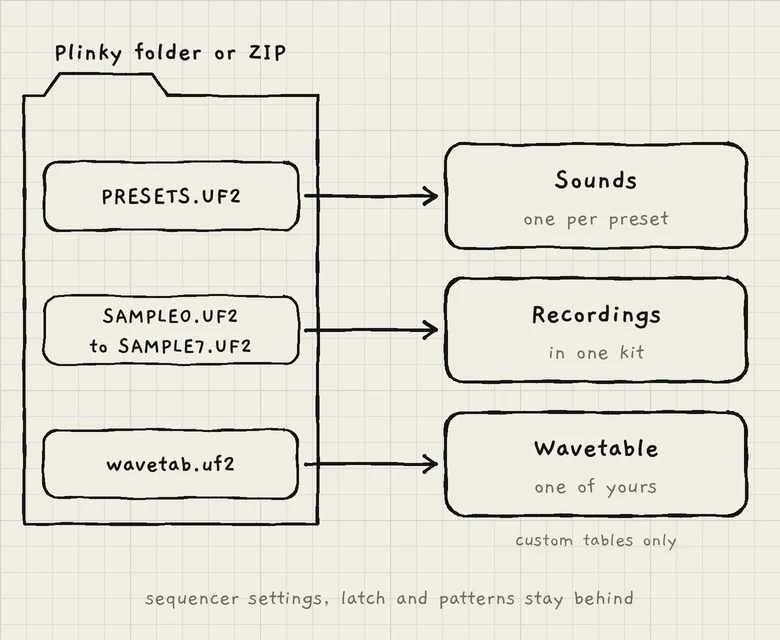 123
123- 1Presets become sounds
- 2Samples become recordings in one kit
- 3A custom wavetab becomes one of your wavetables
INK grew out of Plinky's firmware and keeps its parameters, so a Plinky preset becomes an INK sound parameter for parameter (Where INK comes from). Import reads the files of a Plinky or Plinky+: PRESETS.UF2, SAMPLE0.UF2 to SAMPLE7.UF2 and wavetab.uf2, loose or in a folder or ZIP.
Choose the whole set at once so the sounds find their samples. INK recognises each file by its contents, so renamed files still work. One import reads one Plinky's set; files in other folders are listed under LEFT OUT. The folder or ZIP name becomes the pack name under From.
Presets become sounds:
- Every Plinky parameter is copied with its Matrix amounts, except Pitch, which is set to 0 (on Plinky it transposed the key). SUB, MULTIBAND, CHORUS / PHASER and the macro positions take their Init values, and the delay type is Classic.
- The generator is chosen as the Plinky firmware chooses it. A preset with a sample selected plays the Granular sampler. Otherwise Shape decides: near 0 Supersaw, positive Wavetable, negative Pulse at the firmware's pulse width.
- The arp settings come along. The sequencer settings and the patterns belong to INK's patterns and stay behind; Plinky's latch is INK's Hold and stays off. Presets left at their initial values are skipped, and so is a Granular preset whose sample slot has no audio.
- Plinky's categories map to INK's: Bass to Bass; Pads and Sadness to Pad; Jolly to Keys; Arps, Plinks, Plonks and Donk to Pluck; SFX, Line-In, Sampler, Wild, Gnarly and Weird to FX; Leads, Beeps, Boops and blank to Lead.
Plinky presets carry no FILTER settings, so each gets the Filter as INK's own sounds use it: low-pass, no Filter Spread, and a low Resonance that rises with the preset's LPG Filter value. The Cutoff is set by category, from 1.4 kHz on Bass to 3.4 kHz on Lead, and sits higher with more Distort and on Granular sampler sounds.
Envelope 2, pressure and Macro A move the Cutoff. Env → Cutoff is scaled to the preset's Env Level and follows its sign, so each note opens the filter; a preset with no envelope gets none. Prs → Cutoff and A → Cutoff are positive. At Macro A's Init position the sound plays at its category's Cutoff; turn A up to open the filter, down to close it.
Samples become recordings in one kit named after the folder, with each slot's length, slices, roots and modes from PRESETS.UF2. The audio comes in at its recorded level with Normalised off; turn it on in the sample menu to match the factory samples (Trim, slices and kits). Without PRESETS.UF2 the length is estimated, the slices are even, and one sound plays the kit.
wavetab.uf2 becomes one of your wavetables, named after the folder, when it is not the firmware's own table; the pack's Wavetable sounds play it. With the firmware's table, or none, they play the Basic bank (Wavetables).
A file INK cannot use is refused with one line: "This is not a Plinky file.", "The file is damaged.", "The file is too big." or "There are no presets in this file." LEFT OUT on the result card lists the rest, for example "Slot 6: no audio." or "The patterns were left out."
- On a Granular sampler sound that plays a kit of your own, tap Save, then Save as new.... Save a second sound on the same kit.
- In the Library, tap Select, tick the first sound and tap Export.
- Tick the "Also the ... on <kit>" box. Sounds adds the other sounds on the kit, and Kits reads 1. Tap Export and save the file to Files.
- Tap Import and choose the file. The card reads "Nothing new" and lists the sounds, the kit and the recordings under ALREADY HERE.