CHAPTER 37 OF 54 · PERFORM AND RECORD
Edit and save patterns
A pattern's notes are edited on the Seq tab: select a note in its lane to move, resize, slide or delete it. Edits play at once and mark the pattern edited until you save them to the project or discard them.
Entering notes, the transport and Quantize are in Record patterns; the controls that set how a pattern plays are in Pattern playback.
#Select a note
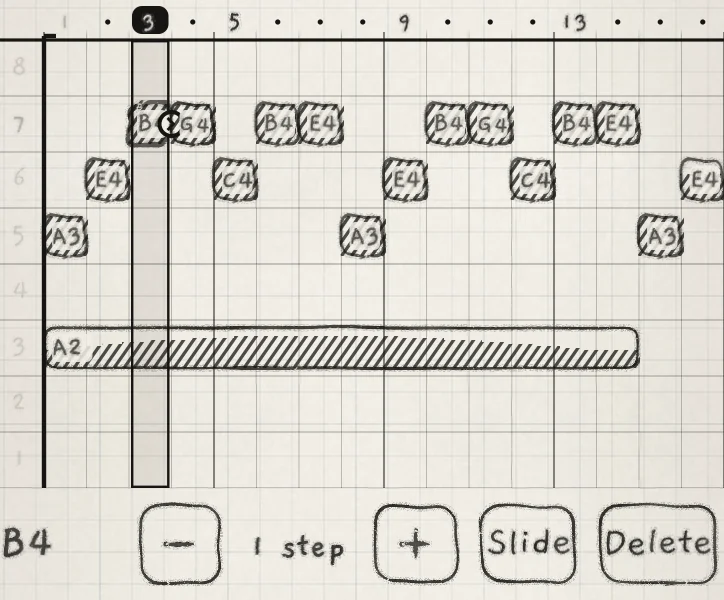
Tap a note bar to select it. Its pad is ringed on the Grid, and the edit bar shows its pitch, its length and its edits.
 123456
- 1Selected note
- 2Pitch
- 3Length
- 4Shorter / Longer
- 5Slide
- 6Delete
- Shorter,LongerThe − and + buttons beside the length. Below one step they halve or double the length, from 1/8 step up to 1 step; from one step up they remove or add a whole step.
- SlideGlides the note into the next note in its lane. Greyed when no later note is in the lane.
- DeleteRemoves the note and selects its first step.
To change the pitch of a selected note, stop the pattern and play another pad in the same column. The note keeps its start and length. Playing its own pad removes it; a pad in another column adds a note on the same step (Record patterns).
#Move and resize
Drag a note sideways to move it in whole steps. A move that would overlap another note in the lane, or run past step 64, is refused.
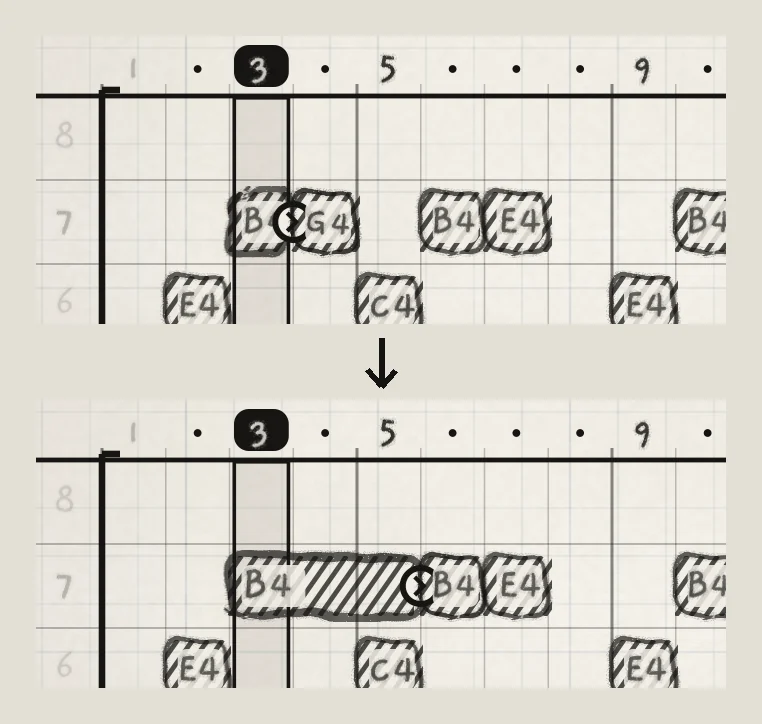
Drag the right end of a selected note to resize it. The length snaps to whole steps, or to 1/2, 1/4 or 1/8 step when you drag it below one step. A note can run to the end of the pattern.
 12
12- 1End of the selected note
- 2New end
A longer note shortens the next notes in its lane where it now covers them, and removes any note it covers whole.
With a finger on a note, tap a later step with another finger: the note now ends at the end of that step. The free finger can change page first.
#Slide
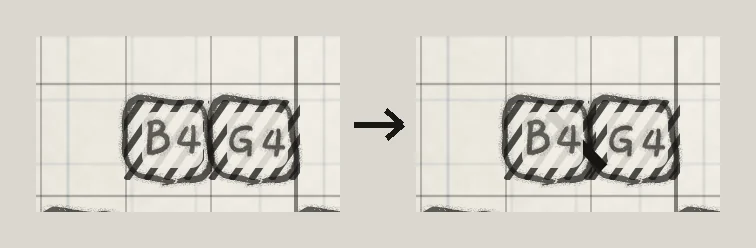
Select a note and tap Slide. The note runs on to the start of the next note in its lane, and a slanted stroke joins them. The pitch glides into the next note without a new strike. If both notes are on the same pad, they become one note.
 12
12- 1Two strikes
- 2Slide stroke
Tap Slide again, or shorten the note, to turn it off.
#Clear a step
Select a step: tap its number on the ruler or an empty spot in a lane. The edit bar shows the step number with Loop start, Loop end and Clear, whether or not the step holds notes (Pattern playback has the loop).

Clear empties the step in all eight lanes. A note reaching into it from earlier now ends where the step begins; a note starting on it and running past it now starts on the next step.
The Clear at the bottom of the pattern list empties the whole pattern. Its settings stay. Both Clears are ordinary edits: pattern undo or Discard brings the notes back.
#Pattern undo
Undo (curved arrow) in the Seq transport steps back through pattern edits and recorded takes, one at a time, up to 40. A drag is one step. Saving, discarding, saving as new, restoring or importing over a pattern clears its undo entries. Undo is greyed while recording and when nothing is left to undo.
Pattern undo covers the notes only, not the Seq controls. To redo, use the instrument's undo history: the edge swipe and three-finger swipe undo and redo pattern edits along with every other change (Undo and redo).
#Save a pattern
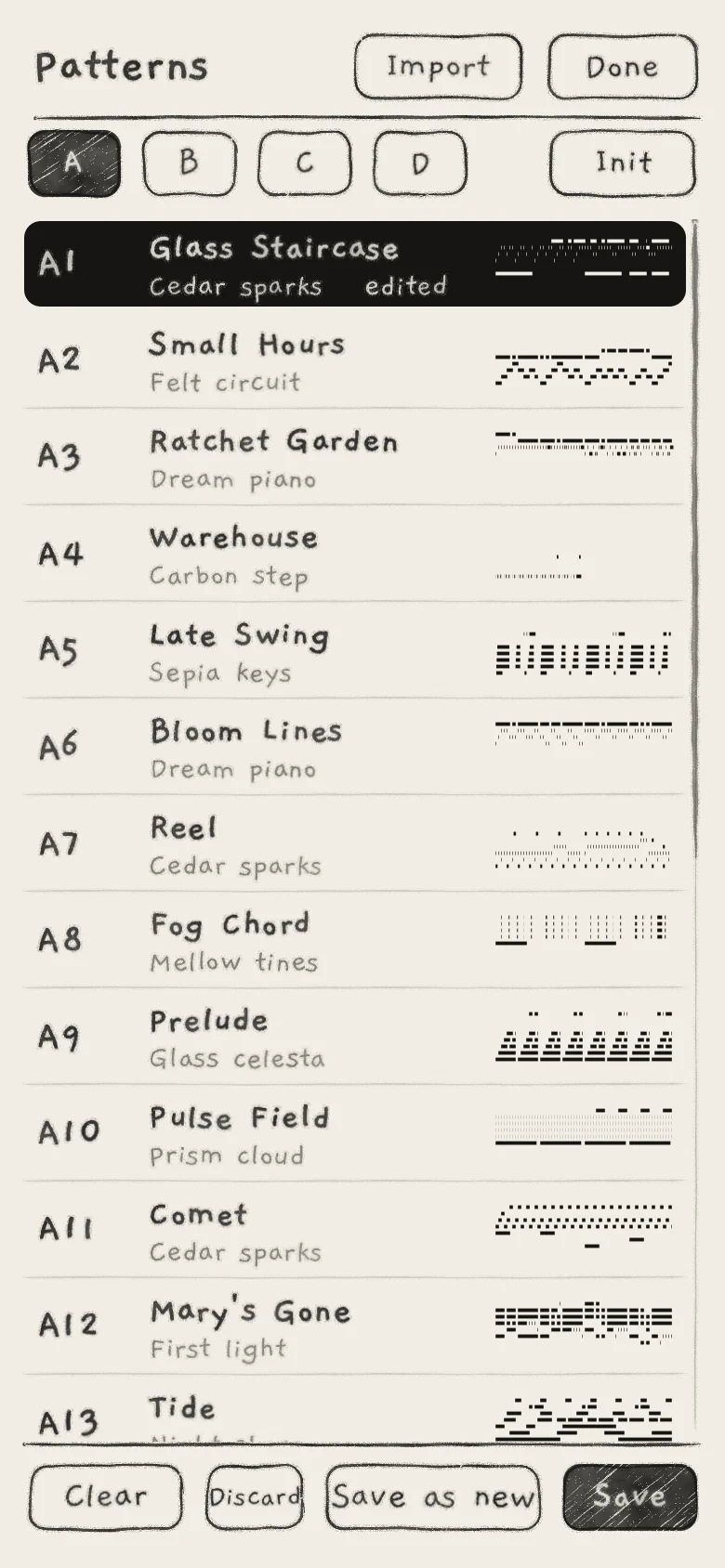
A pattern with unsaved changes reads "edited" on the pattern button and in the pattern list, "not saved" in the list if it has never been saved. Changes to the notes and to the pattern's settings count; the chord rails, Spice, Lean and Fill do not, though Save stores them.
 123456
- 1Banks A to D
- 2Edited
- 3Clear
- 4Discard
- 5Save as new
- 6Save
While the playing pattern is edited, the bottom of the list adds:
- Save writes the pattern to its slot.
- Save as new writes a copy to the first free slot, plays the copy on this engine and returns the original to its saved version.
- Discard returns the pattern to its saved version, notes and settings. On a pattern never saved it reads Clear pattern and empties it.
Pattern Save writes to the open project's banks at once; the project's own Save is separate (Projects). If a Save fails, a "Not saved" notice says so and the pattern plays on as it is.
#What a pattern stores
Save stores the notes with the pattern's sequencer settings: the loop and every Seq control except Quantize (Pattern playback). It also stores the chord rails and Spice (Chord colour), and Lean and Fill when they are latched (Lean and Fill).
A pattern with notes also stores the key playing at the moment of the Save: the engine's Root and Scale, and the Stride and Degree it plays. An empty pattern stores no key.
Choosing a pattern that carries a key sets its engine's Root and Scale, unless that engine's key is locked. The other engines follow by the rules of a key change. The pattern's Stride and Degree replace the sound's while it plays (Key lock and Follow).
Save also records, for a pattern in your banks, the sound playing on its engine, when that sound is a saved library sound other than Init with no unsaved changes. Otherwise the pattern keeps the sound it had.
#Leave an edited pattern
Choosing another pattern, or Init, while the playing pattern is edited asks first: "Pattern A1 has changes", or "Pattern A1 is not saved".
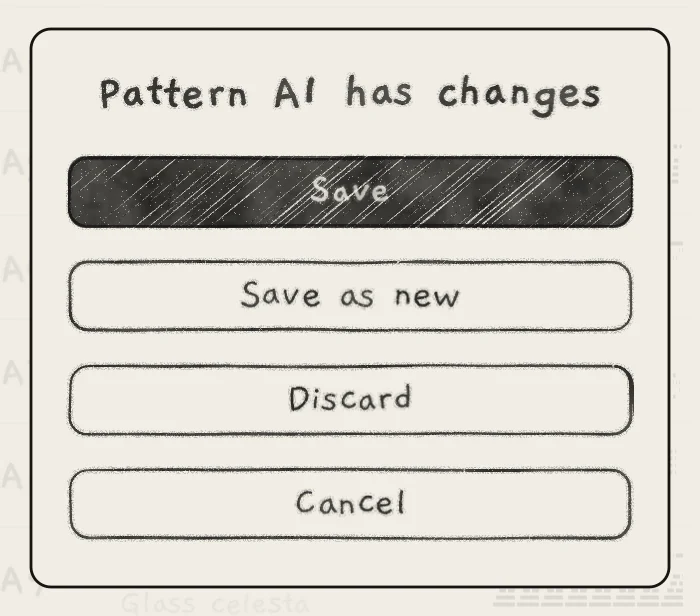
Save, Save as new and Discard (or Clear pattern) act as in the list, then the new pattern plays. Cancel stays on the edited pattern. A pattern chosen while its engine plays starts on the next bar (Clock and sync). Leaving a project names its unsaved patterns (Projects).
#Banks and pattern slots
A project holds four banks, A to D. Each bank holds 24 patterns, one per pattern slot, named A1 to D24. In the Factory project, bank A holds the factory patterns and banks B to D are yours. In your own projects all four banks are yours (Projects).
A factory pattern can be edited and saved over. Your version stays through app updates. A cleared factory pattern stays cleared. Restore factory appears at the bottom of the list when the playing pattern is your saved version of a factory pattern with no unsaved changes; it brings back the factory notes and settings.
If an update removes a factory pattern you saved over, your version moves to the last free slot of bank D. If an update adds a factory pattern in a slot that holds a pattern of yours, yours keeps the slot, its name and its sound.
#Patterns saved with a sound
Every factory pattern names the sound it was written for, and your patterns name the sound they were saved with. Choosing one while a different sound plays asks first, naming the sound: "Load Felt circuit, replacing the current sound?"
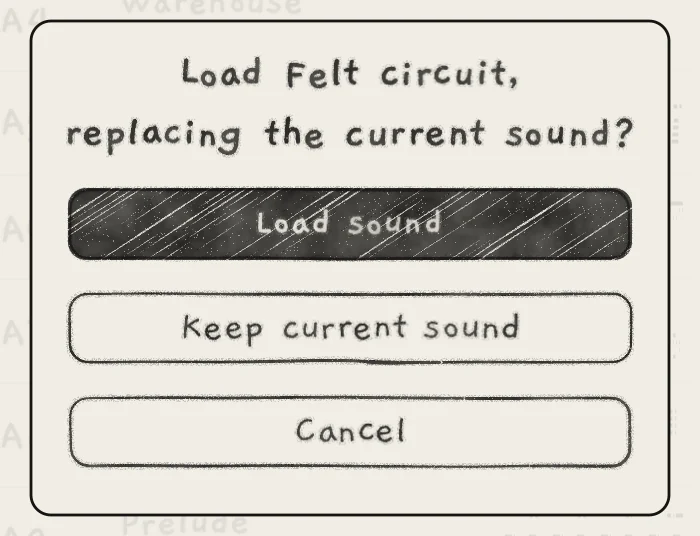
- Load sound loads that sound, then plays the pattern. If the playing sound has unsaved changes, its save question comes first.
- Keep current sound plays the pattern on the current sound.
- Cancel changes nothing, including the answer you gave to the leave question.
The question does not appear when that sound already plays, when the library no longer has it, or in INK MIDI (INK MIDI).
#Import from another project
Import, next to Done in the pattern list, opens Import patterns: saved patterns from another project, copied into this one.
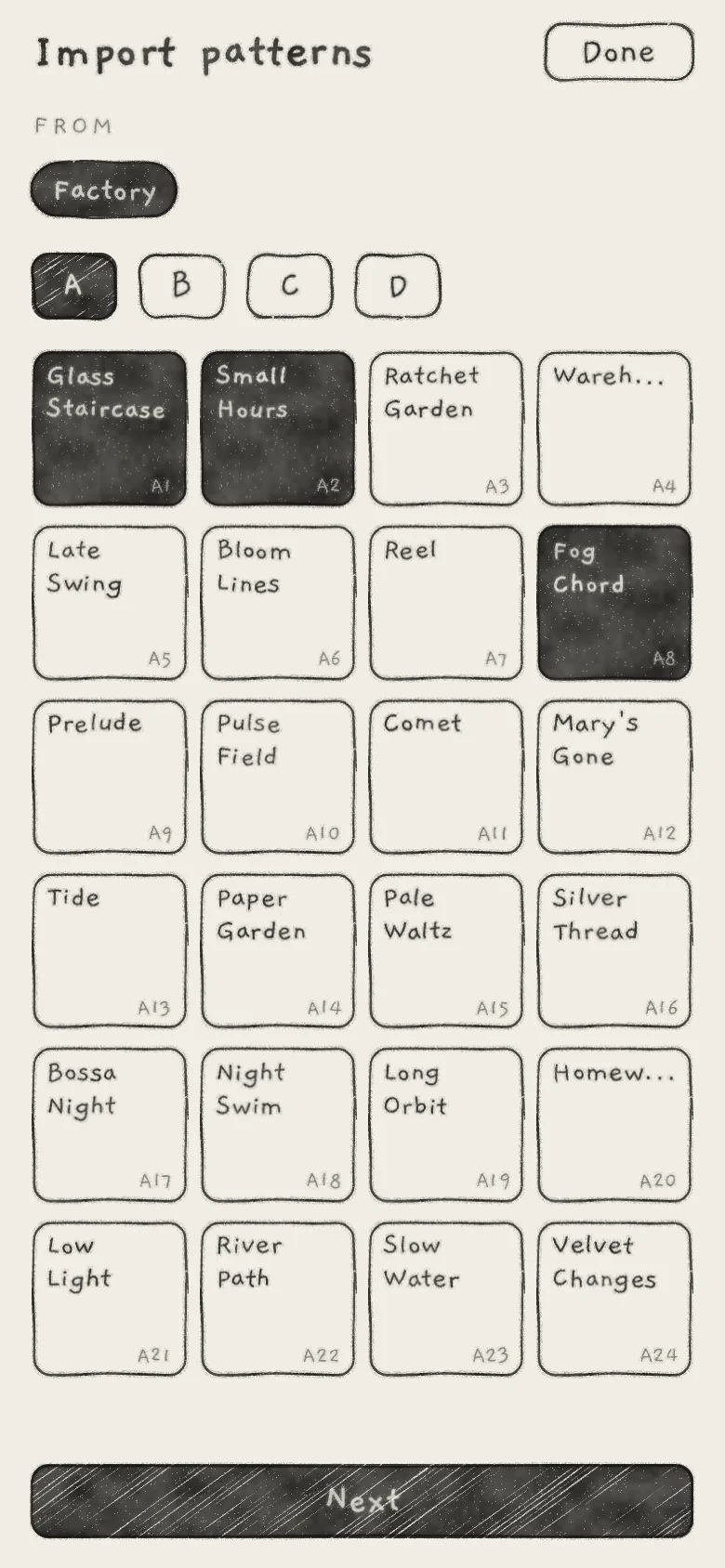 1234
1234- 1FROM: source project
- 2Source bank
- 3Chosen pattern
- 4Next
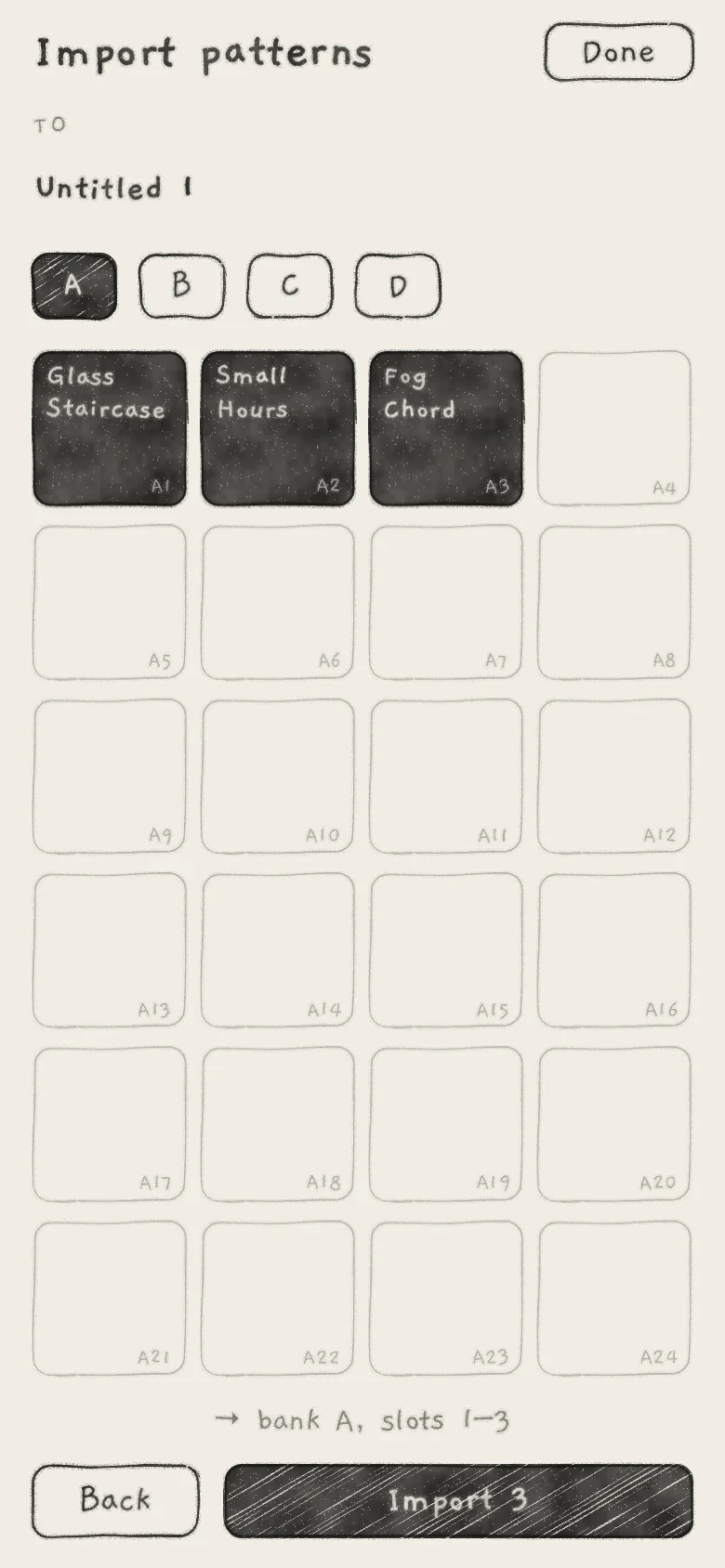 1234
1234- 1TO: this project
- 2Landing slots
- 3Where they land
- 4Import 3
- Under FROM, tap the source project, then a bank.
- Tap the patterns to copy; tap again to drop one. The choice is from one bank at a time, and empty slots are faint. Tap Next.
- Under TO, choose a bank. The first free run of slots is preset; tap a slot to make the first pattern land there. Back returns to the first step.
- Tap Import, which shows the count, such as Import 3. The line above it names the slots, such as "→ bank A, slots 1–3", and adds "(2 of 3 fit)" when not all fit.
Landing on a pattern asks "Replace pattern B3?", or how many, with Replace and Cancel. The patterns land saved, with their names and sounds. Only saved patterns are offered; an unsaved edit stays in its own project. The Factory project's bank A is never a destination. With no other project, FROM reads "No other projects".