CHAPTER 36 OF 54 · PERFORM AND RECORD
Record patterns
A pattern is a loop of up to 64 steps that an engine plays on its own. Each engine plays its own pattern, chosen from the project's four shared banks (Banks and pattern slots). Open Seq on the engine to record or edit it.
The sequencer is Plinky's. It records what a finger does on each Grid column, so a pattern holds one note per column at a time, with its pressure and slides as played. Notes from Keys and Chords are stored the same way, on the Grid column they map to.
 12345678
- 1Transport row
- 2Pattern button
- 3Page strip
- 4Ruler
- 5Lane numbers
- 6Note bar
- 7Edit bar
- 8Seq controls
| Pattern | |
|---|---|
| Steps | 64, in 4 pages of 16 |
| Lanes | 8, one per Grid column; one note per lane at a time, so up to 8 notes on a step |
| Note length | 1/8 step up to the end of the pattern |
| Storage | 4 banks (A to D) of 24 patterns per project |
| New pattern (Init) | Empty, loop 1-8, 120.0 BPM, Sync On, Division 8/32 |
#The Seq tab
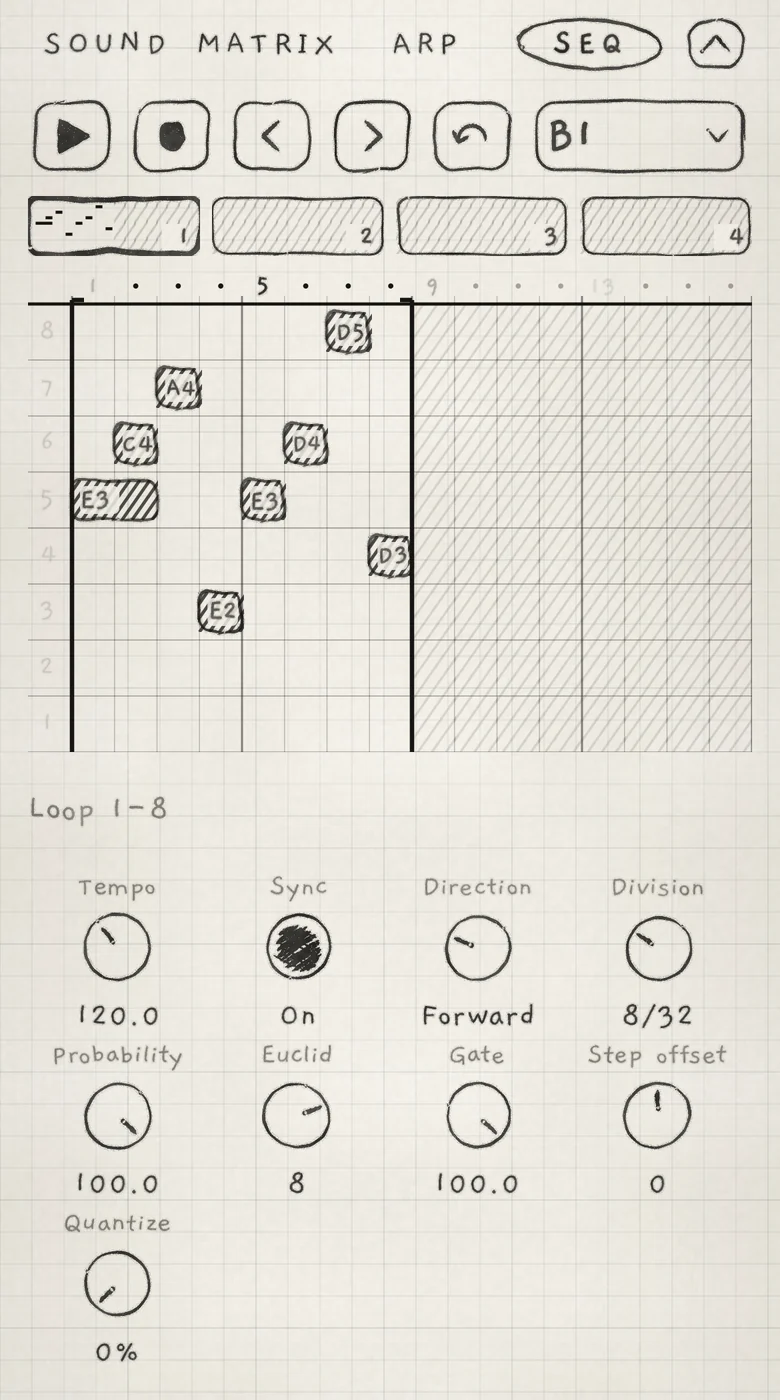
The tab holds, from the top, the transport, an overview of the pattern, the lanes of notes and the controls that set how the pattern plays.
- Transport rowPlays, records and steps through the pattern, and undoes pattern edits. The pattern button at its right opens the Patterns sheet.
- Page stripThe pattern's 4 pages in small. Tap a page to show it in the lanes.
- RulerStep numbers over the lanes. Tap one to select that step (Step edit).
- LanesThe notes, one lane per Grid column, numbered at the left, column 8 on top.
- Edit barWhat is selected and the buttons that edit it. With nothing selected it reads the loop, as "Loop 1-8" (Edit and save patterns).
- Seq controlsThe loop, order, step length, gate and density of the pattern (Pattern playback). Quantize, the last one, is below.
A step lasts one Division at the pattern's tempo (Pattern playback; Tempo in Arp rhythm and tempo). Each of the 8 lanes is one Grid column. A note from Keys or Chords goes into the lane of the Grid column it maps to; its bar shows its pitch.
 123
123- 1Start
- 2Pressure hatching
- 3Slide
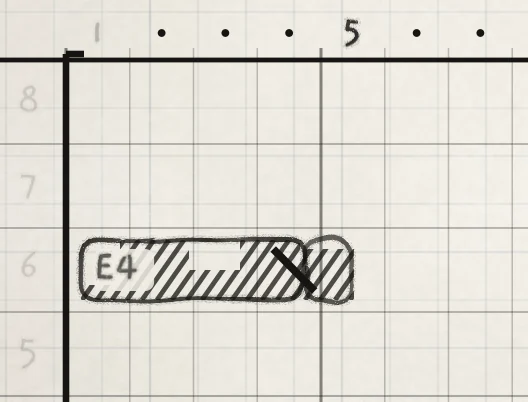
Each note is a bar named by its pitch. Its left edge is the start and its width the length. The hatched fill rises with the recorded pressure, in 1/8-step slices. A slanted stroke at the end is a slide into the next note in the lane (Edit and save patterns).
In the page strip, the page shown in the lanes is outlined, steps outside the loop are hatched, and a line marks the playing step. While the pattern plays, the lanes follow the playing page; tap a page box to stay on that page.
#Transport
 123456
- 1Play
- 2Record
- 3Previous step
- 4Next step
- 5Undo
- 6Pattern button
- Play,StopPlay (triangle) starts this engine's pattern and becomes Stop (square). Stop waits for the end of the current step; until then the button shows three dots. A synced engine started while another plays waits for the next bar (Clock and sync).
- RecordThe dot. Turns recording on and off. With the pattern stopped it starts step recording; while it plays, live recording.
- Previous step,Next stepThe arrows (‹ ›). Move the cursor one step while step recording; otherwise select the previous or next step.
- UndoThe curved arrow. Takes back the last pattern edit or take. Greyed while recording (Edit and save patterns).
- Pattern buttonThe pattern's number (A1 to D24), its name if it has one, and "edited" when it has unsaved changes. Opens the Patterns sheet.
Record is on while its button is filled. A dot then blinks left of Seq in the tab row, whichever tab is shown. In portrait the line over the Grid also shows a dot with "Recording", or the cursor's step while step recording.
 123
123- 1Number
- 2Name
- 3Edited
Factory patterns have names; your own patterns show only their number. On an iPhone in portrait the button may have room for the number only; the Patterns list always shows the name and the edited mark. A pattern chosen while the engine plays shows in pencil until it comes in on the next bar (Clock and sync).
Two engines on the same pattern play the same steps: an edit or a take on one reaches both.
In a host: a label beside Play shows the host's transport, DAW plays or DAW stopped (Clock and sync).
#Start an empty pattern
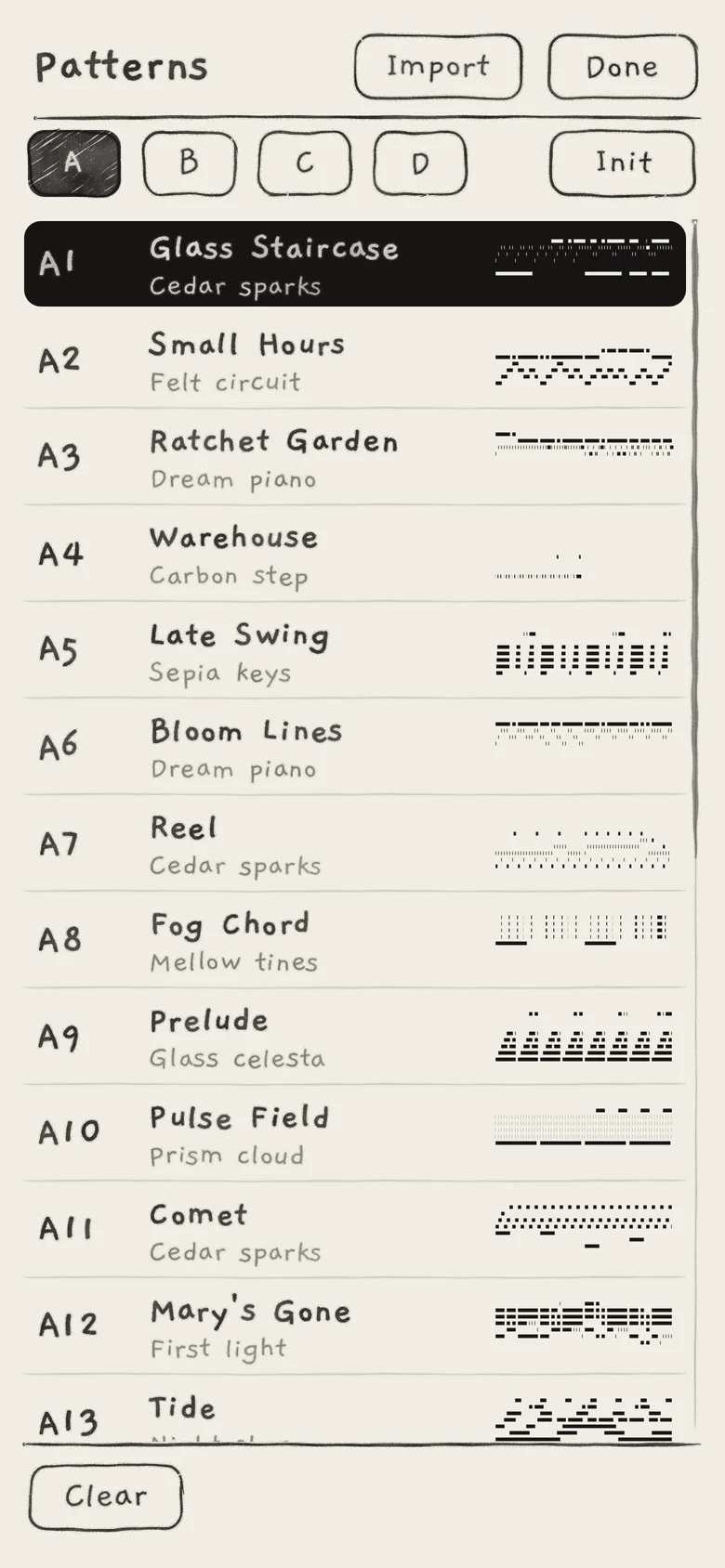
Tap the pattern button. The Patterns sheet opens on the bank of the engine's pattern. Tap a pattern in the list to make it this engine's pattern.
 12345
12345- 1Banks A to D
- 2Init
- 3Done
- 4Import
- 5Playing pattern
Init puts an empty pattern in the first free slot, makes it this engine's pattern and closes the sheet. In the Factory project the slot is in banks B to D; in your own projects bank A counts too. Init is greyed when no slot is free. If the engine's pattern has unsaved changes, the sheet asks first.
Once it has notes, a pattern in a slot that was never saved reads "not saved" in the list. Leaving it asks "Pattern B1 is not saved", and Discard reads Clear pattern. Saving, banks and the rest of the sheet are in Edit and save patterns.
#Enter notes
The transport decides how notes go in: step edit while stopped, step recording while stopped with Record on, live recording while playing with Record on.
| Step edit | Step recording | Live recording | |
|---|---|---|---|
| Transport | Stopped, Record off | Stopped, Record on | Playing, Record on |
| Where | Seq tab, a selected step | Any tab | Any tab |
| Length | One step, growing a step at a time while the pad is pressed | The same | As played, in 1/8 steps |
| Pressure | Fixed | Fixed | As played, per 1/8 step |
| Slides | None (add them with Slide) | None | Recorded |
| Other notes | Kept; the lane's note at the step changes | Kept; a new note replaces what its lane held under it | Kept; overdub, only what you play is written |
Step-entered notes share one fixed mid-level pressure, so their hatching is even. Step edit and step recording take notes from the Grid, Keys and Chords, not from Strings.
#Step edit
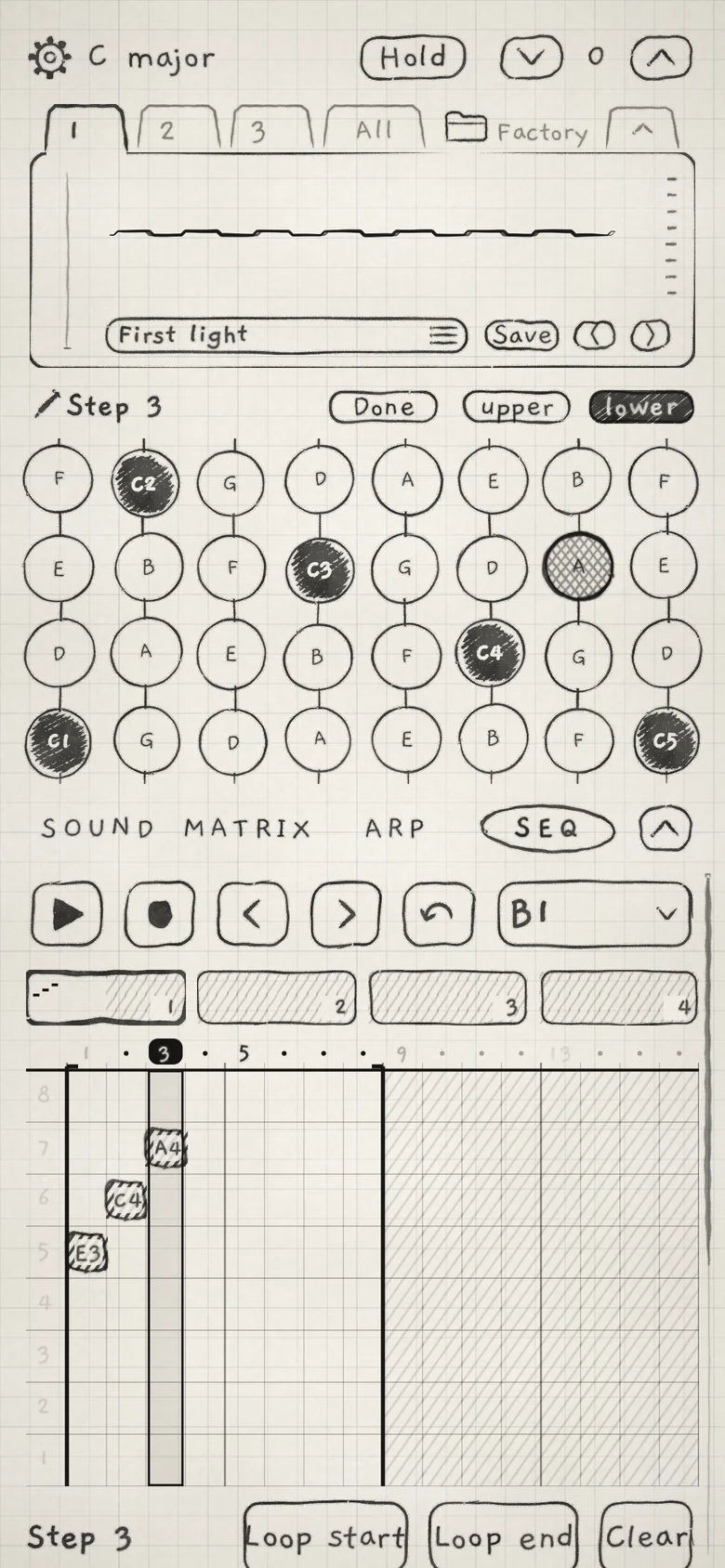
Stop the pattern. Tap an empty spot in a lane, or a number on the ruler, to select that step. The edit bar reads "Step 3" and offers Loop start, Loop end and Clear. A tap on a note bar selects the note instead (Edit and save patterns).
 12345
12345- 1Selected step
- 2Step being edited
- 3Marked pad
- 4Done
- 5Edit bar
In the selected step, a pad in a column with no note adds one. A different pad in a column that has a note there changes its pitch. The same pad again removes it. Each lane holds one note at a time.
If a note from an earlier step still sounds in that column, a different pad cuts it at the selected step and starts the new note there. Pads sound as you press them but never latch, even with Hold on.
A new note grows one step at a time while you keep the pad down. Several pads at once enter a chord. When every pad is up, the step after the new notes is selected.
Step editing works only while the pattern is stopped with Record off. While it plays, the pads only play.
In portrait the Grid shows 4 of its rows, turned to the half of the selected note; upper and lower switch halves. Done over the Grid ends the step edit. In landscape the Grid keeps all 8 rows and has no Done: tap the selected step's number on the ruler again, which also works in portrait.
#Step recording
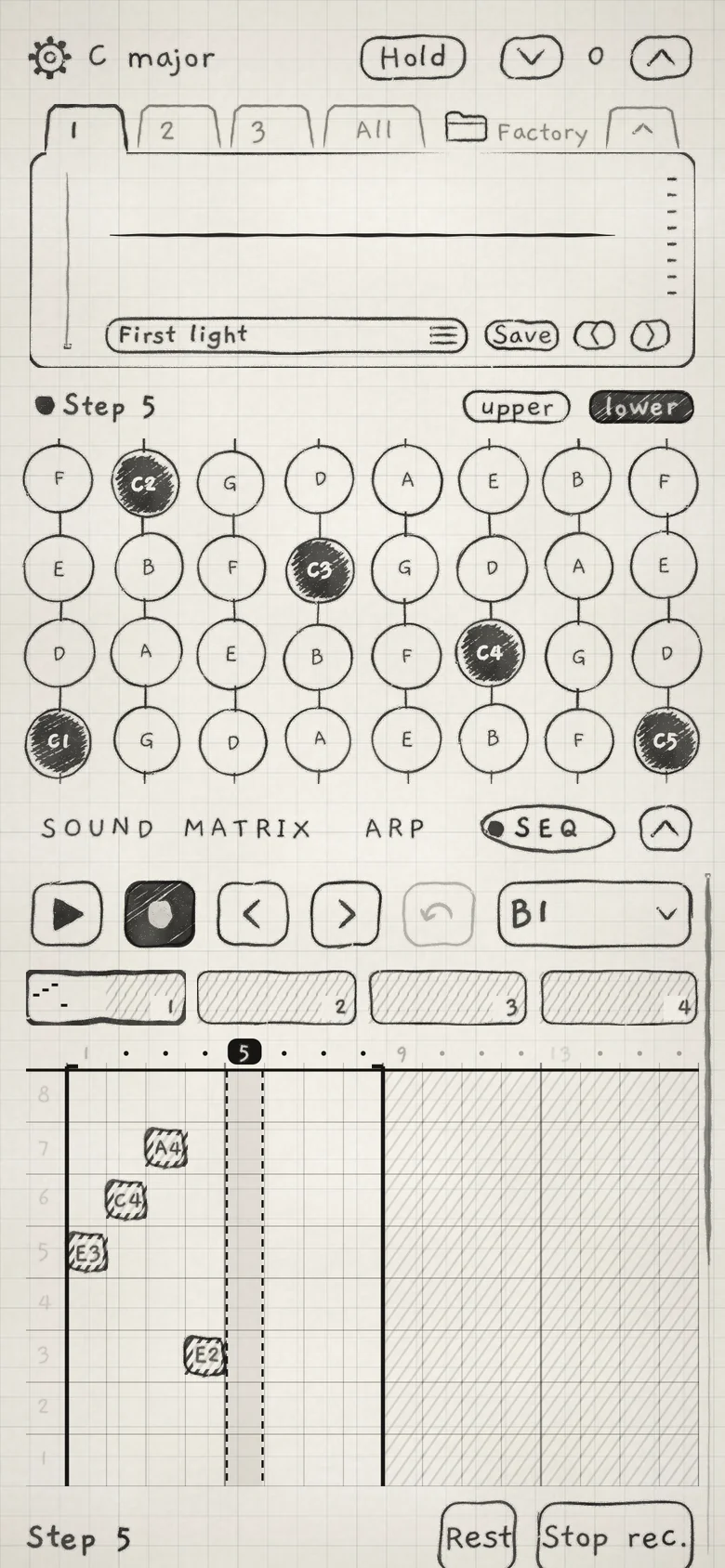
Stop the pattern and tap Record to start step recording. A dashed cursor marks the step that receives the next note. The edit bar shows the step number with Rest and Stop rec..
 123456
- 1Cursor
- 2Recording dot and step
- 3Rest
- 4Stop rec.
- 5Previous step / Next step
- 6Record on
Play a pad, a key or a chord. The note starts at the cursor and grows one step at a time while you keep it down. When you lift, the cursor moves past the longest note entered. Rest empties every lane at the cursor and moves on one step. Stop rec. or Record ends step recording.
Previous step and Next step move the cursor; a tap on a ruler number inside the loop moves it there. The lanes follow the cursor's page.
Step recording works from any tab: the Grid, Keys and Chords enter notes at the cursor while another tab is shown.
#Live recording
Tap Play, then Record, and play. The lanes show the take as it is written.
A live take records each finger's pressure in 1/8-step slices and the pad under it, so timing, pressure and slides between pads are kept. It overdubs: only the lanes and slices you play are written, and the rest of the pattern stays. A note that Hold keeps sounding is written only at its attack.
Tap Record again to end the take. The take is one undo step, gets the current Quantize, and marks the pattern edited until you save it.
Loading another sound during a take, even one on another generator or kit, keeps Record on and keeps the take.
A note bar shows the written length. A sound with a long Release rings past it.
#Quantize
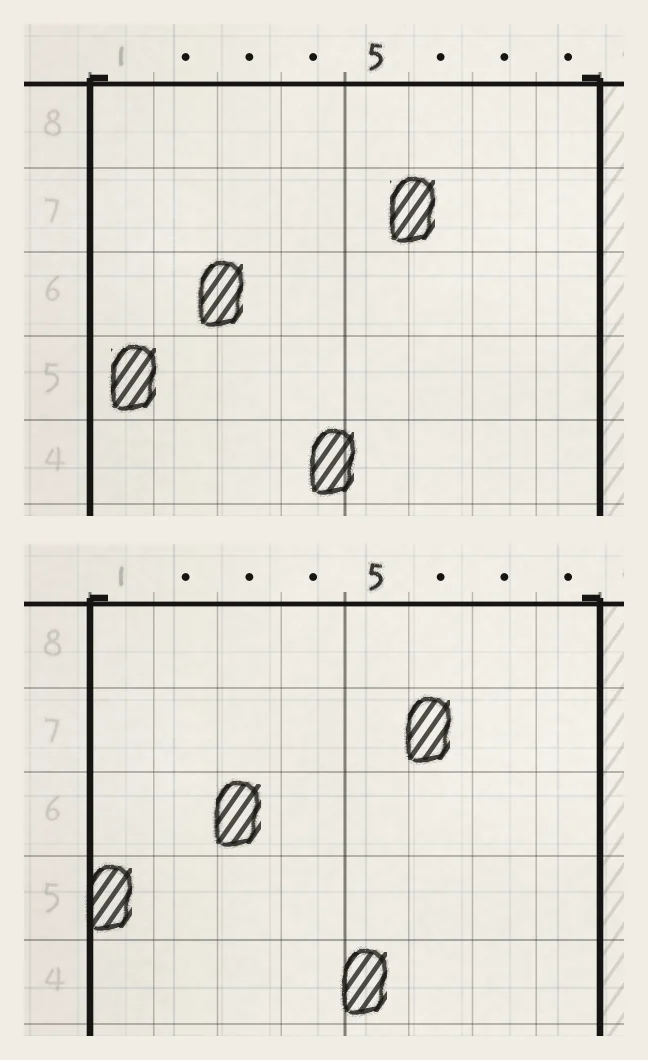
Quantize moves the notes of each live take toward the step grid. It runs from 0 to 100% and is 0% in a new project. At 0% a take stays as played; at 100% each note starts on its nearest step; values between move it that share of the way.
 12
12- 10%: as played
- 2100%: on the step
Turning Quantize re-applies it to the last take until you edit that take. The take is kept as played, so each new setting is measured from your playing, not from the last result.
Only the notes the take added move. Notes already in the pattern stay, and step-entered notes start on a step anyway. Lengths do not change, and a note that would overlap another in its lane stays where it is.
Quantize is saved with the project and in a host's session, not with a sound or a pattern.
- On Seq, tap the pattern button, then Init.
- With the pattern stopped, tap step 1 on the ruler, then one pad in each of columns 1 to 4, one after another.
- Set Quantize to 100%.
- Tap Play, then Record, and play a few notes off the beat in columns 5 to 8.
- Tap Record to end the take.
- Turn Quantize down to 50%. The new notes move halfway back toward where you played them; the four step-entered notes on steps 1 to 4 do not move.