
RMXY-1 User Guide
Work in progress. This guide covers the current RMXY-1 interface. Text and illustrations are being reviewed as the app develops. Updated 28 September 2026.
The guide begins with the main controls and a first effect setup, then covers each effect, the Audio Looper, scenes and programs, connections, and Settings. Illustrations are simplified drawings of the app in its Dark theme. They are not screenshots; positions can change with screen size.
Overview
About RMXY-1
RMXY-1 is a live audio performance surface for iPhone and iPad. It combines an ordered chain of eight effect slots with one shared XY pad. You can process incoming audio, introduce sound generators, build repeating movement, and send MIDI to other instruments.
The central idea is simple: instead of reaching for several knobs during a performance, decide in advance what moving right and moving up should do. Then play those changes together with your finger.
A scene holds one chain and its mappings. A bank gives you eight scene buttons. A program holds four banks: 32 places for the sounds and transitions in a set.
Using this guide
| You want to… | Start here |
|---|---|
| Understand the screen | Main screen |
| Hear a useful result quickly | Quick start |
| Make the pad do exactly what you imagine | Base, X, and Y |
| Find the right processor | Effects |
| Capture and transform audio | The audio looper |
| Prepare a live set | Scenes, banks, and programs |
| Connect an interface or host | Audio, MIDI, and AUv3 |
| Solve a problem | Troubleshooting |
Read chapters 1–5 in order for the foundations. After that, choose one effect and play its exercise before moving on. The examples assume you can already hear your audio source through RMXY-1.
Standalone and AUv3
Standalone is the app running on its own. Select audio input and output in Settings, choose a tempo or clock source, and perform. Generators can make sound even with No Input selected. Standalone can also host compatible third-party AUv3 effects inside its chain.
AUv3 is RMXY-1 loaded as an effect inside a compatible audio host. The host supplies audio, routing, tempo, transport, recording, and session saving. Use this format to process another app, a track, or an instrument in a larger setup.
Opening standalone does not automatically capture the audio of every other app on the device. For app-to-app routing, place RMXY-1 in a compatible host and connect the source there.
Audio source: the pad is a controller. What you hear depends on the audio feeding the chain, the effects in it, their mappings, and the mix controls. Moving on an unmapped pad does not invent an effect.
Main screen
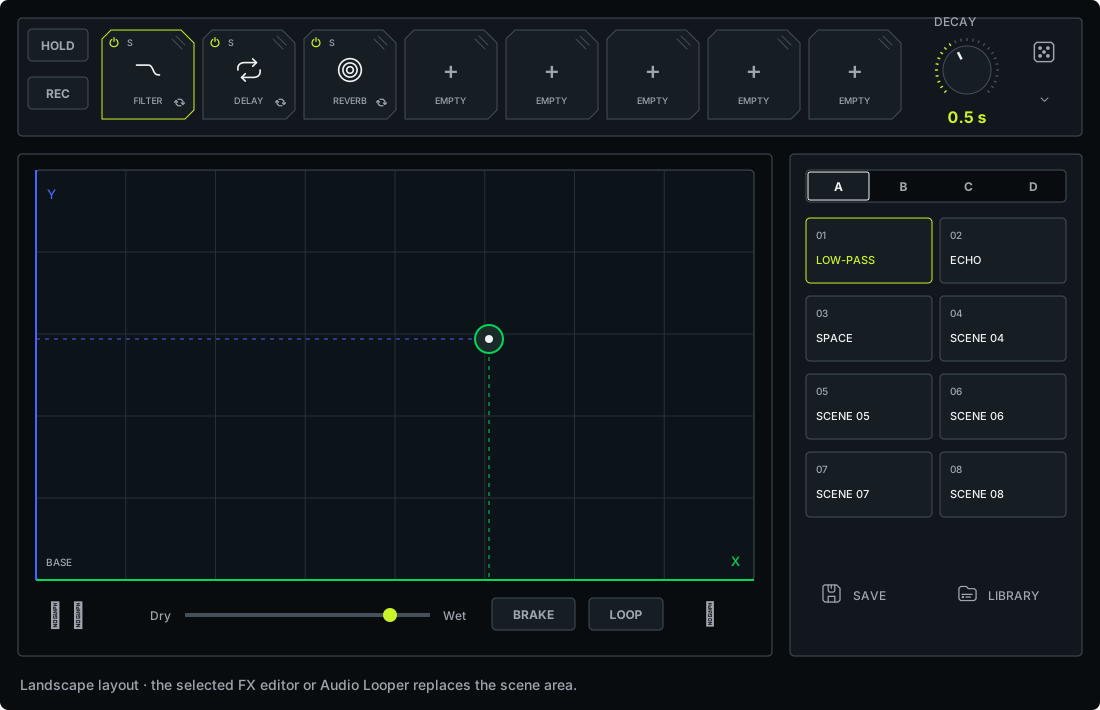
FX slots
The rail is your signal path. Audio passes through slot 1, then slot 2, continuing to slot 8. Empty slots let it pass unchanged. A control slot such as MIDI or LFO occupies a position but has a different job from an audio effect.
Tap an empty slot to open the picker. Tap an occupied slot to open its editor. If all eight slots do not fit, scroll the rail. The collapse control makes more space for the playing surface.
The picker opens on ALL. Use FILTER, DRIVE, MOD, SPACE, TIME, GENERATOR, or UTILITY to browse by role, or type in Search FX to search every effect by name, mode, and related terms. Typing returns to ALL automatically; choosing a category clears the search. Clear slot appears under ALL. An unavailable effect remains visible with its limit, so you can see which existing assignment must be cleared or replaced.
Effect editor
The editor is where you choose a mode, adjust parameters, and decide what X and Y will change. Its BASE / X / Y selector in Knobs view is the most important control to learn: it selects which part of the movement you are editing. It is not an audition button.
Some settings are shared setup controls. Other controls have separate Base, X, and Y values. The distinction is covered in Base, X, and Y.
XY pad
The lower-left corner is the starting point, Base. Move right to introduce X mappings. Move up to introduce Y mappings. Move diagonally to combine both. The graphic response helps you follow your movement; your ears tell you whether the mapping is useful.
All mapped effects respond to the same pad. You are not choosing one effect by touching one region.
HOLD and REC
HOLD keeps a played XY position active after you lift your finger. You can arm Hold before touching the pad.
REC, beside HOLD, records one bar of XY movement and repeats that movement. It records the gesture, not the audio. The separate audio looper records sound.
Banks and scenes
The four bank selectors choose which group of eight scene buttons you can see. A scene button recalls the chain and mappings stored in that position. Changing the displayed bank alone is different from recalling a scene.
The scene area also provides access to saving and the library. DECAY, on the top rail, sets the release after you lift your finger. Learn saving before treating a favorite experiment as a permanent part of your set.
Dry/Wet, BRAKE, LOOP, and Settings
Master dry/wet blends the original source with the processed chain. BRAKE is a momentary performance action whose behavior is selected in Settings. Undo/Redo steps through supported scene edits. The main dice generates a new chain. Settings contains Appearance, Performance, Audio, MIDI & Sync, and About.
The LOOP control opens the audio-loop panel in the editor area. Closing the panel is not the same as clearing its recording.
Dry/Wet controls
| Control | What it changes | Use it for |
|---|---|---|
| An effect's Wet/Dry or Mix | Blend inside one slot | Introducing just that processor |
| Master dry/wet | Blend across the complete FX chain | Bringing the whole treatment in or out |
| Loop Dry/Wet | Balance of live source and recorded loop | Moving from live material to captured material |
A dry mix does not necessarily stop a processor from maintaining its internal history. Power/bypass is a separate operation. Do not expect reducing a mix and switching power off to preserve tails in the same way.
Quick start
1. Connect an audio source
In standalone, connect your source, open Settings, and select the available audio input and output. If you use the microphone, grant permission when requested and monitor with headphones to avoid an acoustic feedback loop. For an interface, check the selected channel and route.
In an AUv3 host, put RMXY-1 on a channel that already has audio and enable the host's monitoring or playback. Leave the source playing while you learn.
No source available? Insert Noise, keep its Volume low, then place a Filter after it. Noise makes its own sound, so this is also a simple way to understand chain order.
2. Set up a Filter mapping
- Use an empty scene or a scene you are happy to edit. Tap an empty FX slot and choose Filter.
- Open Settings → Performance and set Parameter View to Knobs for this exercise. Return to the Filter editor and choose LP and CLN.
- Select BASE. Set cutoff high, near the open end, and resonance low.
- Select X. Bring cutoff down to roughly 500 Hz. For this exercise, give other X controls the same value as Base so they contribute no additional change.
- Select Y. Add a modest resonance target. Set the Y cutoff to its Base value so Y changes resonance without also changing cutoff.
- Set master dry/wet fully toward the processed signal so the original source does not hide the filter.
- Start at the lower-left. Move right along the bottom edge, return, then move up the left edge. Finally try a diagonal.
Notes. Rightward motion removes brightness; upward motion emphasizes the filter's edge; a diagonal does both. The exact sound depends on the source. A bright drum loop makes the first change especially easy to hear.
3. Set DECAY and HOLD
With Hold off, lift your finger. Adjust scene Decay and repeat. A short release is useful for quick cuts; a longer release lets a transition unwind.
Now turn Hold on, move to a useful point, and lift. The sound stays there. Turn Hold off to release it. Practice returning to a calm position before making the mapping more dramatic.
4. Save the scene
Use Save, enter a meaningful name such as “Low-pass lift,” and confirm. If the name already exists, the app offers replacement; use a new name when you want a variation.
Keep or assign the scene to a bank position for quick recall. Saving a scene and saving a whole program are separate actions; chapter 8 explains both.
Checkpoint: verify the X and Y mappings separately, then together. Confirm release behavior and save the scene before continuing.
Base, X, and Y
Base value and axis targets
Base is the parameter value at (0, 0), the lower-left corner. It can be a dry starting point, an already processed sound, or a sounding generator. If you want a quiet generator at rest, set its Base level to zero. If you want an effect to emerge only as you move, set its Base mix to zero and map its mix to an axis.
X is an optional target for horizontal movement. Y is an optional target for vertical movement. An unassigned target means that axis contributes no change to that parameter; it does not mean “set this parameter to zero.”
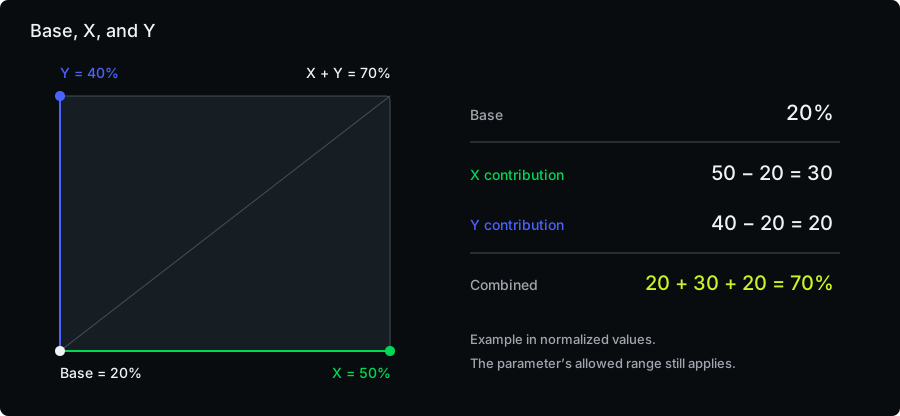
Combined X and Y values
The pad is not a crossfade between three presets. Each axis contributes a movement away from Base. At the upper-right, both contributions act together and the parameter remains inside its allowed range.
For a simple normalized example, Base 20%, X 50%, and Y 40% contribute +30 and +20 percentage points. With both axes fully up, the combined result is 70%. A parameter's displayed units and curve can make the journey feel different, but the important lesson is that two identical “high” targets can add more change than you intended.
For a predictable first design, assign each parameter to one axis. Put brightness on X and effect depth on Y. Add two-axis mappings only when you want their interaction.
Editing values
- Open the effect and explicitly choose BASE, X, or Y in Knobs view. Editors can open on different default pages.
- Adjust the intended control. Watch its value and assignment state.
- Test that axis on the pad while keeping the other axis at zero.
- Test the diagonal and all four corners.
- To make a parameter unchanged on an axis, set that target to its Base value. Double-tap a knob or graph, or use the graph reset button, to restore the selected parameter to its preset default; this can restore a mapping rather than remove it.
The B/X/Y choice is shared editing context. Selecting X changes what you edit; it does not push the live pad to the right edge.
Knobs and Graph views
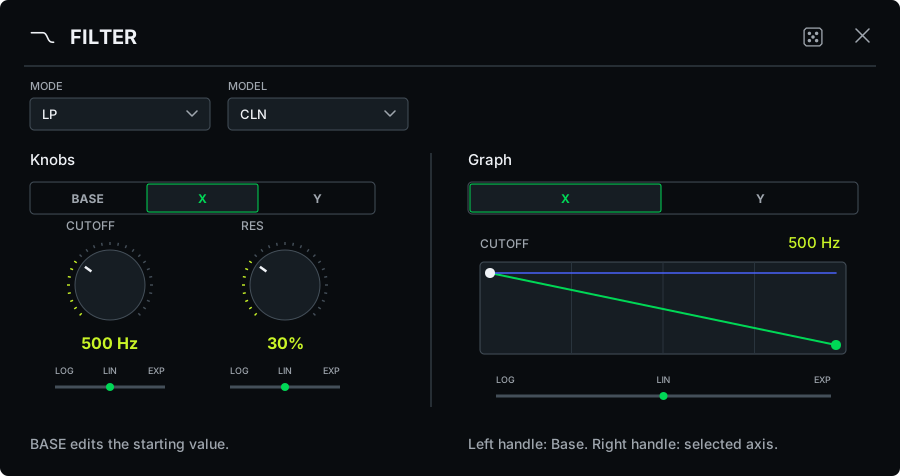
Choose Graph or Knobs in Settings → Performance → Parameter View. Both edit the same scene. Knobs shows BASE, X, and Y; drag a knob vertically to edit the selected value. Graph shows X and Y tabs. In each graph, drag the left handle to edit Base and the right handle to edit the selected axis target. The other axis is shown as a dashed curve. Some compact or separate editors abbreviate Base to B.
Controls in the shared/common area stay the same across B/X/Y. For example, reverb pre-delay, size, and diffusion are setup controls in the current inline editor; decay, tone, width, and mix are mapped controls. A mode selector is also effect-wide. Changing it can alter the meaning or availability of nearby parameters.
Start with the controls the editor actually exposes. A parameter mentioned in an older preset or technical reference is not necessarily an editable control in the current panel.
Response curves
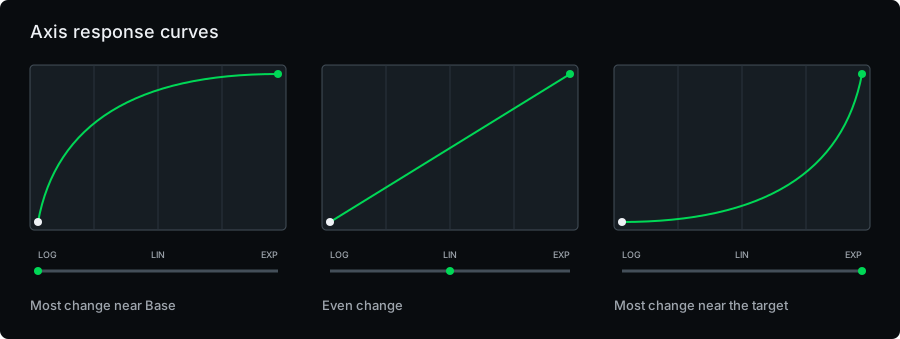
| Curve | Feel | A good first use |
|---|---|---|
| LOG | Much of the change arrives early | A filter that responds quickly to a small move |
| LIN | Even progress across the axis | A clear, predictable sweep |
| EXP | Gentle beginning, stronger change near the end | Wet mix, feedback, or generator level that builds gradually |
X and Y have independent curve settings. The curve slider runs continuously from LOG through LIN to EXP. A curve changes when a target arrives, not its final value. Choose the target first, then shape the path to it.
Assigning parameters to X and Y
Three useful designs are tone / space, rhythm / intensity, and pitch / level. For example, X can close a filter while Y introduces delay. A horizontal move changes tone without echoes; a vertical move adds echoes without the filter sweep; a diagonal creates a transition.
Avoid putting every control on both axes. The best performance patch is often one you can explain in a sentence.
FX chain and performance controls
Signal flow
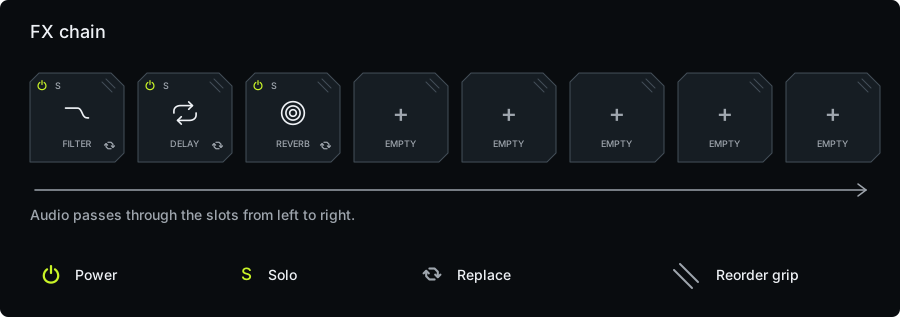
A Filter before Distortion changes what drives the distortion. A Filter after Distortion removes some of the harmonics the distortion created. A Reverb after Time FX gives rhythmic cuts a tail; Time FX after Reverb slices the tail itself.
Use this as a starting order: shape the source → transform it → add space. Then reverse two effects and listen. There is no compulsory order, but there is always an audible consequence.
Slot controls
| Action | Gesture / control | What to expect |
|---|---|---|
| Add | Tap an empty slot | Choose a processor from the picker |
| Edit | Tap an occupied slot | Open that effect's controls |
| Replace | Hold an occupied slot | Choose a different effect |
| Reorder | Hold and drag using the reorder affordance | Move the effect to another point in the signal path |
| Clear | Choose Clear Slot in the picker | Remove that effect |
| Bypass | Slot power control, where available | Transition to the incoming dry signal for that slot |
| Solo | Slot Solo control | Temporarily bypass the other compatible slots |
Turn Solo off to restore the prior bypass states. A power edit, replacement, reorder, clear, or scene recall cancels the solo session. Solo is a listening aid, not a new saved signal path to reconstruct manually.
Switching an effect off also releases its tail after the short bypass transition. To perform a reverb fade, reduce its mix or use your mapped release rather than expecting power-off to let the complete tail ring.
HOLD, REC, and DECAY
| Feature | Keeps or records | Typical use |
|---|---|---|
| Hold | A played XY position | Sustain a transition while your hand does something else |
| Motion record | One bar of XY movement | Repeat a filter sweep over changing live audio |
| Audio looper | A 1-, 2-, or 4-bar sound recording | Keep a phrase playing and process it again |
To record motion, press the motion-record control, perform a one-bar gesture, and let the state change from REC to LOOP. Press again to clear it. Tempo and transport matter: use the host's timing in AUv3 or the standalone tempo/clock source. Test the cycle before you depend on it live.
Scene Decay, from 0 to 5 seconds, shapes how the performance returns after release. It is different from the Decay inside Reverb: one releases your gesture; the other controls a sound's reverberation.
BRAKE
Press and hold the BRAKE button for the selected stop behavior: Mute, Vinyl Brake, Reverse Brake, or Glitch Brake. It also clears held XY and motion-loop performance state. Release the button to release the stop action.
Treat this as a rehearsed performance gesture. It is not the audio looper's Clear button and does not replace learning the looper transport.
Randomization
The main dice rebuilds the chain. The editor dice works on the current effect. Settings → Performance → FX Randomizer chooses how both behave.
| Mode | Main dice | Editor dice |
|---|---|---|
| True Random | New chain with randomized Base/X/Y values within the supported pool | Randomizes the selected B, X, or Y page; effect-wide choices can also change |
| Smart | New chain designed to start neutral at the lower-left and grow across X/Y | Rebuilds that effect's whole Base/X/Y mapping, even if only X or Y is selected |
Smart is useful when you want a performance-ready starting gesture. True Random is useful when you want to discover surprising combinations. Switching the setting changes future dice rolls, not the current scene.
Full-chain rolls exclude MIDI, hosted AUv3, OSC, and Shepard. They can replace slots that currently contain those types, so save a valuable chain first. OSC and Shepard can still be inserted and randomized in their own editors. True Random leaves EQ gains, output trim, Volume controls, and most mix values alone; Smart deliberately maps neutral-to-active levels and mixes. These are different creative policies, not two strengths of the same operation.
Each roll is one undoable edit. Audition at the lower-left, move along each axis, and test the diagonal. Keep the useful part, remove what obscures it, then save.
Effect limits and output level
The picker limits expensive combinations: up to two Reverbs, two Delays, two time processors across Time FX / Grain Shifter / Granular, one Granular, one generator across OSC / Shepard, and two hosted AUv3 effects. A disabled entry explains the relevant limit. Clearing or replacing a slot is the reliable way to free a position; do not assume power-off removes an assignment.
Noise, OSC, and Shepard can make sound without incoming audio. Feedback, Freeze, Bloom, and resonant chains can keep sounding after the source stops. Start their level and mix controls conservatively and compare at a comfortable output volume.
Auto Level optionally attenuates hot processed audio relative to the input. It is a creative level-matching choice and defaults off. The final true-peak protection remains active independently; do not use Auto Level as the master volume control.
Effects
Choose effects by the job you want them to do, then learn their character. Every entry below includes the visible controls, an exercise, and a useful listening distinction. Illustrations show a reduced set of controls; the accompanying tables are the reference.
The suggested percentages are starting points, not factory presets. Use the displayed units where a control shows Hz, milliseconds, seconds, or note divisions. A shared setup control has one value; a mapped control can have separate B/X/Y targets.
| Musical job | Effects |
|---|---|
| Shape tone | Filter, EQ, Distortion, Erode |
| Add space or width | Reverb, Delay, Stereo Widener |
| Add movement or metallic color | Modulation, Shifter, Ring Mod |
| Cut or dissolve time | Time FX, Grain Shifter, Granular |
| Add a voice or sustained texture | Noise, OSC, Shepard, Resonator, Bloom |
| Control other parameters or instruments | LFO, MIDI, AUv3 hosting |
Filter
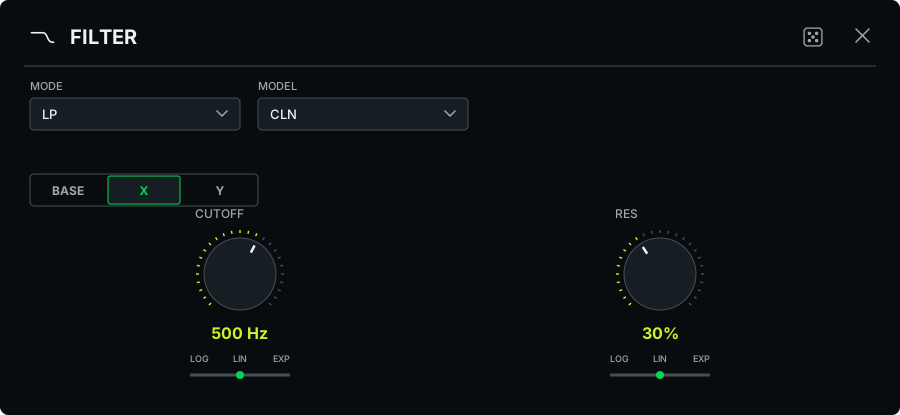
remove brightness, remove low end, focus a narrow band, or give a sound vowel-like movement. Filtering is one of the clearest ways to learn the XY pad because the connection between movement and sound is immediate.
| Control | What it does |
|---|---|
| Mode: LP / BP / HP / FMT / DJ EQ | Low-pass keeps the lower part; band-pass isolates a band; high-pass keeps the upper part; formant emphasizes vowel-like regions; DJ EQ opens the three-band equalizer |
| Profile: CLN / OBH / MOG / M20 | Chooses the filter's character. Compare profiles at the same cutoff and resonance |
| Cutoff / Freq | Moves the tonal boundary or formant frequency region |
| Res | Emphasizes the region around the cutoff; high settings can become strongly resonant |
| Vowel, in FMT | Moves between vowel colors |
Example: low-pass transition. Leave a low-pass open at Base. Map a darker cutoff to X and a modest resonance increase to Y. Move right over a phrase, add some Y near the end, then release on the next downbeat.
Notes. If the sweep seems faint, check master dry/wet. A parallel copy of the unfiltered source can keep all its original brightness.
EQ
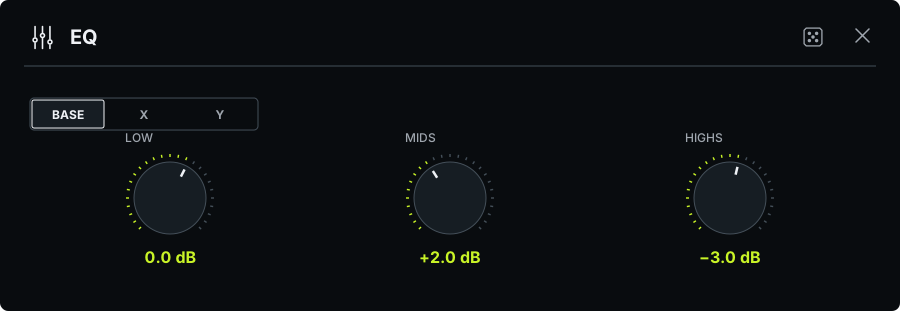
rebalance a full track or create DJ-style band cuts without moving a filter cutoff. EQ is the DJ EQ presentation of the filter processor.
| Control | What it does |
|---|---|
| Low | Cuts or boosts the low-frequency band |
| Mids | Cuts or boosts the middle band |
| Highs | Cuts or boosts the high-frequency band |
A displayed 0 dB is neutral. It is not the same as turning a normalized control to zero. Start all three bands flat, then work with one band at a time.
Example: band reduction. Keep Base flat. Map a low-band cut to X and a high-band reduction to Y. A horizontal move removes weight; a diagonal leaves a narrower middle texture. Release when you want the full spectrum back.
Notes. Boosts can increase level as well as change tone. Judge the shape of the sound, not just the extra loudness. Use a Filter instead when you want a continuously moving boundary.
Distortion
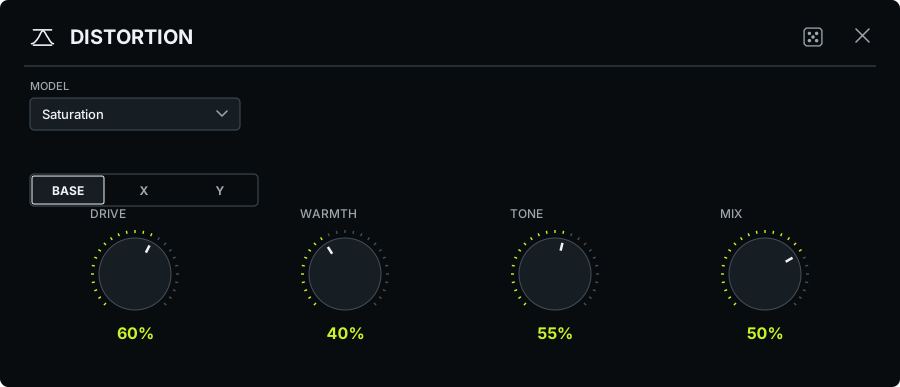
Give a drum loop weight, roughen a bass, or turn a clean source into a more aggressive texture.
Models are Saturation, Overdrive, Fuzz, Tar, and Crunch. Start with Saturation for the smallest change, then compare the others on the same phrase. The model determines how the sound responds; it is not merely a preset for Drive.
| Control | What it does |
|---|---|
| Drive | Pushes the source into stronger nonlinear processing |
| Warmth / Tension | WARMTH in Saturation; TENSION in the other models. Changes the distortion character |
| Tone | Shapes brightness after the character is established |
| Mix | Blends the distortion with the source |
Example: parallel distortion. Keep Base Mix at zero. Choose a model and a moderately driven sound, then map Mix to about 35% on X. Map Tone on Y so the aggressive sound can become darker as it gets stronger.
Notes. Placing Distortion before Reverb gives the distorted attacks a space. Placing it after Reverb distorts the whole reverberant field. Compare both before deciding.
Erode
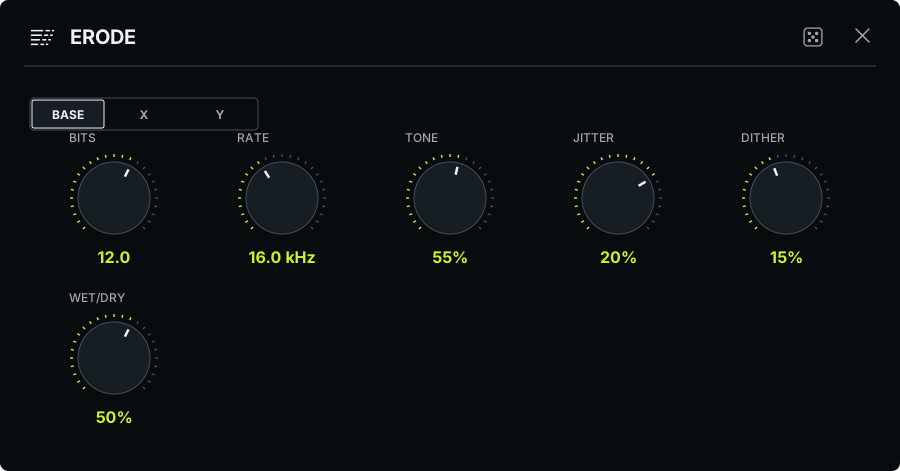
Add digital grain, break a clean sound into rough edges, or create a deliberately degraded transition. Its inline editor exposes six controls for resolution, tone, irregularity, and mix.
| Control | What it does |
|---|---|
| Bits | Reduces amplitude resolution; lower values make the steps more obvious |
| Rate | Reduces the effective sampling rate; lower values produce stronger digital coloration |
| Tone | Balances the brightness of the processed sound |
| Jitter | Introduces timing irregularity |
| Dither | Adds noise around the quantization process |
| Wet/Dry | Sets how much degraded sound you hear |
Example: sample-rate reduction. Start with high Bits and Rate. Map a reduction in Rate to X and a moderate Wet/Dry increase to Y. Keep Jitter low until the basic gesture is playable, then add just enough to make its edge unstable.
Notes. Bits and Rate produce different kinds of roughness. Sweep each alone over a sustained note before combining them. Tone is useful for keeping a dramatic degradation gesture from becoming excessively bright.
Reverb
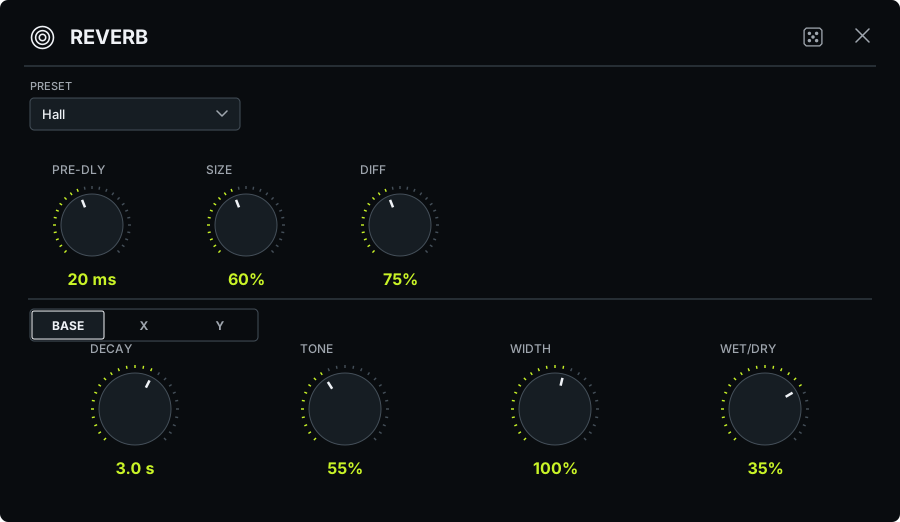
place a sound in a room, open a large atmosphere, or leave a tail across a transition.
| Mode | Starting character |
|---|---|
| Cathedral | Large, extended space |
| Hall | Broad reverberant field |
| Room | More compact ambience |
| Plate | Dense, plate-style tail |
| Space | Expansive atmospheric treatment |
| Shimmer Freeze | Sustained, elevated texture for deliberate holds |
| Spring | Spring-style resonance and texture |
| Control | What it does |
|---|---|
| Pre-dly | Shared delay before the reverberant response; separates the attack from its space |
| Size | Shared spatial character |
| Diff | Shared diffusion: how the tail fills in |
| Length / Character, in Spring | Replace the Size / Diff labels for the spring response |
| Decay | Tail duration; available for B/X/Y mapping |
| Tone / Width | Color and stereo spread of the tail |
| Wet/Dry | Amount of reverb in this slot |
Example: mapped reverb mix. Choose Hall. Set a moderate decay and Base Wet/Dry to zero. Map Wet/Dry to 35% on Y and a longer Decay to X. Move up to add a room, then right to let it linger.
Notes. Long decay and high mix can hide rhythmic detail. Keep the dry attack present when it matters. Use power/bypass for comparison; use mix for a musical fade, because bypass eventually cuts the tail.
Delay
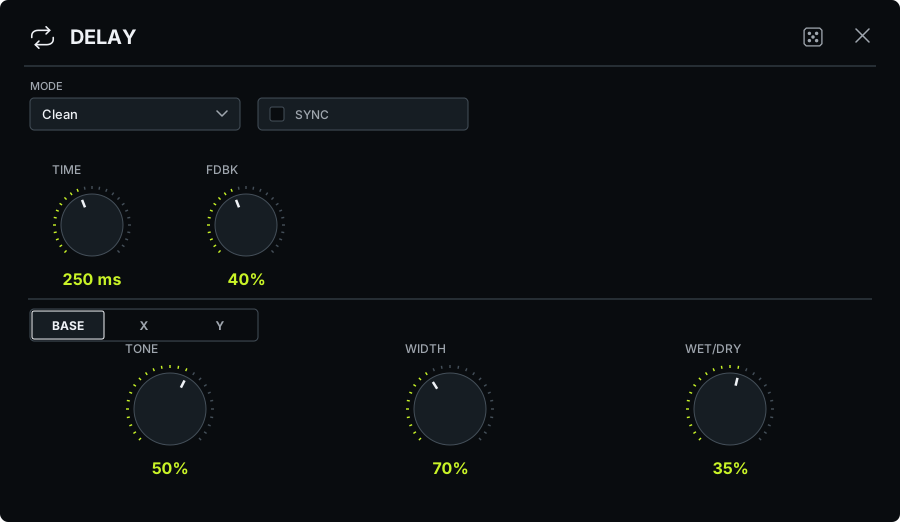
Turn one hit into a rhythm, trail the end of a phrase, or build a repeating wash.
Modes are Clean, Space Echo, Reverse, and Octave. Clean makes repeats easy to place. Space Echo adds tape-style movement and a choice of playback heads. Reverse changes the repeat envelope into a backward gesture. Octave brings pitch movement into the echo field.
| Control | What it does |
|---|---|
| Free / Sync | Chooses a time in milliseconds or a musical division |
| Time | Spacing of repeats; Sync offers straight, dotted, and triplet values from whole to sixteenth notes |
| Fdbk | Sends repeats back into the delay, extending their life |
| Tone / Width | Brightness and stereo extent of the repeats |
| Wet/Dry | Blends echoes into the slot output |
| Heads, in Space Echo | Selects 1, 1 + 3, or 1 + 2 + 3 for different echo patterns |
| Movement / Drive / Space, in Space Echo | Tape movement, saturation character, and added spatial character |
In the current inline editor, ordinary delay Time and Feedback are shared controls. Space Echo makes Feedback, and Time in Free mode, available as mappings, along with its extra character controls. The tempo division in Sync remains a shared choice.
Example: synced delay. Choose Clean, Sync, and 1/8 dotted. Keep feedback moderate. Set Base Wet/Dry to zero and map it to about 40% on Y. Add Y for the final words or hits of a phrase and listen to how the repeats fit the next bar.
Notes. Feedback determines continuation, not the initial loudness of the repeat. Establish the rhythm first, then choose the amount and feedback. Long, bright feedback can crowd a mix quickly.
Modulation
Picker: MOD. Editor: MODULATION.
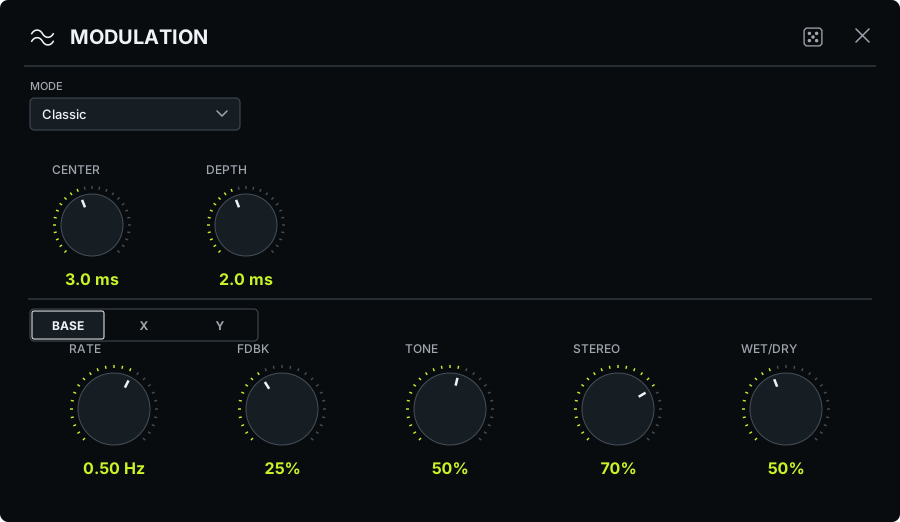
animate a static sound, add a sweeping comb-like color, or thicken a part into several moving voices.
| Mode | Character |
|---|---|
| Classic | Focused flanger sweep |
| TZF | Through-zero flanging, including deep cancellation as paths cross |
| Chorus | Detuned, moving thickness |
| Vintage Phaser | A phase-swept color |
| Deep Phaser | A deeper phase-swept treatment |
| Ensemble | Layered ensemble-style movement |
| Control | What it does |
|---|---|
| Center / Sweep | Shared center of the movement; label can depend on the editor and mode |
| Depth | Shared span of the modulation |
| Rate | Speed of the cycle |
| Fdbk | Strength of recirculation and the resulting emphasis |
| Tone | Brightness of the affected sound |
| Stereo | Relationship of the movement across left and right |
| Wet/Dry | Amount of modulation effect |
Example: chorus width. Choose Chorus, a slow rate, and moderate depth. Set Base mix low, map a larger mix to X, and map Stereo to Y. Sweep slowly and compare with the slot bypassed.
Notes. More feedback often changes the character more dramatically than more mix. In TZF, cancellation is part of the effect, so a level dip during the sweep is not necessarily a routing failure.
Stereo Widener
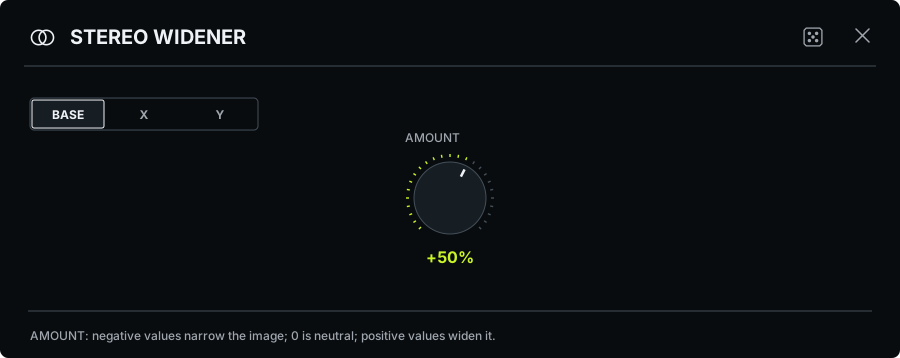
move a sound from concentrated to wide with one clear control. The picker labels it STEREO; its editor is STEREO WIDENER.
| Control | What it does |
|---|---|
| Amount | Changes stereo width around its neutral setting; follow the signed readout |
Example: mapped stereo width. Start at the neutral Amount, then map a moderate increase to Y. Keep X reserved for a tonal change in another slot. The upward part of the gesture now opens the image as the tone evolves.
Notes. Width depends on the source and the rest of the chain. Check the result on speakers as well as headphones, and compare in mono when your host or monitoring setup provides it. Do not assume the widest setting is the most useful one.
Shifter
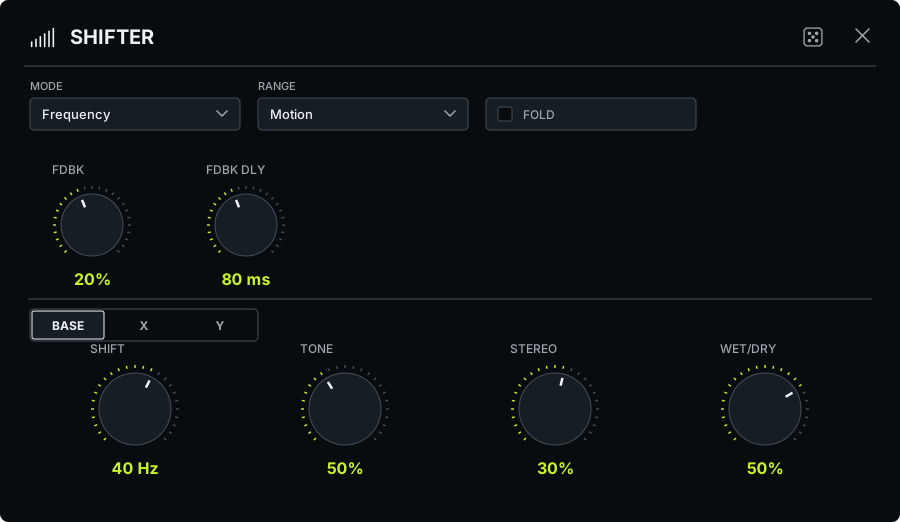
Introduce beating, uneasy movement, or a metallic transformation. Frequency shifting moves frequency components by an offset in Hz; it is different from transposing a melody by a musical interval.
| Control | What it does |
|---|---|
| Range: Micro / Motion / Sweep / Wide | Sets the useful span for the Shift control |
| Shift | Amount and direction of the frequency offset |
| Fdbk / Fdbk Dly | Shared feedback strength and feedback delay |
| Fold | Lets downward-shifted components cross zero and fold back upward for a more complex result |
| Tone / Stereo | Brightness and left-right relationship |
| Wet/Dry | Blend of shifted and original sound |
Example: small frequency shift. Choose Micro. Start with a small offset and low feedback. Map Shift to X and a modest Wet/Dry increase to Y. Move slowly enough to hear the beating between the source and the shifted copy.
Notes. A larger range can transform a small gesture into a very large tonal jump. Choose the range before drawing the mapping. Keep feedback as a setup choice until the core sound is under control.
Ring Mod
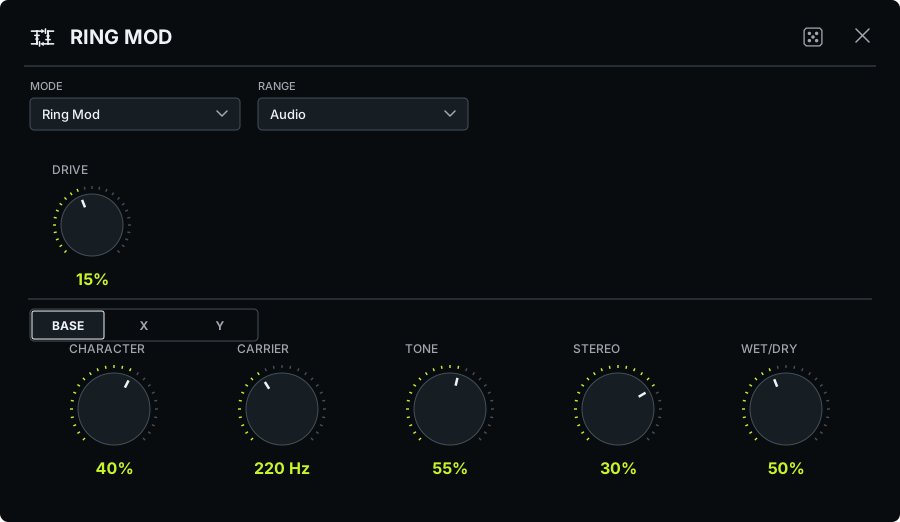
Give drums a bell-like edge, turn vocals robotic, or add a tremolo-like pulse at low carrier frequencies. Ring Mod has its own picker entry within the shared shifter family.
| Control | What it does |
|---|---|
| Range: Sub / Body / Audio | Chooses the carrier-frequency region |
| Carrier | Sets the oscillator interacting with the input |
| Character | Moves from Full Mix toward the Ring character shown by the readout |
| Drive | Shared drive setting |
| Tone / Stereo | Shapes brightness and stereo character |
| Wet/Dry | Amount of the ring-modulated result |
Example: ring-modulated percussion. Choose Body or Audio, keep the base mix dry, and map Wet/Dry to a modest Y target. Map Carrier across a small X range. Use short touches on isolated hits before trying it across a whole loop.
Notes. Carrier pitch and musical pitch do not have a simple one-to-one relationship. The input's harmonics are part of the result. A small carrier change can create a new cluster of tones.
Time FX
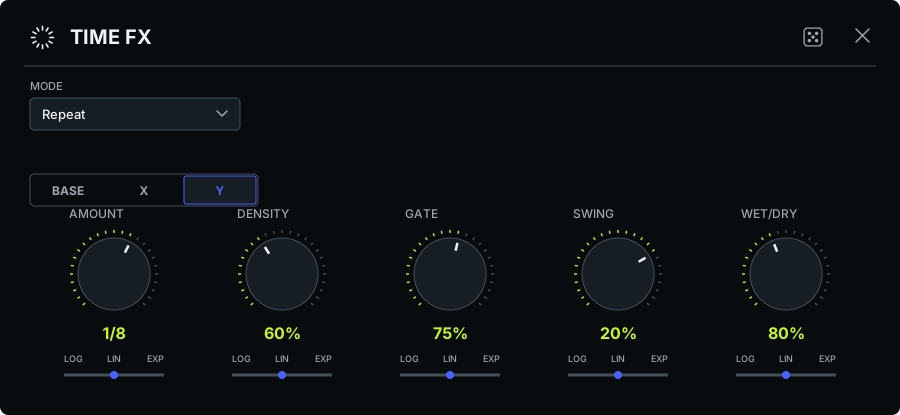
Repeat a moment, reverse a passage, or cut a rhythm into a new pattern. Choose Repeat, Reverse, or Shuffle.
| Control | What it does |
|---|---|
| Amount / Length division | Musical time unit from 1/1 to 1/64; use the division readout rather than interpreting the label as volume |
| Density | How much activity or repetition is introduced; in Shuffle it selects increasingly busy cut-up patterns |
| Gate | Shortens the audible part of events; in Shuffle it shapes stutters rather than the regular blocks |
| Swing | Delays alternating events to change the groove without changing the average tempo |
| Wet/Dry or Mix | Blends the time-processed sound with the original |
Repeat is a useful starting point for stutters. Reverse gives a backward gesture. Shuffle stays organized around bars, recaptures the progressing source while held, and tends toward shorter cuts as a bar develops. It is not simply one frozen beat playing forever. Some changes wait for a beat or safe rhythmic boundary.
Example: repeat fill. Use a drum loop, Repeat, and a moderate division such as 1/8. Keep Base mix dry, map a stronger mix to Y, and perform a short upward touch at the end of a phrase. Add a smaller division on X once you can enter and release the fill on time.
Notes. Chain order still matters. Time FX after a Delay repeats the echoed material arriving at that slot. Reverse followed by Shuffle differs from Shuffle followed by Reverse.
At tempos below 40 BPM, new captures are limited to half a bar. Changing tempo does not resize an already playing capture; the next capture uses the new timing.
Grain Shifter
Picker: GRAINS. Editor: GRAIN SHIFTER.
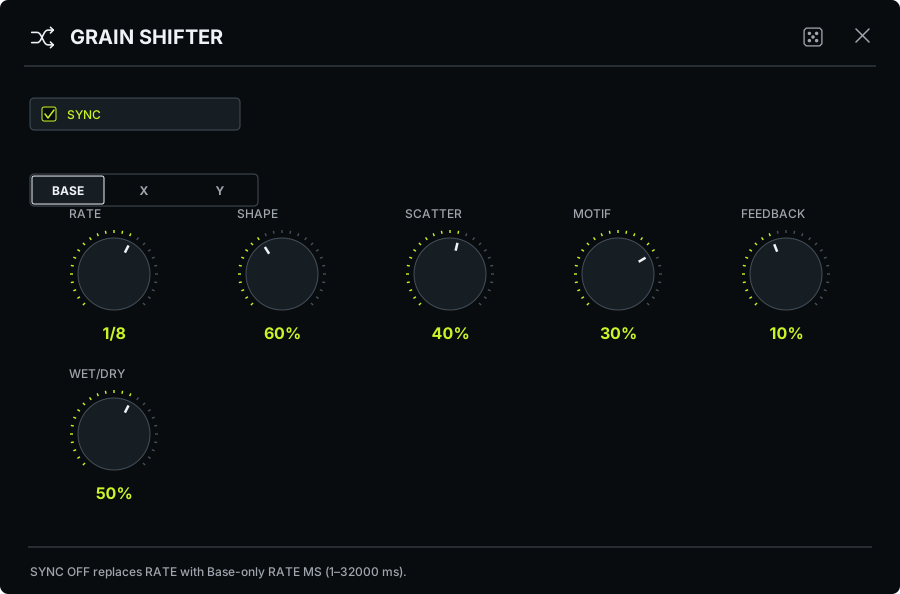
Re-sequence recent steps of the input into grooves that sit inside the track. Grains land on the beat with the source's own swing, fill the gaps between hits, and stay out of the way of kicks and snares. Nothing plays until you touch the pad; releasing lets the grains finish.
| Control | What it does |
|---|---|
| SYNC | On: RATE follows the host (or the estimated beat). Off: RATE MS sets a free step |
| RATE / RATE MS | Step of the grain pattern: 1/4, 1/8, 1/8T, 1/16, 1/16T, 1/32, or 1–32000 ms |
| SHAPE | Grain length, from tight and percussive to long and overlapping |
| SCATTER | How much the pattern borrows from other recent steps, with occasional strays and flares |
| MOTIF | Reverse and octave/fifth grains for melodic shimmer |
| FEEDBACK | Cascades the grains back into what is captured |
| WET/DRY | 50% keeps the full dry with the full wet on top; above 50% the dry fades out |
RATE MS is a shared setup value. RATE, SHAPE, SCATTER, MOTIF, FEEDBACK and WET/DRY can have Base, X, and Y settings. The default mapping opens SHAPE and SCATTER on X, MOTIF and FEEDBACK on Y. Rate and pattern changes from the pad take effect on the next beat, bar or phrase, so moving your finger never knocks the grains off the grid.
Example: groove fills. Leave SYNC on at 1/8 or 1/16, keep WET/DRY at 50%, and sweep X to lengthen grains and scatter the pattern. Push Y for reversed and octave grains, then add a little FEEDBACK.
Notes. Scenes made with earlier Grains engines open with the new defaults at the nearest rate. Grains need a few beats of audio before your touch to have material to replay.
Granular Cloud
Picker: GRANULAR. Editor: GRANULAR CLOUD.
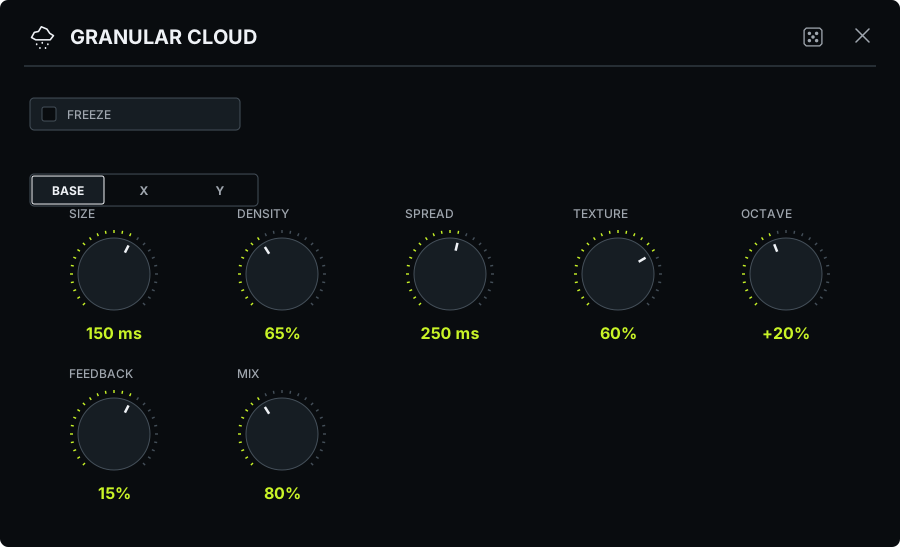
Turn incoming audio into a cloud of small fragments. Its controls explore the recent audio history: where fragments come from, how often they appear, and how they overlap.
| Cloud control | What it does |
|---|---|
| Size | Duration of individual grains, from short fragments to longer overlaps |
| Density | How many grains overlap; higher values make a fuller cloud |
| Spread | How far behind the live edge grains can be selected |
| Texture | Adds read-head movement, reverse grains, octave-direction variation, and diffusion |
| Octave | Introduces octave-shifted grains; its direction follows the signed value |
| Freeze | Stops refreshing the captured source so you can work on the held material |
| Feedback | Recirculates processed material |
| Mix | Blends the cloud with the source; 100% is cloud only |
For beat-locked grains with Rate, Shape and Scatter control, use the separate GRAINS picker entry. It opens the Grain Shifter editor described above.
Example: frozen grain cloud. Feed a sustained chord and keep feedback low. Map Spread to X and Texture to Y. Play the chord long enough to fill the history, enable Freeze, then move across the pad to scan and reshape the held material. Introduce Octave only after the unpitched cloud is useful.
Notes. Spread opens the history window; Texture changes how the cloud moves within it. At low Texture the result stays more direct. Higher Texture adds wandering, reverse movement, mixed octave direction, and more diffusion. If you freeze before useful audio arrives, you may preserve silence. Unfreeze, refill the capture, then try again. A sparse source produces a different cloud from a continuous one.
Noise
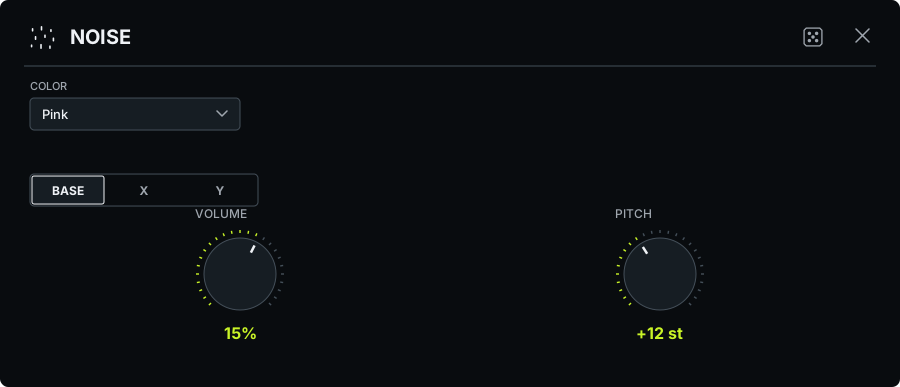
Add a lift, a wash, a percussive burst, or a source for another effect. Noise generates sound; it does not require a playing input.
| Control | What it does |
|---|---|
| White / Pink / Green / Blue | Different spectral balances: compare brightness, weight, and focus |
| Volume | Level of the generated noise |
| Pitch / Pitch Range | Shifts the character of the noise spectrum |
Example: filtered noise. Insert Noise before a Filter. Set Base Volume to zero and a restrained X level. Use Y to move the Filter cutoff. Start with a small gesture and raise the target only until the noise supports the transition.
Notes. Noise before a Filter is shaped by it; Noise after the Filter is added too late for that filter to act on it. This is an easy demonstration of serial order.
OSC
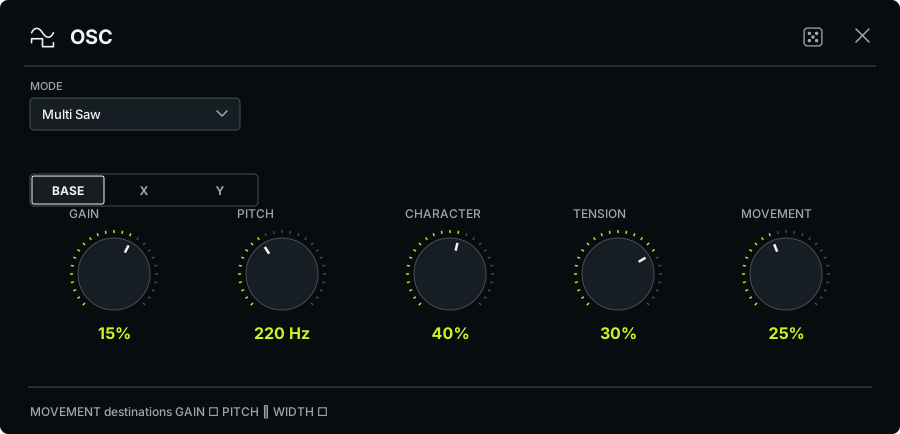
Add a pitched voice, make a rising effect, or create an input-free performance patch.
Modes are Multi Saw, Sync, X-Mod, and PWM. Multi Saw builds a layered oscillator color; Sync and X-Mod introduce more complex relationships between oscillators; PWM offers pulse-width character. Choose the mode before fine-tuning its response.
| Control | What it does |
|---|---|
| Gain | Generated level; zero at Base gives a silent resting point |
| Pitch | Fundamental pitch in the displayed frequency range |
| Character | Mode-dependent oscillator color |
| Tension | Mode-dependent intensity of the oscillator relationship |
| Movement | Adds internal movement |
| Movement destinations: Gain / Pitch / Width | Chooses where that internal movement acts |
Example: oscillator rise. Keep Base Gain at zero. Map a moderate Gain to Y and an upward Pitch target to X. Choose one mode and keep Tension modest. Add Movement after the rise is already useful, selecting only one destination to hear its role clearly.
Notes. A generator's Base pitch can be set even while its Base gain is silent. That lets you prepare the start of a rise without leaving a constant tone sounding. OSC and Shepard share the picker generator limit.
Shepard
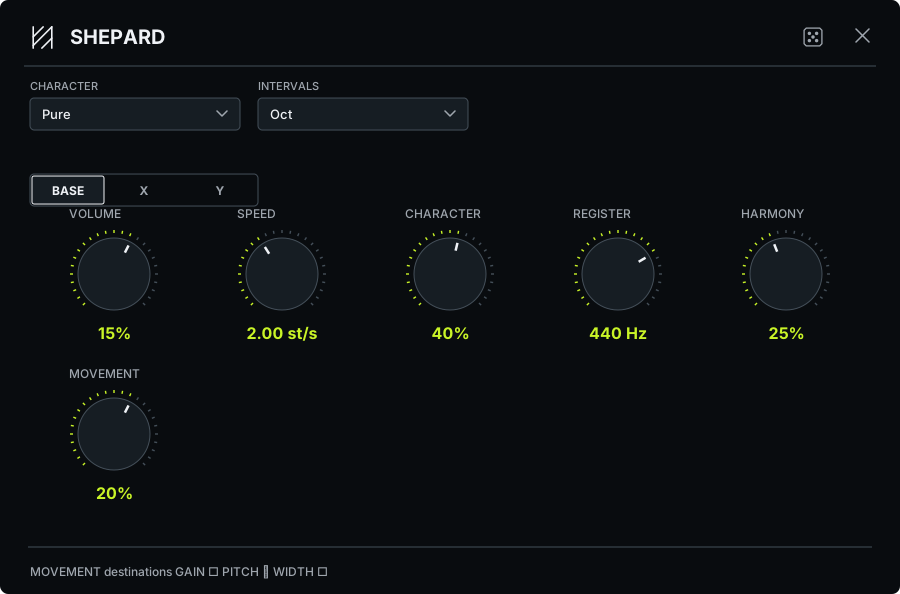
Create a rising or falling tonal illusion that can feel as if it never reaches the end. Shepard combines pitch layers with changing emphasis.
Current character names are Pure, Wide, Shimmer, and Razor. Interval sets are Oct, Major, Minor, Fifths, and Sus. Choose the global root note in Settings → Performance → Pitch.
| Control | What it does |
|---|---|
| Volume | Level of the generated voice |
| Speed | Rate and direction of the pitch movement |
| Character | Amount or color within the chosen character mode |
| Register | Frequency region carrying the sound |
| Harmony | Contribution of the chosen interval structure |
| Movement | Additional internal animation |
| Gain / Pitch / Width destination switches | Select where Movement acts |
Example: Shepard rise. Set Base Volume to zero. Choose Pure or Wide, an interval set that fits the track, and a slow rising Speed. Map Volume to Y and a faster Speed to X. Keep the Register clear of the main bass part.
Notes. More speed is not always more tension. A slow rise with a careful level can be more effective than a fast, loud one. Rehearse its release so the tonal layer leaves space for the next phrase.
Resonator
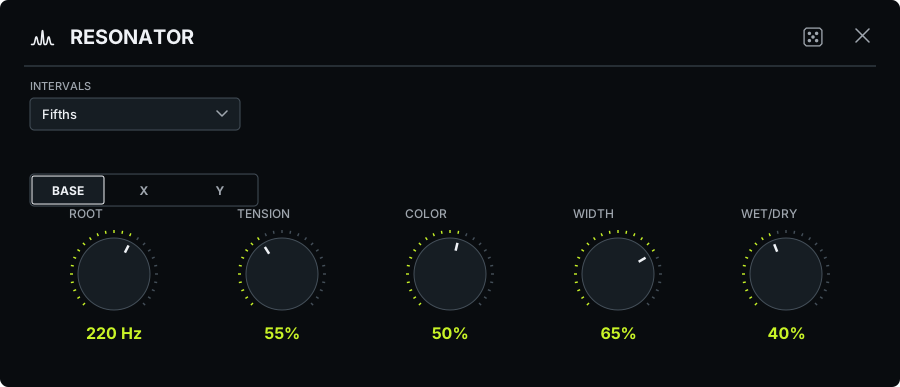
extract a pitched, ringing structure from percussion, noise, or a textured source. The source excites the resonances; their tuning gives the result a musical center.
| Control | What it does |
|---|---|
| Intervals: Fifths / Oct / Sus / Metal | Chooses the relationship between resonant voices |
| Root | Sets the tuning center |
| Tension | Changes the resonant intensity and response |
| Color | Shapes the resonant character |
| Width | Spreads the result across stereo |
| Wet/Dry | Blends the ringing result with the source |
Example: tuned percussion. Use a sparse percussion loop. Set Root to suit the track and choose Fifths. Keep tension moderate, map Wet/Dry to Y, and Color to X. Listen between hits as well as at the attacks.
Notes. The spaces between source events reveal the ringing more clearly. Dense input can obscure the tuning. Lower the mix or simplify the source before adding more tension.
Bloom
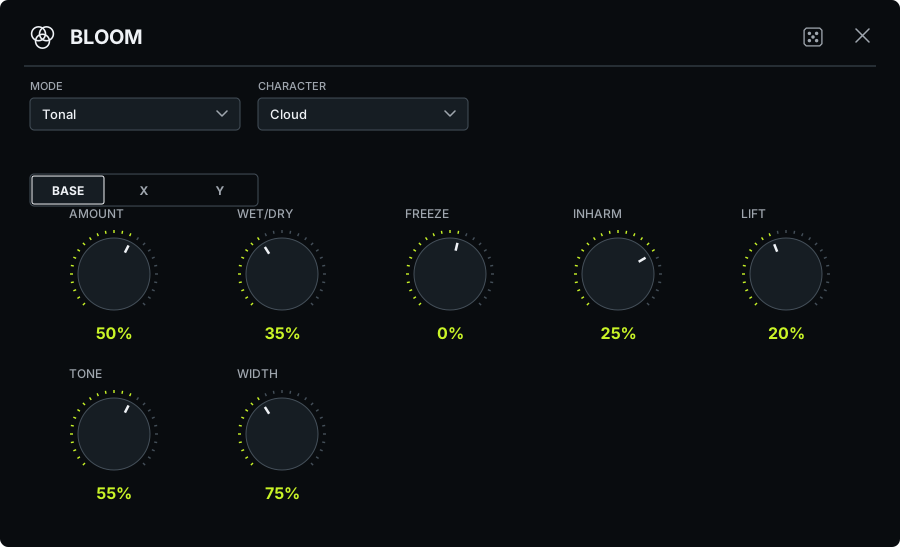
Grow a source into a rising, sustained texture. Mode chooses the spectral engine; Character chooses Cloud or Metal within that mode. These are independent choices.
| Setup choice | Character |
|---|---|
| Tonal | The default, harmony-aware bloom and the mode chosen by Smart randomization |
| Bitonal | The approved alternate spectral profile with its own calibrated wet level |
| Atonal | A less pitch-centered spectral field with its own calibrated wet level and overload protection |
| Cloud / Metal | Softer or more metallic character within any of the three modes |
| Control | What it does |
|---|---|
| Amount | Builds the injection, density, and crescendo |
| Freeze | Moves toward capture/hold; the full hold endpoint stops new input entering the sustained field |
| Inharm | Adds inharmonic tension and modulation |
| Lift | Reinforces elevated harmonic energy |
| Tone / Width | Colors and spreads the field |
| Wet/Dry | Blends the growing field with the source |
Example: sustained Bloom texture. Use Tonal with Cloud and a low Base mix. Map Amount to X and Wet/Dry to Y. Play a chord into the effect, then move diagonally. Add some Freeze only after the field contains material worth holding. Compare Bitonal or Atonal afterward without changing the pad mapping.
Notes. Amount and Mix have different jobs. Amount changes the developing texture; Mix determines how much reaches the output. Tonal, Bitonal, and Atonal are level-calibrated but can still differ with real material; compare them at a comfortable output level. A high Freeze value can leave a substantial tail after the input stops. Reduce the mapped blend or release the hold deliberately. Older scenes without an explicit Bloom mode open as Tonal while keeping their other Bloom settings.
LFO
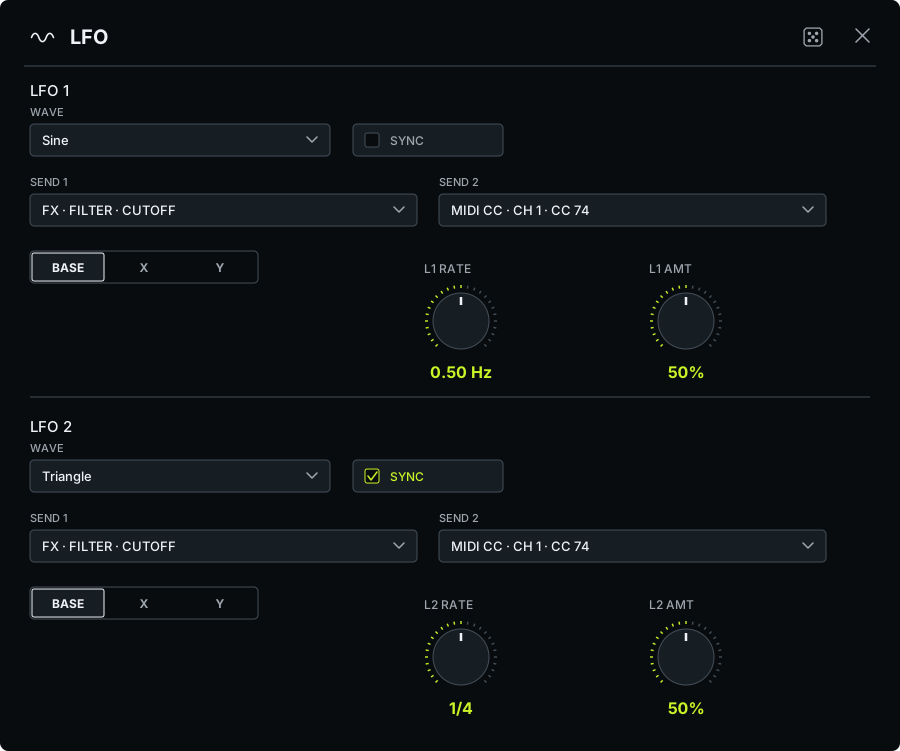
Keep a parameter moving without drawing every cycle by hand. An LFO is a repeating control signal. It occupies a slot but its main purpose is modulation, not audible generation.
Each of two lanes provides a waveform, Free / Sync timing, Rate, Amount, and two destinations. Choose an internal FX parameter or a MIDI CC destination. A lane with no destination has nothing to move; a lane with zero Amount produces no useful modulation depth.
| Waveform | Motion |
|---|---|
| Sine | Smooth rounded cycle |
| Tri | Even rise and fall |
| Saw Up / Saw Dn | Ramp in one direction, then reset |
| Square | Alternates between two levels |
| Random | Stepped unpredictability |
| Perlin | Smoother irregular movement |
| Geiger | Irregular pulse-like activity |
Sync divisions run from four bars to 1/64, including dotted and triplet choices. Rate and Amount can have Base/X/Y mappings. Internal destinations follow the selected effect; check them after replacing or removing the target.
Example: LFO modulation depth. Insert a Filter, then an LFO. On lane 1, choose Sine and a slow rate. Select the Filter cutoff as a destination. Keep Base Amount at zero and add a small Y target. Moving up now introduces a repeating cutoff movement around your designed sound.
Notes. Start with small Amount. A huge modulation range can conceal the target's original mapping. Use lane 2 only once you can hear what lane 1 contributes.
MIDI
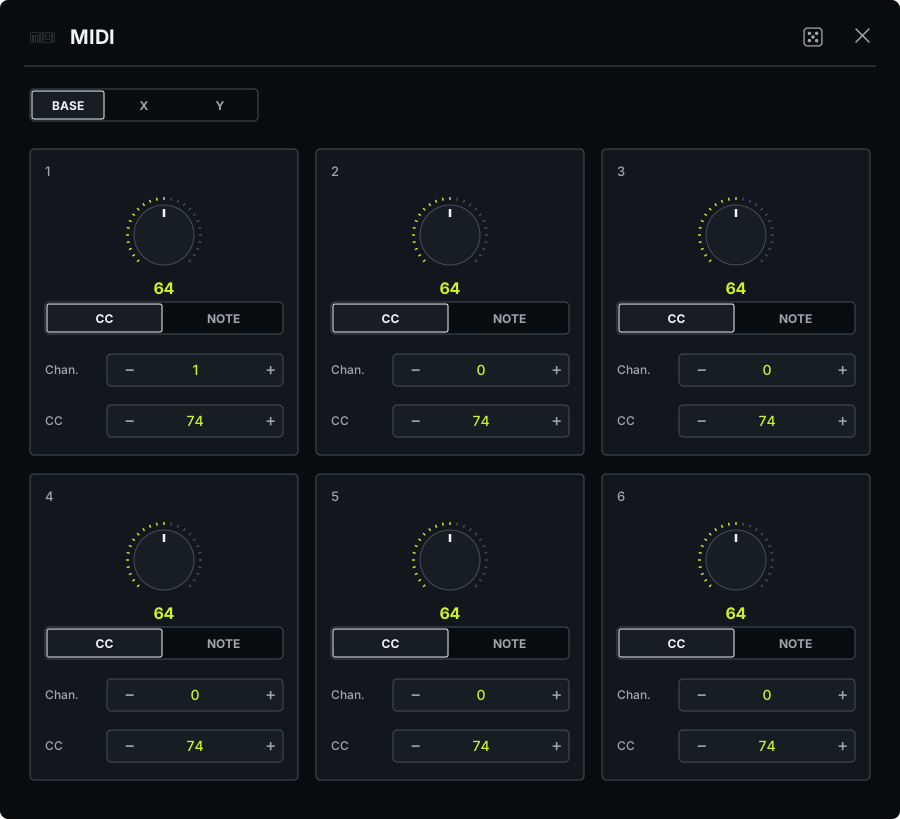
play another instrument from the pad or move a receiver's parameters with the same gesture that controls RMXY-1.
A MIDI slot contains six lanes. Each lane has a name, channel, CC assignment, and Base/X/Y values. The channel can be Off or 1–16; Off disables the lane. Values and CC numbers use the MIDI range 0–127. X and Y can independently use CC or Note output.
In CC mode, movement sends controller values. The receiving instrument decides what that CC does. Match its channel and controller assignment rather than assuming the number means the same thing on every device.
In Note mode, touch position selects notes. Moving to a new note releases the prior owned note; lifting the touch releases its notes. Multiple touches can own notes independently. The note guides help orient your hand when available.
Example: MIDI notes and CC. In a host that routes RMXY-1's MIDI output, connect it to a receiving instrument. Use one lane in Note mode for an axis. Use a second CC lane for a parameter the instrument explicitly assigns, such as cutoff. Match channels, keep the note range small, and test note release before using a larger gesture.
Notes. MIDI does not carry audio. If meters or note indicators move but nothing is heard, check that the receiving instrument has its own audio route. See chapter 9 for the difference between generated MIDI, incoming control, and clock.
AUv3 slot
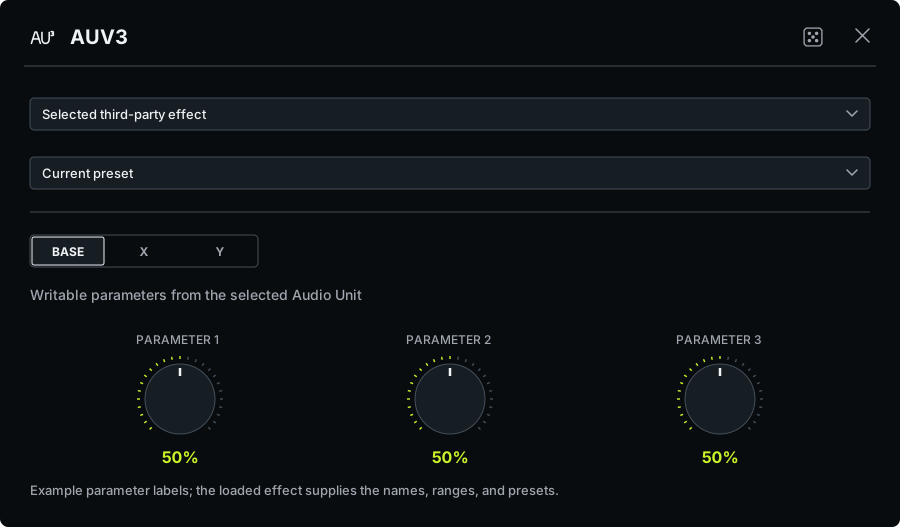
Bring a compatible third-party Audio Unit effect into RMXY-1 standalone and include its exposed controls in your gestures.
- In standalone, add AUv3 to an available slot and choose an installed compatible effect.
- Choose an available preset, if the effect supplies presets. Use RMXY-1's parameter view to adjust the exposed controls.
- Set Base values, then map available X and Y targets.
- Keep the preset fixed while you test the mappings. A different preset can change the values you are working from.
- Save the scene, reopen it, and check the hosted effect before relying on it live.
Not every control a plug-in supports is necessarily exposed as a writable realtime parameter. The available list depends on that effect. Preset changes and continuous parameter mappings also need different kinds of listening: do not assume a preset switch will morph every internal part smoothly.
Example: AUv3 parameter mapping. Load a familiar third-party effect. Map only one parameter to X, keep its preset fixed, and test its response. Add Y after the single mapping is predictable.
A scene using an external effect depends on that effect being installed and available on the destination device. RMXY-1 permits up to two hosted AUv3 effects. The AUv3 slot is a standalone-hosting feature; it is separate from using RMXY-1 itself as an AUv3 in another app.
Audio Looper
Audio Looper overview
The audio looper holds a short recording that can become the source for the FX chain. It is useful for keeping a phrase alive while you move away from the original source, or for progressively transforming a loop through new effects.
It is different from the motion recorder beside Hold: motion record repeats your hand movement; the audio looper repeats the resulting sound. You can use both, but learn them separately first.
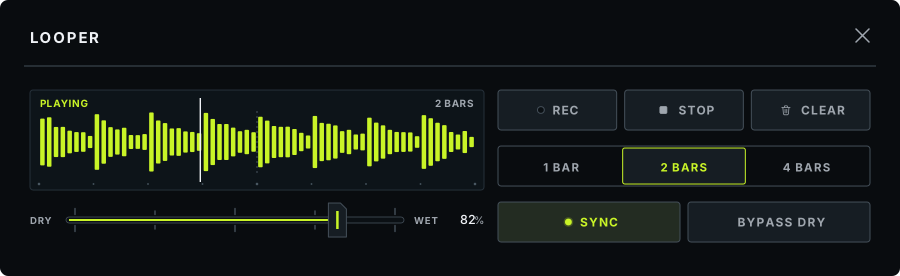
Audio Looper controls
| Control / display | Job |
|---|---|
| 1 / 2 / 4 bars | Length for the recording |
| Sync | Aligns recording with the transport grid |
| Rec | Starts or arms a recording; during playback it initiates a replacement capture |
| Stop / Play | Stops the loop or resumes a retained recording |
| Clear | Removes a committed loop when not capturing. During replacement capture, cancels that capture and returns to the prior committed loop |
| Dry/Wet fader | Balances live source against the captured loop |
| Bypass Dry | Routes the live contribution around the FX chain while the loop continues through it |
| Waveform and playhead | Show captured material and playback position |
| State | The screen shows Ready, Armed, Rec, Recapture, Playing, Stopping, or Stopped |
| LOOP key | Lit while the looper is open; red while a first take records; a deeper colour whenever a loop is stored |
Armed means waiting for the recording boundary; it is not yet a completed recording. Rec means capture is underway. Playing means a committed take is playing. Stopped keeps a take available for Play. Stop and Clear are different operations. While recording with Sync off, pressing Rec again finishes a free-length take. Stop cancels an unfinished capture; during recapture the previous committed take is retained.
Recording a loop
- Establish a reliable tempo: host transport in AUv3, or the selected standalone tempo/clock.
- Open the audio looper and choose 1 bar.
- Enable Sync if you want a grid-aligned capture. Keep your source playing.
- Press Rec. With Sync enabled, watch for Armed and then Rec. Wait for the full recording to complete and the state to become Playing.
- Move the looper's Dry/Wet fader toward 100%. You are now listening to the committed loop as the source for the chain.
- Perform on the pad. The recorded phrase stays in place while your FX mapping changes it.
- Press Stop, then Play, to learn the transport. Clear only when you no longer need the recording.
Sync and length choices are constrained while capture is armed or active. Everything else stays available: you can change scenes, open the Library or Settings, or close the looper panel while a take records, and the take captures whatever the machine plays. The LOOP key turns red while a take records.
LOOP DRY/WET
At 0%, you hear the live contribution. At 100%, the loop replaces the live source while it is playing. Between them, both contribute. This control is not the master FX blend, and it is not an overdub amount.
Keep the main FX dry/wet at a known setting while learning the looper balance. Changing both at once makes it difficult to tell whether you are hearing less loop or less processing.
BYPASS DRY
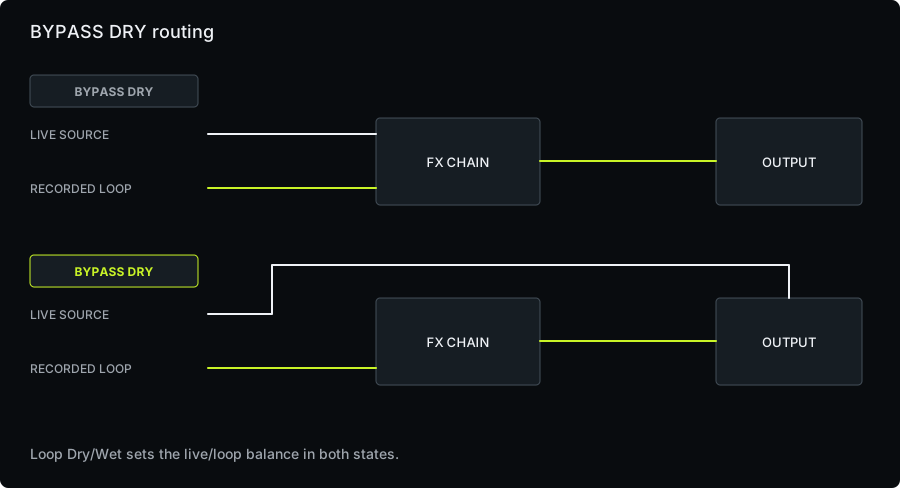
With Bypass Dry off, the live/loop blend goes through the FX chain. With Bypass Dry on, the live contribution goes around the chain and joins afterward; the loop contribution still goes through the FX.
“Bypass Dry” does not mute the live source. Loop Dry/Wet still decides how much live and loop material contributes. At 100% loop, there is no live contribution to hear. At 0%, Bypass Dry can leave the live sound clean even though the effect chain is active.
The selection remains relevant when no loop is playing, and Stop or Clear does not silently turn it off. This explains a common surprise: if live input seems unaffected after clearing a loop, check Bypass Dry.
Example: separate live and loop processing. Capture one bar, enable Bypass Dry, and set a middle Loop Dry/Wet balance. Keep playing the live source while you make a strong filter or time-FX gesture. The loop changes while the live contribution remains clean.
Recapturing a loop
While a committed loop is playing, pressing Rec captures the audible result into a replacement take. The capture includes the FX treatment and master/stop processing, including the merged live contribution when present. It is taken before the final output limiter.
This is a DJ-style recapture workflow. It does not retain old and new recordings as separately editable layers. Do not treat it as additive overdubbing or expect the scene Undo control to recover earlier audio takes.
- Start with a loop you are willing to transform.
- Set Loop Dry/Wet to 100% if you want the loop alone as the source.
- Perform a clear change, such as a short filter sweep or a rhythmic cut.
- Recapture for the chosen length and wait for the take to commit.
- Return the live FX mapping to a neutral position and listen. The captured transformation is now part of the audio.
The replacement still passes through the active chain during playback. If you leave the same processing engaged, you hear the printed effect plus its next pass through that processing. This can be a useful buildup, but plan each pass so levels and texture remain intentional.
Loop persistence
Portable .rmxyscene and .rmxyprogram files do not contain recorded audio or motion loops. An AUv3 host-session save can preserve committed audio, motion, and held state for that RMXY-1 instance. An unfinished recapture does not replace the prior committed loop in that session snapshot.
For a durable recording you can use elsewhere, record RMXY-1's output in your host. Do not rely on an exported scene to carry the sound you captured.
Scenes, banks, and programs
Scenes, banks, and programs overview
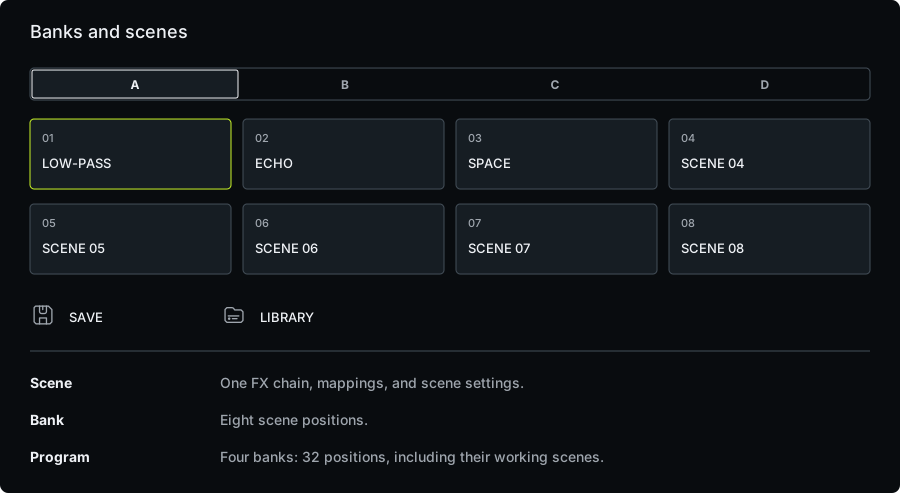
| Object | Holds | Use it for |
|---|---|---|
| Scene | An eight-slot chain, effect choices, mappings, curves, and scene options | One playable sound or transition |
| Bank | Eight quick-recall scene positions | A section of your set |
| Program | The full four-bank arrangement | A complete set or project |
A saved library scene and a bank slot's working scene are related but distinct. The working scene is what you are editing and playing. Switching to another bank slot preserves that working state without silently overwriting the saved library version.
Saving a scene
- Finish a useful patch and give its extremes a quick listen.
- Choose Save.
- Enter a descriptive name. The reserved initialization name is not a name for your new scene.
- Save under a new name, or confirm Replace when you intend to update an existing saved scene.
- Check the bank assignment you will use to recall it.
Replacement is consequential: the save dialog explains that bank slots using that scene will load the updated version. Use distinct names for variations you want to keep independently.
A useful naming style combines a function and a character: “Break — narrow repeat,” “Lift — wide noise,” or “Space — long plate.” You should know what a scene is for before you touch it on stage.
Assigning and recalling scenes
Tap a bank selector to show that bank's eight positions. Tap an occupied position to load its working scene. Hold, two-finger tap, or right-click a scene position, depending on your input method, to open its replacement/assignment flow and choose the desired scene.
Prepare neighboring slots in a musical order. For example: neutral, subtle movement, rhythmic fill, wide transition, and recovery. A recovery scene with simple, familiar routing is more useful than filling every position with the most extreme sound.
Working scenes and Reload
Suppose you load “Long Hall,” shorten the decay, switch to another scene, and return. The working copy can retain that shorter decay while the saved “Long Hall” remains unchanged. This is intentional.
When you ask to reload a saved scene over unsaved work, the app offers Save, Reload, or Cancel. Save keeps the work through the save flow; Reload returns to the stored version; Cancel leaves your current work alone. Read the choice rather than relying on repeated taps.
Scene Library
The library separates Scenes and Programs. Item actions provide the available operations, including rename, duplicate, export, and delete. Use the reorder handle to organize items. Selection mode supports deleting selected entries; its confirmation states that deletion cannot be undone.
Duplicate before making a variation you want to compare. Export before moving work to another device or archiving a set. Rename to improve recall without changing the sound. Library order and bank assignment are different organizational tools.
Saving and loading programs
After arranging the banks, use the program save flow to name and store the full setup. Saving one scene is not a substitute for saving a program's bank changes.
Loading a different program replaces the current bank arrangement. If the current program has unsaved changes, the app offers Save, Don't Save, and Cancel. Save if you need the arrangement; Don't Save explicitly discards those unsaved program changes; Cancel keeps you in the current setup.
Import and Export
Use .rmxyscene for a scene and .rmxyprogram for a complete program. Import through the library's file flow; export through the relevant library item action and choose a destination in the system file/share interface.
Keep an exported program and important individual scenes in a location you can retrieve independently of the app. Before a performance, import a test copy on the destination device and check any external AUv3 dependencies.
| State | Scene / program export | AUv3 host-session state |
|---|---|---|
| Chain, modes, B/X/Y values and curves | Yes, through the scene data | Yes |
| Full bank arrangement | Program | Yes, per instance |
| Committed recorded audio loop | No | Yes |
| Recorded motion and held performance state | No | Yes |
| Installed third-party plug-in itself | No | No; it must be installed separately |
Undo and Redo
Use Undo/Redo for supported scene edits, power/solo actions, and randomization. Do not assume it reverses file deletion, program replacement, audio-loop clearing, or a committed recapture. The app's explicit confirmation dialogs are the guide for those operations.
Audio, MIDI, and AUv3
Standalone audio
- Connect the interface or other intended route before selecting it.
- Open Settings → Audio. Choose No Input, Auto USB, or the available input/device and channel controls appropriate to your source.
- Choose the system/external output. On iOS, Change Output opens the system route chooser.
- Grant microphone access when an input requires it.
- Choose the I/O buffer and check the active sample rate, buffer, and latency readouts.
- Send a simple source through an empty or bypassed chain, then add processing.
A selected mono interface channel is centered into both effect channels. RMXY-1 prefers 48 kHz, but the actual hardware format can differ from the request. Trust the active status readout.
The app remembers the selected USB route across reconnects. If that route is missing, it does not silently replace it with the built-in microphone. Reconnect the interface and use Retry Connection when offered.
| I/O buffer | Priority | Consider it when |
|---|---|---|
| Low Latency — 128 | Fast response | Your interface and chain run reliably at a small buffer |
| Balanced — 256 | Middle ground | You want a practical starting point |
| Stable — 512 | More processing margin | You hear crackles or need a heavier setup |
Changing buffer size trades response time for processing margin. Bluetooth and AirPlay add route latency that a smaller buffer cannot remove. RMXY-1 does not automatically change your selected buffer during performance.
RMXY-1 as an AUv3 effect
Add RMXY-1 as an AUv3 effect on the channel carrying the source you want to process. The host controls input monitoring, audio/MIDI connections, tempo, transport, recording, and session lifecycle.
Start with one instance, confirm the source reaches it, and record a short test in the host. Save, close, and reopen the host session before an important performance so you know the complete setup returns as expected.
Each instance has its own saved state. Usable instance count depends on the device, host, chains, and loop sizes; there is no universal five-instance limit. For a heavier project, add instances one at a time and listen for dropouts.
Host bypass is different from a slot's power button. It bypasses the RMXY-1 processing as a whole, including its final limiting; a slot bypass only changes one position in the chain.
MIDI routing
| Job | What travels | Where to set it up |
|---|---|---|
| Control RMXY-1 | External messages mapped to its performance parameters | An AUv3 host's MIDI-to-parameter mapping |
| Control another instrument | Notes or CC generated by a MIDI slot or LFO destination | RMXY-1 output plus the host/receiver route |
| Synchronize timing | MIDI clock and transport information | Standalone Clock Sync, or the host's timing in AUv3 |
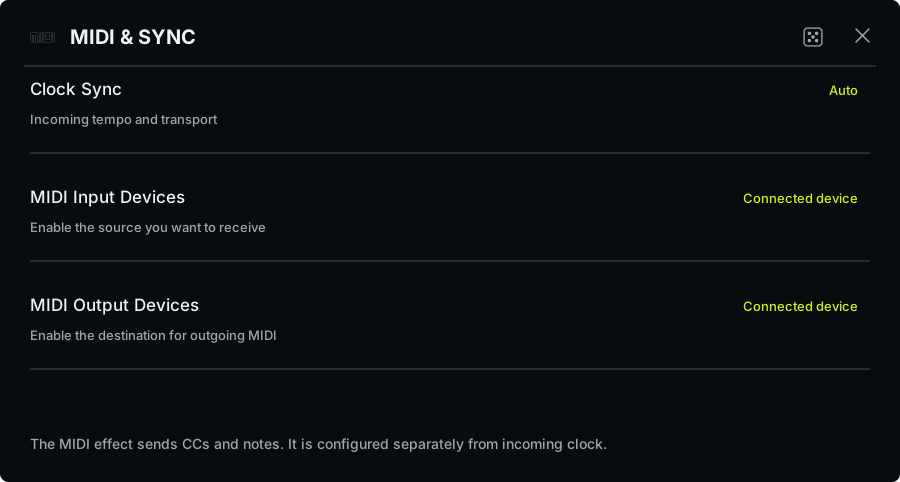
Receiving MIDI clock does not mean every incoming CC is assigned to an RMXY control. Seeing a device name in Settings confirms connectivity, not a completed parameter mapping.
Incoming MIDI control
Use RMXY-1 as an AUv3 in a host that maps external MIDI to exposed parameters. AUM is one supported workflow described by the product; the exact routing and mapping interface belongs to the host.
Exposed performance controls include X, Y, Hold, BRAKE, motion record, master dry/wet, looper controls, previous/next scene, and per-slot mute/solo, along with supported FX parameters.
Map one control first. Move a physical knob, confirm the intended RMXY parameter responds, then add more assignments. Check whether a button should behave momentarily or as a toggle in the host; a mismatched mapping can make Hold or stop behavior confusing.
Standalone does not currently provide general incoming MIDI-to-performance-control mapping. Use the AUv3 host path for that task. Standalone clock following is a separate supported function.
Standalone MIDI clock
In Settings → MIDI & Sync, choose Clock Sync. Auto uses the automatic source choice; Off uses manual tempo; selecting a device makes the clock source explicit. Enable the intended device where a device toggle is provided.
Watch the clock status, not only the BPM number. A tempo reading and a phase lock describe different things: speed and musical position. If clock is lost or off, the status indicates use of manual tempo. Set a sensible Standalone BPM as your fallback.
If two devices are sending clock, choose one source deliberately. Diagnostics are there to help investigate timing or connection problems; they are not extra performance controls.
MIDI output and note recovery
A MIDI slot sends messages; a receiving instrument must turn those messages into sound. Connect the output in the host, match channel and controller numbers, and confirm the receiver's audio path.
To recover a held note, release touches and Hold, then use BRAKE. RMXY-1 releases the notes it owns rather than deliberately silencing unrelated notes from other sources. If the external instrument remains stuck, use the host or instrument's panic function and inspect the route before continuing.
Settings
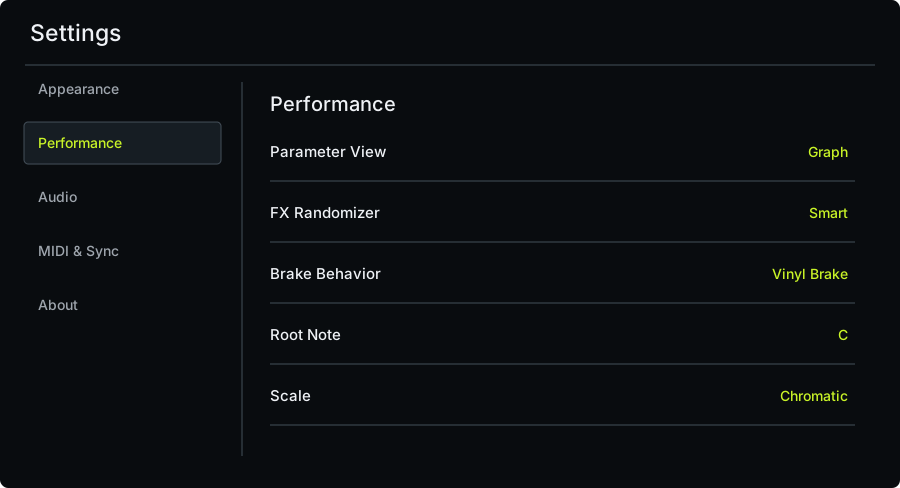
Settings is organized around Appearance, Performance, Audio, MIDI & Sync, and About. The available device controls depend on whether you are in standalone or AUv3.
Appearance
| Setting | Use it to |
|---|---|
| Theme | Dark, Bone Light, Pure White, Onyx, or Adaptive |
| Adaptive Surface | Choose the surface style when the Adaptive theme is selected |
| Adaptive Palette status | See the current adaptive palette state |
| Text Size | Improve label readability for your device and viewing distance |
| XY background | Choose personal background media from Photos or Files |
| Background opacity | Keep the image present without hiding pad feedback |
| Remove background | Return to the app's normal background |
Treat the pad background as a backdrop. Use opacity to keep position markers and note/time guides legible. A quiet image often works better than a high-contrast one under a moving finger.
Performance
| Setting | Choices and purpose |
|---|---|
| Parameter View | Graph or Knobs; two views of the same mapping data |
| FX Randomizer | True Random or Smart; affects future main/editor dice rolls |
| Brake Behavior | Mute, Vinyl Brake, Reverse Brake, or Glitch Brake |
| Root note | Global pitch reference used by the relevant tonal features, including Shepard |
| Scale | Currently displayed as Chromatic; do not treat it as a selectable scale library |
Set these before practicing a set. Changing randomizer policy or brake behavior alters what a familiar button will do next.
Audio
Standalone provides audio input, output route, interface connection status, and I/O buffer controls. Use refresh when available devices change, and Retry Connection for a saved interface route that failed or disappeared.
Auto Level is optional attenuation of hot processed output relative to the incoming signal. It can help compare a heavy effect chain with its source, but it is not a loudness target or a promise to normalize every sound. It is independent of the final linked true-peak protection.
Inside an AUv3 host, routing is marked Host Managed where appropriate. Change the route in the host rather than looking for a second independent audio engine inside the extension.
MIDI & Sync
Standalone BPM is the manual tempo for synced behavior when external clock is not supplying it. Clock Sync, status, diagnostics, and the available MIDI device controls belong here. For general incoming MIDI control of RMXY-1, use a host mapping as described in chapter 9.
In AUv3, use the host's tempo and transport. If a synced delay or loop behaves unexpectedly, first check whether the host transport is actually running and the intended time information is reaching the effect.
About
The About area provides website, manual, support, privacy, version, and publisher information. Include the app version, device, standalone/host format, host name, and a short reproduction sequence when contacting support. Those details are more useful than “sometimes it sounds wrong.”
Performance examples
Filter and Delay
Setup: X changes tone; Y changes space.
- Start with a Filter followed by Delay.
- Keep the Filter open at Base and map a darker cutoff to X.
- Choose a synced Delay with moderate feedback. Set Base mix to zero and map a moderate mix to Y.
- Practice bottom-left → bottom-right → top-right → top-left → bottom-left.
- Repeat the same path in the opposite direction.
Result. The same endpoints tell a different musical story when visited in a different order. One path removes brightness before the echo enters; the other brings the echo in while the source is still open.
Check. You can add tone change without space, space without tone change, or both together without looking at the editor.
Recording XY motion
Setup: learn what motion recording adds to live audio.
- Keep the two-effect scene from lesson 1.
- Turn Hold off and clear any previous motion loop.
- Start motion record and draw one simple rise and return over the bar.
- Let the motion play over several different phrases of the source.
- Clear the motion and perform the same shape manually.
Result. The gesture repeats, but the source keeps changing. This is why motion recording can animate a full track without freezing it into an audio loop.
Check. You can predict the start, peak, and release of the cycle and clear it at the desired musical moment.
Audio loop recapture
Setup: use recapture with intention.
- Capture a one-bar audio loop at a known tempo.
- Set Loop Dry/Wet to 100% and listen to one unaltered pass.
- Add one transformation, such as a time-FX fill or a dark filter sweep.
- Recapture a complete pass.
- Return the FX to a neutral state and listen to the printed result.
- Decide whether the next pass needs anything at all before recording again.
Result. Once printed, the gesture remains even when the mapping is neutral. Active processing can still act on that recording again.
Check. You can distinguish the sound already in the recording from the effect being applied now.
Generator scene
Setup: make a generator patch that rests silently.
- Select No Input in standalone if you are building an input-free patch.
- Insert OSC or Noise, then a Filter and a Reverb within the available limits.
- Set the generator's Base level to zero and assign level to Y.
- Assign a Filter movement to X. Keep the Reverb modest at first.
- Test all corners and release behavior, including Hold.
- Save it under a name that clearly identifies it as a generator scene.
Result. A quiet Base gives you a dependable starting point. The generator becomes part of a gesture rather than a sound you must keep muting.
Check. Recalling and releasing the scene never produces an unexpected sustained voice.
Preparing a scene bank
Setup: build a bank that has a musical progression.
Use Smart randomization to find an interesting movement, then reduce it to the elements you can hear and explain. Save a subtle version, a fuller version, and an extreme version as separate scenes. Add a neutral/recovery scene and arrange the bank in the order you intend to use it.
Switch between them with a continuous source. Compare the perceived levels, check the diagonal on each patch, and test what happens if you recall while Hold is active. Save the program after arranging the bank.
Result. Three related scenes are often more useful than three unrelated surprises. Leave unused positions empty when they are not needed.
Pre-performance check
Before playing a complete set, run one finite pass through these checks:
| Check | Successful result |
|---|---|
| Lower-left and all corners | Each scene has a predictable resting sound and usable extremes |
| Fast and slow gestures | Curves support both small corrections and large moves |
| Lift, Hold, and BRAKE | You know how each scene releases and recovers |
| Slot bypass and master mix | You can compare processing without losing your place |
| Loop Stop, Play, and Bypass Dry | Live versus loop routing is intentional |
| Scene recall | Adjacent scenes make musical sense at similar perceived levels |
| Session reopen / program import | Needed state and external effects are available |
| Interface disconnect/reconnect | You recognize the route status and recovery path |
Avoid learning a new clock route, a new recapture technique, and a new patch at the same time. Rehearse each separately, then combine them.
Troubleshooting
There is no sound
First isolate the source. In a host, confirm the channel has audio before RMXY-1 and that monitoring or playback is enabled. In standalone, confirm an available input and output, required permission, interface power, and channel selection. No Input intentionally supplies silence.
Then release BRAKE, clear an unwanted held gesture, and check master dry/wet. A fully wet effect or a filter can remove most of a source. If a loop is selected at 100%, make sure it contains audio and is playing. A generator at zero level is also intentionally silent.
If the source route is correct, temporarily bypass effects one at a time or use a simple known scene. Change one variable per check so you know what restored the sound.
Moving the pad changes nothing
Check that the effect is powered on, the parameter has an assignment on the axis you are moving, and its target differs from Base. Check the effect mix and master dry/wet. A silent source provides little to transform unless a generator is present.
If you recently used the audio looper, check Bypass Dry. With that on and the live contribution dominant, the live input intentionally avoids the chain.
The result is already extreme at rest
Base is allowed to contain processing. Inspect Base mix, generator levels, cutoff, and feedback. A True Random patch is not guaranteed to start neutral. Use Smart for a neutral-to-active starting design or edit the Base values manually.
Also check for Hold, motion playback, a frozen processor, and printed effects in a recaptured loop. Returning the pad to Base cannot remove processing already recorded into audio.
A sound continues after I lift my finger
Turn Hold off and clear motion playback if they are active. Check scene Decay, reverb/delay tails, feedback, Freeze, and generator Base levels. These are separate reasons for continued sound.
Use BRAKE for performance recovery. For external MIDI notes that remain active afterward, use the host or instrument's panic and inspect the MIDI path.
Timing feels wrong
Check the actual tempo source. In AUv3, inspect host tempo and running transport. In standalone, check Standalone BPM, Clock Sync source, and lock status. Ensure Sync is enabled on the relevant effect or looper.
Dotted and triplet values are intentionally different from straight divisions. Shuffle changes can wait for musical boundaries. Bluetooth/AirPlay can make a correctly timed effect feel late at your ears because of output latency.
The loop will not start recording
Read the state. Armed is waiting for a grid boundary. Check transport and clock. If you want an unsynced capture, stop/cancel the current attempt before changing Sync, then make a new recording. Keep the source playing long enough for the selected bar length to complete.
A scene change ended up in my loop
Scene, bank and Library changes stay available while audio capture is Armed or Rec, and the take records whatever the machine plays, including the change. To keep a scene out of a take, wait until the state shows Playing. Closing the looper panel does not finish recording; the LOOP key stays red until the take completes.
A recaptured loop sounds more processed every time
Recapture records the audible processing into a replacement take. That take then runs through the still-active chain. Return the mapping to a neutral state to hear what is printed, and choose each additional pass deliberately. This is not a set of separately editable overdub layers.
A saved scene seems different when I return to a bank slot
The slot can contain a working edit that differs from the saved library copy. Save the edit if you want to keep it permanently, or use the reload flow to restore the saved version. Also check live Hold/motion, the source, tempo, and loop routing; a scene is not a recording of all those conditions.
An exported program did not bring my audio loop
Portable scene and program files contain setup data, not recorded audio or motion loops. Use host-session saving for instance runtime state and host recording for portable audio.
I hear crackles or delayed monitoring
For crackles, reduce the chain load and try a larger I/O buffer or the equivalent host setting. For delayed monitoring, check the output route and avoid high-latency wireless monitoring when timing matters. Confirm the active hardware format after an interface change.
A larger buffer can help processing stability; it cannot repair a bad cable, missing route, or an external clock configuration.
An external MIDI instrument does not respond
Confirm the output route, receiver channel, and CC/note mode. For CC, confirm the receiving instrument's own assignment. For notes, ensure the receiver is an instrument with an audible patch and an audio route. A MIDI connection alone is not an audio connection.
For incoming controller mappings to RMXY-1, use the AUv3 host workflow; standalone device enumeration and clock reception do not create those mappings.
Reference
Control reference
| Intention | Control |
|---|---|
| Edit the starting sound | B in the effect editor |
| Set horizontal / vertical targets | X / Y in the effect editor |
| Keep a played position | Hold |
| Repeat hand movement | Motion record beside Hold |
| Capture sound | Rec inside the audio looper |
| Return gradually after release | Scene Decay |
| Fade one effect into the chain | That effect's Mix / Wet/Dry |
| Blend the complete chain | Master dry/wet |
| Blend live sound and loop | Loop Dry/Wet |
| Keep the live branch out of FX | Bypass Dry |
| Recover from held performance state | BRAKE |
| Save one patch / a full bank arrangement | Save Scene / Save Program |
Note divisions
| Value | Meaning in a four-beat bar |
|---|---|
| 1/1 | Whole note; one four-beat bar |
| 1/2 | Half note; two beats |
| 1/4 | Quarter note; one beat |
| 1/8 | Eighth note; half a beat |
| 1/16 | Sixteenth note; quarter of a beat |
| 1/32 / 1/64 | Progressively smaller divisions |
| Dot, “.”, or D | Dotted; one and a half times the straight duration |
| T | Triplet; two thirds of the straight duration |
The note division describes musical duration. The milliseconds change with tempo. Not every processor offers every division; use its menu as the available set.
Glossary
| Term | Meaning |
|---|---|
| Anchor | A stored Base value or X/Y target for a parameter |
| AUv3 | Apple's Audio Unit plug-in format; RMXY-1 can be hosted as an effect, and standalone can host compatible effects |
| Base | Parameter value at the lower-left of the pad |
| Bypass | Passing around processing; scope depends on whether you bypass a slot, a branch, or the whole plug-in |
| CC | MIDI Control Change; a numbered controller message |
| Curve | How quickly movement approaches its target along an axis |
| Decay | A return or tail duration; scene Decay and reverb Decay act on different things |
| Dry / wet | Original versus processed signal; always identify which blend the label refers to |
| Feedback | Returning some processed output to a processor's input |
| Freeze | Holding captured material or an internal field instead of continually refreshing it |
| Grain | A short fragment of recorded sound used as a building block |
| Host | App that loads the AUv3 and manages routing, transport, and session state |
| LFO | Low-frequency oscillator used as a control signal |
| Mapping | Assignment that connects an axis or modulation source to a parameter |
| Motion loop | Repeating XY movement, not an audio recording |
| Recapture | A replacement recording of the current audible looper result |
| Resonance | Emphasis or ringing around selected frequencies |
| Scene | One playable chain and its configuration |
| Sync | Tying timing to a tempo or transport source |
| Working scene | Editable scene state kept by a bank position until explicitly saved or replaced |